Comparative Quality Control Groups
Description, Purpose and Objective
NOTE
The Comparative Quality Control Groups (or CC Groups) view is the module responsible for grouping multiple CC Tests under the same logical criterion or clinical profile to facilitate integrated visualization and analysis of massive data.
A Quality Control Group (or CC Group) is a group with its own name (e.g. Lipid Profile, General Chemistry) that associates a set of CC Tests configured in the organization.
The goal of this view is to simplify daily analytical management, allowing bacteriologists and quality engineers to enter results from multiple related tests in a single unified form (group entry) and generate integrated analytical reports for complete diagnostic profiles.
Context of Use
This module is used by analyst staff and quality coordinators to:
- Organize workflows by areas: Group exams corresponding to the same section of the laboratory or that are processed on the same instrument.
- Enable group entry of results: Allow quick recording of results of controls of several simultaneous analytes (e.g. recording Glucose, Urea and Creatinine from Renal Profile in a single stroke).
- Analyze profile statistics: Study in a unified way the performance and variability of a set of related diagnostic tests.
Possible Actions
1. Consult and Search CC Groups
Shows the organization's group catalog with its name, the number of CC tests that make up each group, and the registration date. The search engine allows you to filter groups by name immediately.
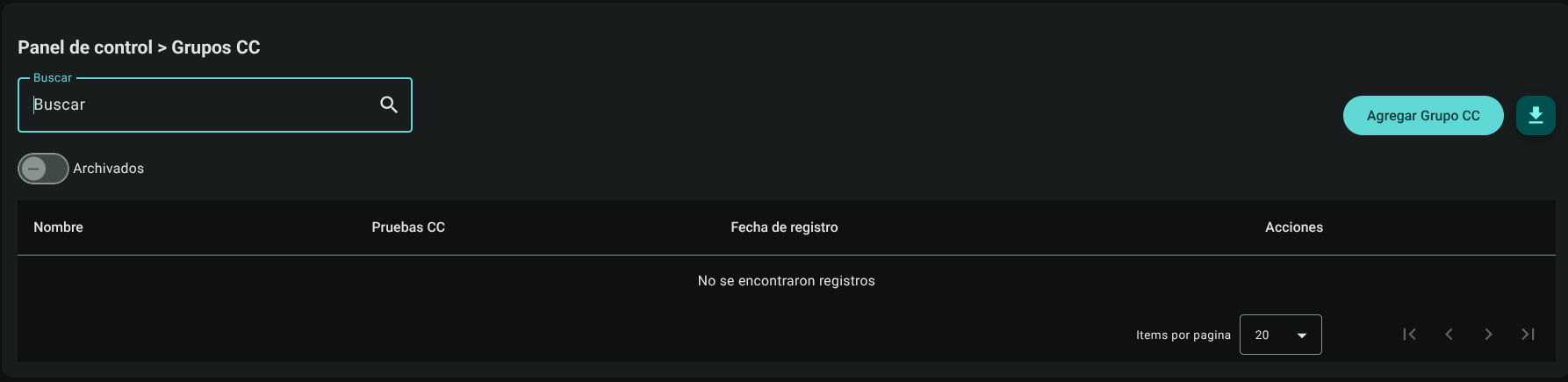
2. Add a CC Group
To configure a unified testing profile:
- Click "Add CC Group" at the top right.

- The main screen will change to show the CC Test Selection Table. Select the check boxes for the tests you want to include in the group.
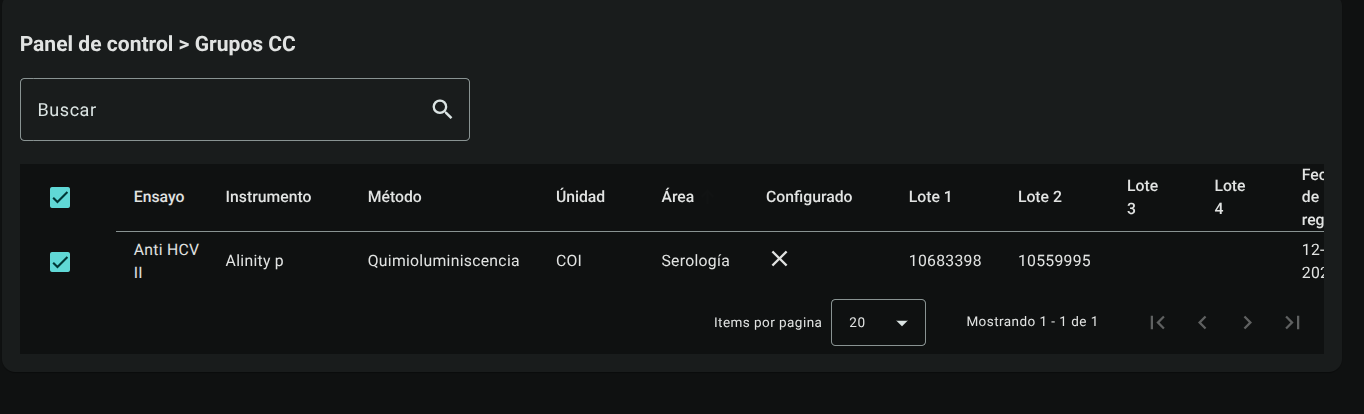
- In the right side panel, assign a descriptive Name to the group (e.g. Thyroid Profile).
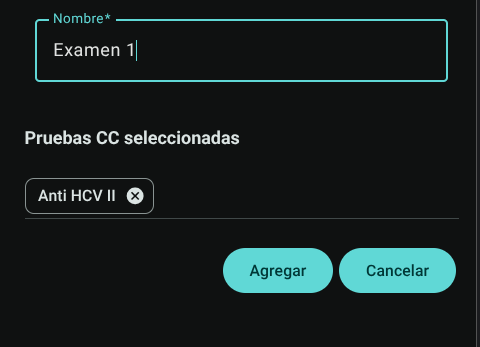
- Selected tests will be dynamically listed as Chips (visual tags) below the name field.

View test details: Position the cursor over any test label in the panel to open a tooltip window detailing the analyzer, lot numbers, and analytical calibration (measurand, method, unit, manufacturer).

- Remove a test from the group: Click the cancel button (❌) inside the corresponding chip on the side panel to remove it from the selection list.

- Click "Add" in the footer to save the group.

3. Edit a CC Group
To modify the group name or alter the list of integrated QC Tests:
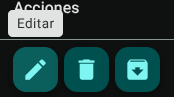
- Click "Edit" (pencil icon ✏️) in the corresponding group.
- Add or uncheck tests in the main table and adjust the name in the preloaded right side panel.
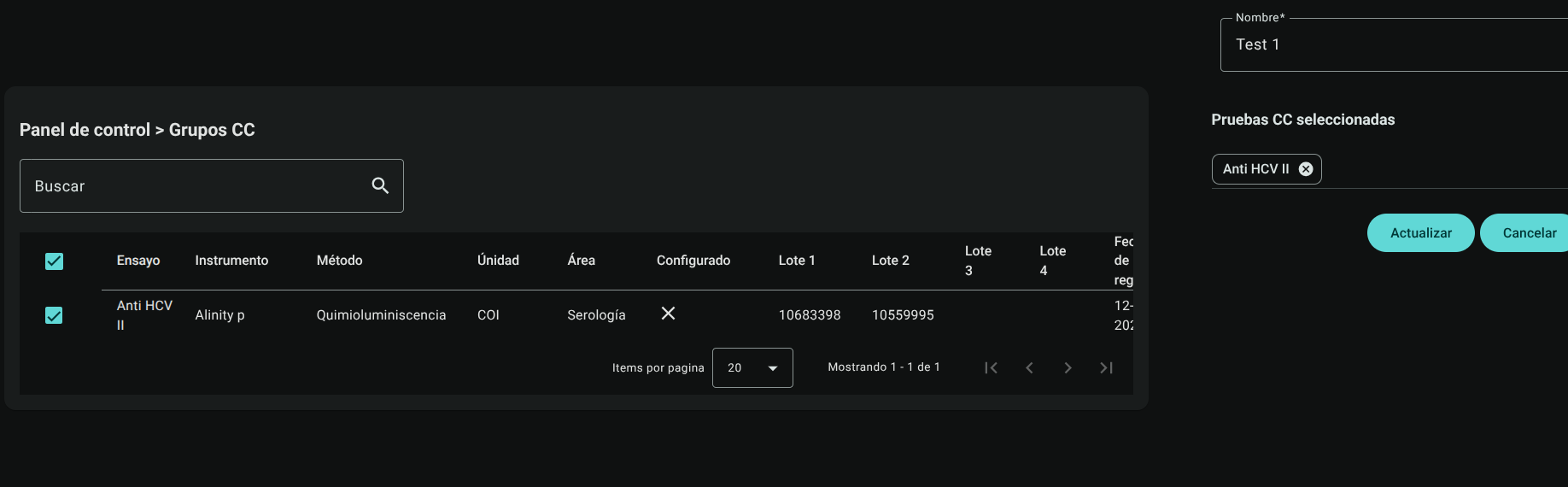
- Click "Update" to confirm the modifications.

4. Archive and Unarchive CC Groups
Allows you to remove discontinued analytical groups or obsolete profiles from the active menu:
- Archive: Click "Archive" (📥 icon) in the corresponding group row to hide it.
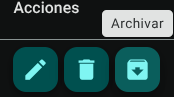
- Unarchive: Use the "Archived" switch at the top of the table to list inactive groups, and click "Unarchive" in the row for the group that requires reactivation.

 -
- 
5. Delete a CC Group
To permanently remove the pooling profile:
- Click the trash icon (🗑️) in the group and confirm the action in the pop-up box.

WARNING
Deleting a CC Group undoes only the logical profile grouping. The associated individual CC Tests and their historical results remain intact in the organization's database.
6. Export CC Groups
Click the download button in the header to download the consolidated list of analytical groups and their relationships in .CSV format.
Roles and Permissions Required
Access to this parameterization module is reserved for the roles of Quality Director, Laboratory Coordinator and System Administrator. Requires the following technical permissions:
- Display and Audit:
qcgroups_read(allows you to consult the list, filter parameters and audit the current configurations). - Management and Writing:
qcgroups_create,qcgroups_updateand