Registrations and Enrollments
Description, Purpose and Objective
NOTE
The Registrations and Registrations view is the administrative console where the complete process of consulting, registering, managing and exporting participant registrations on the platform is managed.
An Registration represents a participant's registration record and includes the following key fields:
- Name and Email: Identification and contact information of the participant.
- Organization: Entity or headquarters associated with the registry.
- Participant ID: Unique identifier code in the system.
- Year: Validity of the evaluation period.
- Uploaded Events: Selection of events or programs of the period enabled for the participant.
The objective of this module is to control the formal access of venues and participants to evaluation events, ensuring the traceability of their data and subscriptions.
Context of Use
This module is used by administrative coordinators to:
- Consult and export registrations: Audit the active list of participants by year or location.
- Register new registrations: Link participants to organizations and upload their corresponding events.
- Manage existing registrations: Modify registration data or revoke active registrations.
Possible Actions
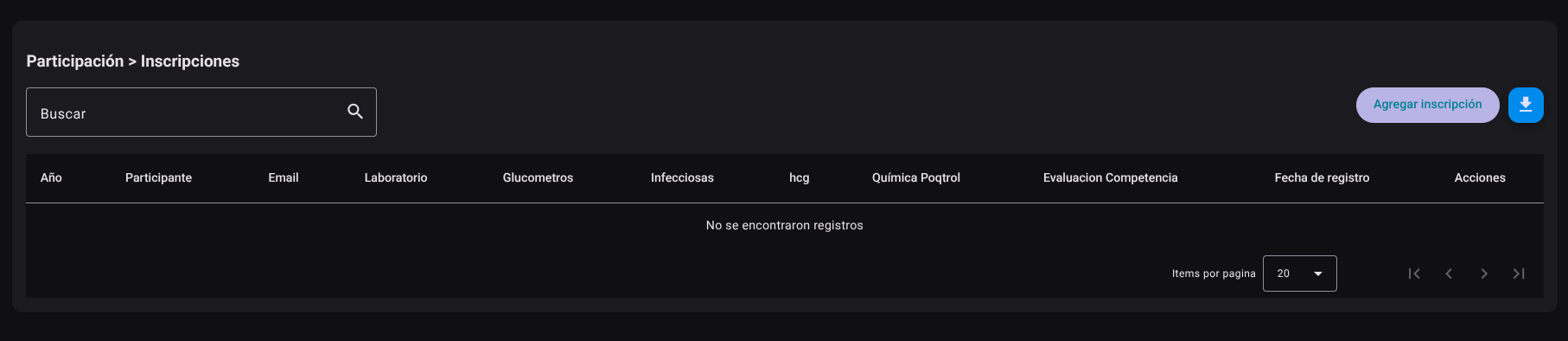
1. Consult and Filter Registrations
- Use the search bar (Search) to quickly locate a participant by name, email, or organization.
- Click on the header of any of the columns (Year, Participant, Email, Organization, etc.) to sort the table ascending or descending.
- The list updates the data display in real time.
2. Register a New Registration
- Click the ****Add Enrollment" button located in the upper right corner.

- In the side panel that appears, fill out the required fields:
- Name*
- Organization*
- Participant ID*
- Year*
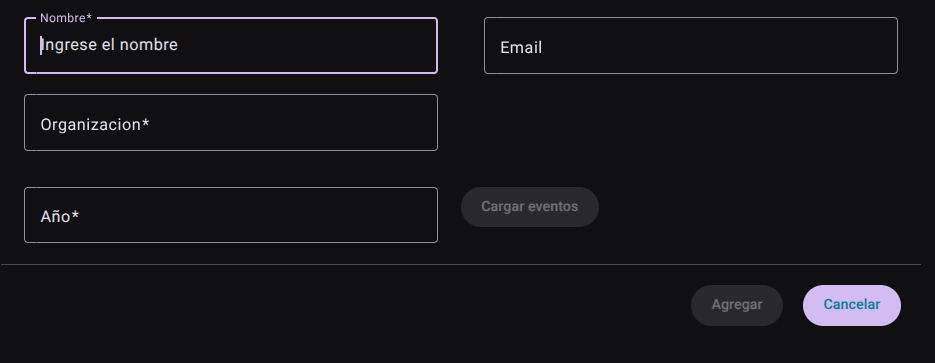
- Press the ****Load Events" button to enable the selection of events or programs for the period entered.
- Finish the registration by clicking the "Add" button (or select "Cancel" to close the panel without saving).
- The main table will update the list in real time after saving the registration.
3. Edit an Existing Registration
- In the row of the desired registration within the main table, locate the Actions column.
- Click the **edit button (Edit, pencil icon).

- Open the edit form to update the participant's information or active registrations.
- Save changes to update the log in real time.
4. Delete an Entry
- In the Actions column of the corresponding participant's row, click the ****Delete" button (trash can icon).

- Confirm the action to permanently delete the participant's registration from the system.
5.Export the Registration List
- Click the **blue button with download icon (Export Enrollments) located at the top right of the view.
- The system will directly download the file with the complete consolidated registrations.
Required Technical Permits
registration_read: Authorizes the consultation and filtering of the registration register.registration_create: Allows you to register participants and load events from the period.registration_update: Enables editing of participant data and active registrations.registration_delete: Allows permanent deletion of enrollment records.registration_export: Authorizes the download of the complete registration report. **