Linking Users and Projects
Description, Purpose and Objective
NOTE
The User and Project Linkage view is the ERP section designed to manage the allocation of the organization's human capital to the different active projects, establishing the operational and financial parameters of each relationship.
An Assignment is the formal registration that links a User (collaborator or specialist) with a Project (development, consulting or service contracted by a client) during a specific period. Through this module, the hourly cost rates and the agreed daily availability for each resource are defined.
The objective of this view is to centralize and control operational assignments, facilitating automatic payroll calculation, time tracking reconciliation, and project cost auditing.
Context of Use
This module is used by the administration team and Project Managers (PM) to:
- Plan resources: Assign developers, consultants or leaders to specific projects with clear effective dates.
- Control costs: Define the hourly rate that the collaborator represents for the project in order to project financial margins.
- Establish capacities: Declare the contracted or planned daily hourly intensity to avoid work overloads.
- Audit relationships: Consult the history and current status of labor relationships associated with the organization's projects.
Possible Actions
1. Query and Export of Links
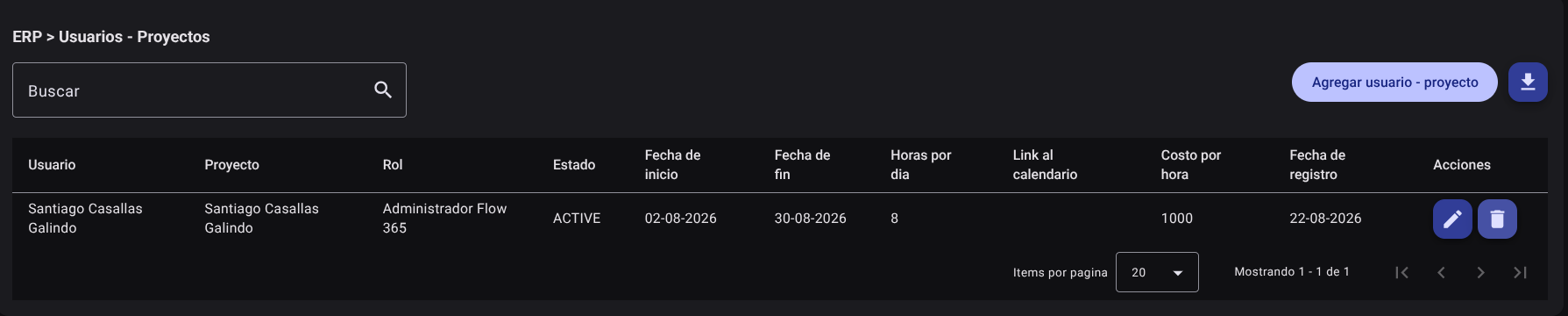
It allows you to view the consolidated list of all user-project assignments in an interactive table that shows the name of the collaborator, the assigned project, the effective dates, the role, the cost rate, the agreed schedule and the status of the assignment.
- Filter and Sort: Enter a user or project name in the search bar (Search) to filter results in real time. You can also click the column headers (User, Project, Status, Hours per day, Cost per hour) to reorder the table alphabetically or numerically.
- Export Data: Click on the blue button with the download icon located next to the create button to download the general consolidated linkages in .CSV spreadsheet format.
2. Assign a User to a Project
To link a new collaborator to a project registered in the system:
- Click the Add User - Project button located in the upper right corner of the view.

- A right side panel will appear. Fill out the following fields of the form:
- User*: Select the collaborator's name from the autocomplete drop-down menu.
- Project*: Select the project to which the resource will be assigned.
- Role*: Select the operational or administrative role you will play within that project (e.g. Developer, PM, Designer).
- Start Date*: Define the start date of the assignment using the calendar selector.
- End Date: Define the estimated end date of the assignment period (leave empty if indefinite).
- Hours per day*: Enter the agreed daily time intensity for the project.
- Cost per hour*: Define the monetary cost of each hour of work performed by this user in the project.
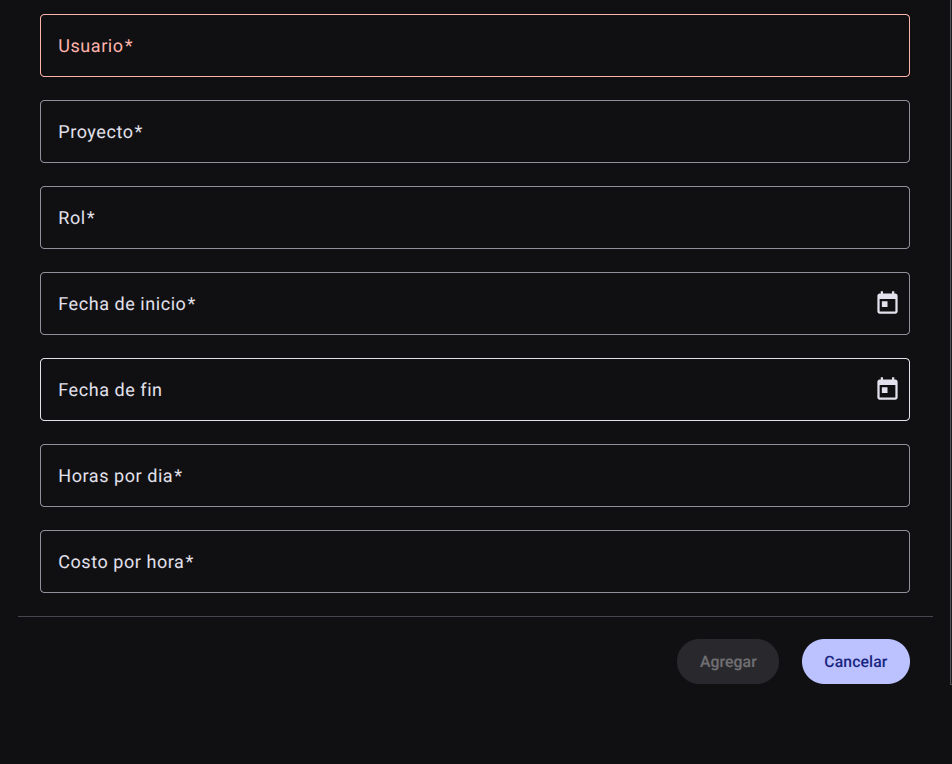
- Click Add to register the pairing. If you wish to decline the operation, click Cancel.

3. Edit an Existing Assignment
If you need to modify the financial terms, time availability or effective dates of the collaborator:
- Identify the assignment in the overview table and click the pencil icon (✏️) within the actions column.
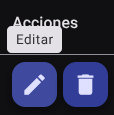
- The side panel preloaded with the assignment information will open. Modify the necessary data (for example, update the hourly cost for a salary adjustment or change the project end date).
- Click Update to save your changes immediately.

4. Delete an Assignment (Unbind)
To formally unassign a user to a project:
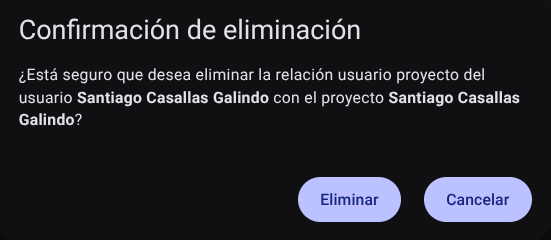
- Click the trash icon (🗑️) in the corresponding row.
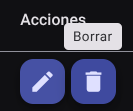
- The system will display an alert modal with a confirmation request: Are you sure you want to delete the user project relationship of the user [User Name] with the project [Project Name]?
CAUTION
Deleting a user-project link could result in the loss of historical records in the automatic payroll calculation and consolidated financial reports of that project if there are hours charged to the relationship.
Required Technical Permits
Viewing and managing user and project bindings are governed by the following privileges:
user_projects_read/user_projects_list: Allows access to the view, viewing registered assignments and performing relationship searches.user_projects_create: Enable the button and side panel to register a new assignment.user_projects_update: Allows editing of rates, effective dates and hours in existing links.user_projects_delete: Enables the physical deletion action of the database record.user_projects_export: Allows you to download the consolidated assignment report in.CSVformat.