Registration and Entry of Quality Control Results
Description, Purpose and Objective
NOTE
The Registration and Entry of Results suite is the daily operational core of the quality area on the Quattrol platform. Its purpose is to capture, validate, statistically analyze and export the analytical results obtained by measuring control materials (control sera), offering two work modalities: detailed and individual entry by Test and massive and structured capture by Analytical Group.
The main objective of this module is to process and apply in real time the Westgard rules and statistical calculations (Mean, SD, CV%, SDI and Sigma Index) on each saved result, immediately alerting the bacteriologist through visual alerts (⚠️) or rejection sirens (🚨) in case of analytical deviations, thus preventing erroneous results from being reported in patient samples.
Context of Use
This panel is operated in the daily routine of the laboratory by:
- Bacteriologists and Instrument Operators: To record control values at the start of the shift, verify the stability of the analyzer and justify deviations.
- Quality Coordinators and Directors: To perform control audits, authorize the manual acceptance of runs rejected by Westgard (overriding), evaluate comparative statistics of Grupo Par and export control logs for regulatory entities.
1. Navigation and Structuring (Left Side Panel)
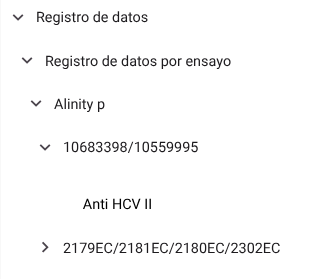
For ease of access and consistency across the lab, the capture menu is organized hierarchically on the left side panel:
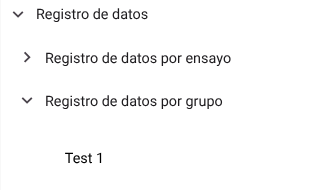
- Hierarchical Organization: The modules are grouped according to their physical infrastructure. By expanding the menu of an instrument (e.g. Alinity p or Cobas 6000), the associated quality control tests are displayed, clearly ordered and showing the nomenclature of the active reagent lot along with its identifying code.
- View Selection:
- Data recording by trial: When selecting a specific test within this section, the central panel will be adapted with the control charts, history table and individual capture module for that trial.
- Data logging by group: When selecting an analytical group template, the interface will become a massive input matrix for typing multiple tests simultaneously.
2. Submodule: Data Recording by Test
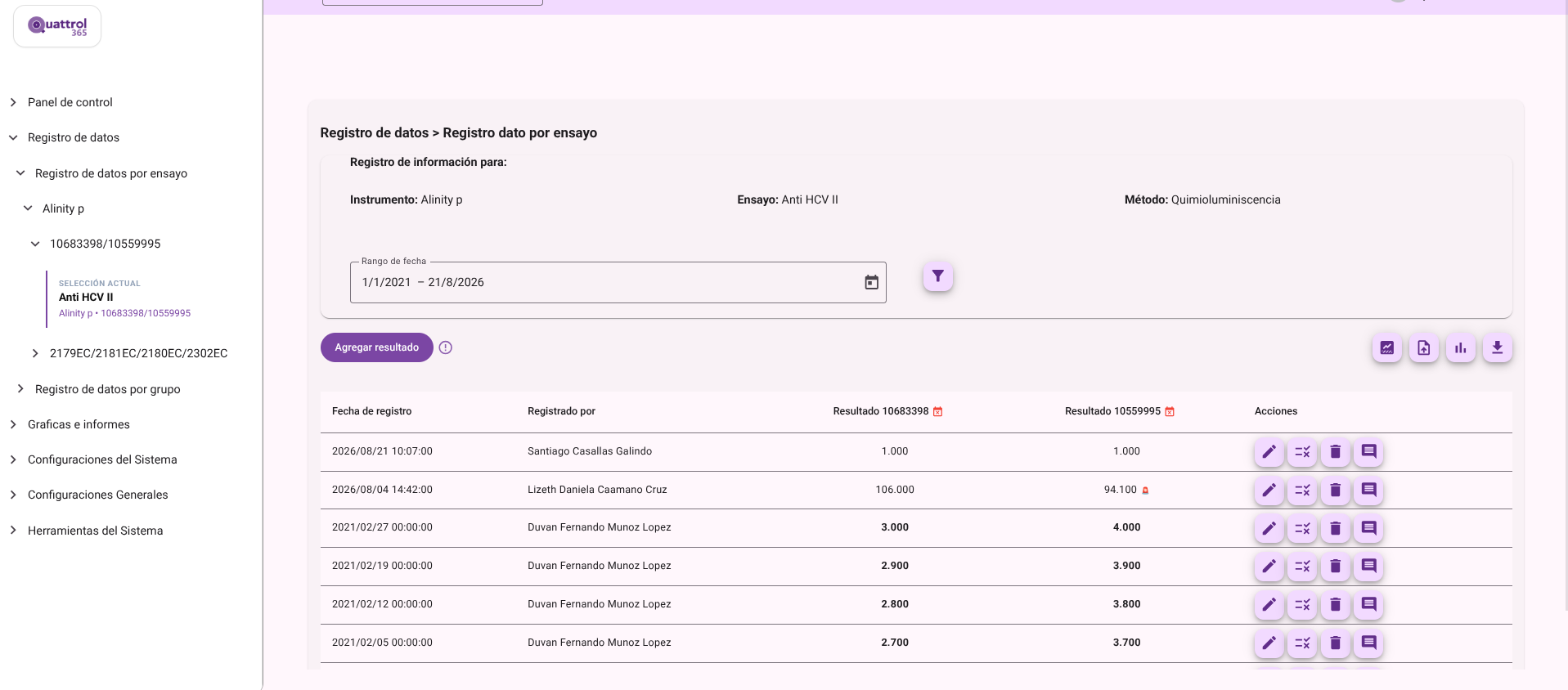
When selecting an individual assay, the interface is divided into three operational sections:
Header Information and Filters
- Test Metadata: Displays the selected Instrument, Test and Method of analysis on a fixed card.
- Filter by Date: Allows you to delimit the query range (Start Date and End Date) using calendar selectors. Press the Filter button (funnel icon 🔍) to update the results history list.
Analytics and Export Toolbar (Top Right)
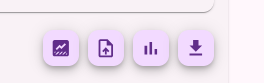
The navigation buttons allow you to toggle the type of visual analysis of the selected test:
- Import results: Enables bulk import of results using flat data files.
- Graphs: Links directly to the interactive view of the Levey-Jennings Graphs and Pair Graphs of the essay.
- Results: Loads the detailed table view with the chronological measurement log.
- Histogram: Generates the frequency distribution of the values to analyze symmetry and dispersion.
- Export results: Download the database of visible or filtered records in a .CSV format file executable in spreadsheets.
Individual Capture Process (Add result)
- Click the purple Add Result button at the top of the table.
- An editable form row will be displayed in the first row of the grid:
- Registration Date and Time: Enter the day (calendar) and time (clock) the check was processed.
- Registered by: Automatically displays the name of the logged-in user making the transaction.
- Batch X Result: Enter the numerical values obtained for each batch level configured in the test (e.g. Batch 1, Batch 2).
- Comment to: If you require entering a note, define its scope in the drop-down list (e.g. All or a specific batch).
- Text field (Comment): Enter the relevant technical observation (quick auto-complete templates are available).

- Press the Save button (save icon) to confirm inserting the result and processing Westgard. Or press X (Discard) to void the row.

Record History Management (Actions Column)
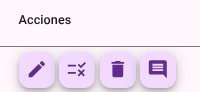
Each stored result row has direct management options:
- Edit: Allows you to correct figures or reagent lots in a previously saved control.
- Reject / Modify Status: Allows quality users to apply manual overriding, that is, forcing a result to Manual Rejected status (excluding it from the statistics) or Manual Accepted despite violating automatic rules.
- Comments: Opens the complete history of notes associated with the control row and allows new corrective actions to be recorded.
- Delete: Irreversibly deletes the analytical record from the laboratory database.
Lower Statistical Analysis Module
- My statistics: Displays in real time the laboratory metrics (N, Mean, SD, CV% and Sigma Index) calculated for each batch, divided into the Month/Period and Accumulated tabs.
- Pair Group: Shows in parallel the consolidated statistical data of the pair group of participating laboratories that use the same method, batch and period analyzed, facilitating the evaluation of bias.
3. Submodule: Data Registration by Group
For mass matrix entry of complete analytical profiles:
Group Heading and Operating Parameters
- Identification: Shows the name of the active CC Group (e.g. Thyroid Profile or Basic Chemistry).
- General Parameters: Select the Registration Date (calendar) and enter the Registration Time (hh:mm). This metadata will be automatically replicated across all results in the group. The system displays the user's session as Registered by.
Mass Capture Grid
The grid vertically lists all CC Tests linked to the group template:
- Lot 1 Result / Lot 2 Result: Enter the value obtained in the numerical cells for each control level of the test.
- Tip: Press the Enter key on your physical keyboard to quickly move to the next field down the grid.
- Comment for: Choose the lot to which the comment is directed.
- Enter or select a comment: Free field or auto-complete template to detail incidents in the group run.
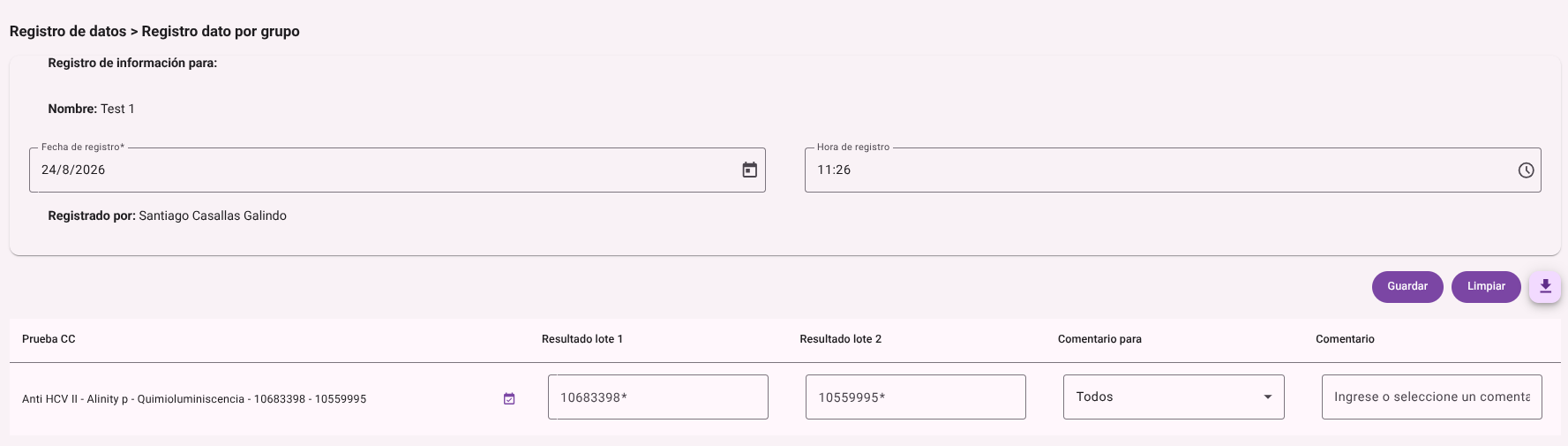
Control and Exit Buttons
- Save: Purple button that processes and inserts in a single block of transactions all the data entered in the matrix towards their respective tests.
- Clear: Resets the capture grid cells to zeros to initialize a new entry.
- Export results: Top button to download the consolidated group entered in .CSV format.

Manual Acceptance and Rejection Criteria (Overriding)
WARNING
Risk Management Guidelines for Directors and Quality Coordinators:
- Manual Acceptance (Overriding to Accepted): When a result violates a Westgard rule configured as rejection, the system excludes it from the accumulated averages. The director or coordinator can force its acceptance only if it is documented that the alarm was due to a transitory condition without impact on patient samples (e.g. false rejection due to excessively narrow control limit or $1_{2s}$ rule not associated with shift). It is mandatory to document the technical justification in the Comments field.
- Manual Rejection (Preventive Exclusion): If a control is numerically within $\pm 2s$ but the bacteriologist detects obvious signs of contamination, bubbles, thermal deterioration or clot in the aspiration needle, he must mark the data as Manual Rejection. This prevents an artificially altered measurement from contaminating the analyzer's monthly mean and standard deviation.
Roles and Permissions Required
The roles enabled to record, report and validate control data on the platform are Bacteriologist / Laboratory Analyst, Instrument Operator and Director / Quality Coordinator. The specific system permissions required to interact with these views are:
- Essay Results Operation:
data_entry_read: Allows reading access to the results log per test, temporal filters and visualization of local statistics.data_entry_create: Enables the insertion of new analytical records and the addition of corrective action comments in the history.data_entry_update: Enables correction and editing of previously saved results within the authorized shift.data_entry_delete: Grants privileges to physically delete analytical records from the log.data_entry_manually_reject(Reserved for Directors/Coordinators): Allows you to force the validation status (Manually Accepted/Rejected) by overwriting the automatic Westgard multi-rules.data_entry_export: Allows you to export and download the filtered analytical log in.CSVformat.
- Results Operation by Group (Matrix Capture):
data_entry_group_read: Allows access to the matrix interface and visualization of the configured analytical group profiles.data_entry_group_create: Authorizes bulk saving of captured results in the grid and use of the form cleanup function.
data_entry_group_export: Enables the download of the consolidated analytical group in.CSVformat.