Data Mapping and Homologation
Description, Purpose and Objective
NOTE
The Data Mapping and Homologation view (Mapper) is the integration engine designed to configure bidirectional file translation templates, allowing the organization to connect the reports generated by any analyzer or external laboratory computing system (LIS) without altering the platform's internal catalogs.
The mapping and homologation process is divided into integrated phases:
- Input Mapping: Defines which column of the imported file contains each data (e.g. Column 1 = Date, Column 2 = Test Code, Column 3 = Result). Allows you to apply Cleaning rules to remove unwanted characters (periods, spaces, letters).
- Homologation: It is the translation or equivalence table of vocabularies (e.g. translating the code
"GLU"from the file to the"Glucosa"measurand in the database). - Output Mapping: Defines the format and order in which a file exported by the system will be structured.
- Converter and Import Module: Diagnostic tools to test translations and import the resulting results to quality control directly.
The objective of this view is to automate the reception of external quality control data, eliminating manual typing and allowing flexible approval of multiple analytical codings centrally.
Context of Use
This panel is operated by systems engineers or quality assurance coordinators during:
- Connection of Analyzers: Interconnect an automated device that exports its results in a specific CSV file.
- LIS Systems Integration: Configure input mapping for the organization's laboratory software.
- Standardization of Reports: Generate files with specific structures required by the quality audits of the headquarters.
Possible Actions through your Tabs
1. Configure Input (Tab)
Allows you to define how the uploaded results file will be read:
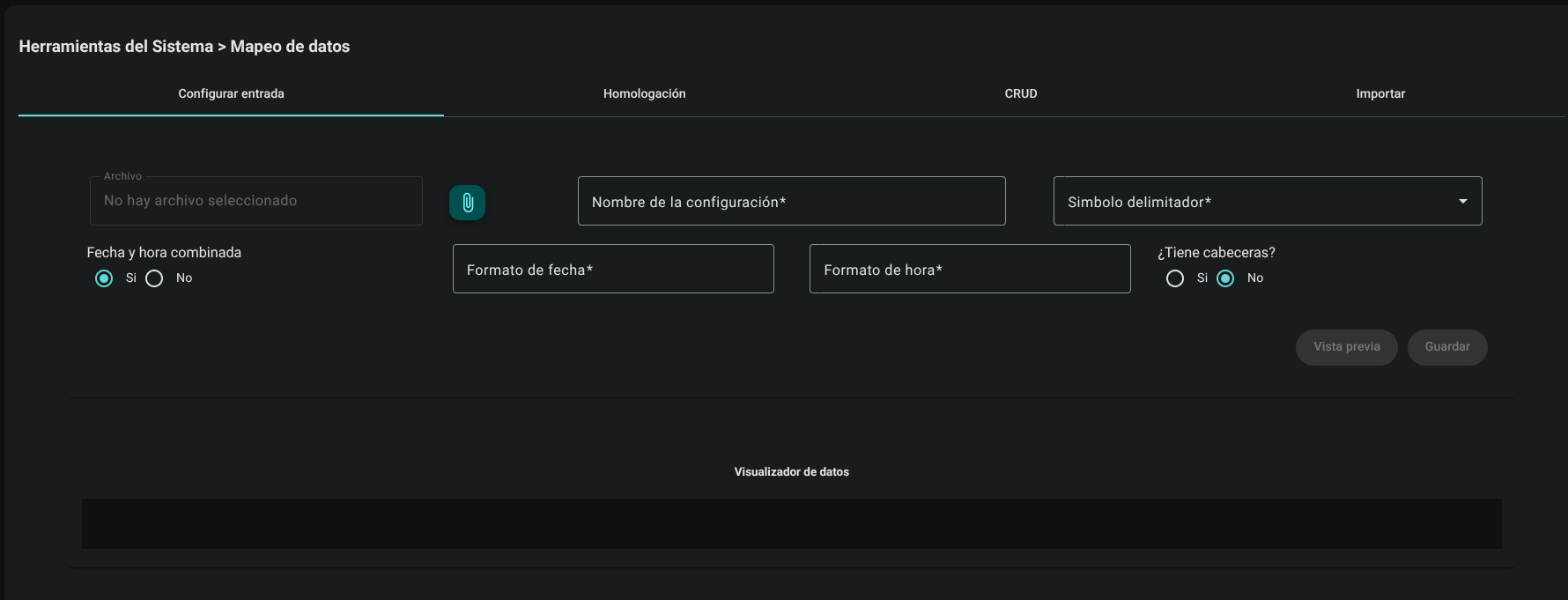
- Upload and Delimitation: Upload a test file by clicking the paperclip icon 📎, define a name for the configuration and the file delimiter symbol (e.g. comma
,, semicolon;or tab).

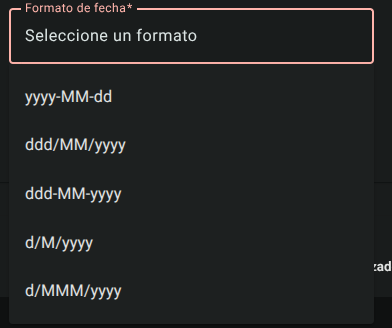
- Date and Time Format: Type or select the temporary format of the file (e.g.
dd/MM/yyyy HH:mm:ss).
- View and Organize Data:
- Click "Preview" to open the file content viewer.
- In the table below, associate each system field (e.g. Result, Test, Instrument) to the column number of the file.
- Character Cleaning: If the file contains foreign characters attached to the number (e.g.
12.5 mg/dL), set the discard positions (counting from the right) to extract only the clean number.
- Click "Save".

2. Homologation (Tab)
This section translates the terms in the uploaded file to the equivalents in the organization's master catalog:

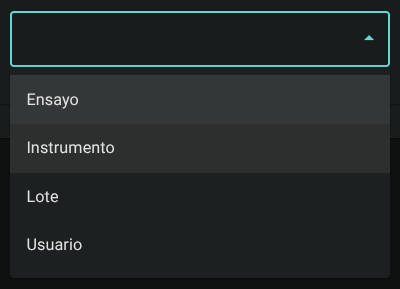
- Select the mapping type at the top: Per Assay, Per Instrument, Per Lot, Per Reagent Lot or Per User.
- The system will list the names found in the uploaded file below and a drop-down menu to the right to assign the approved element of the organization.
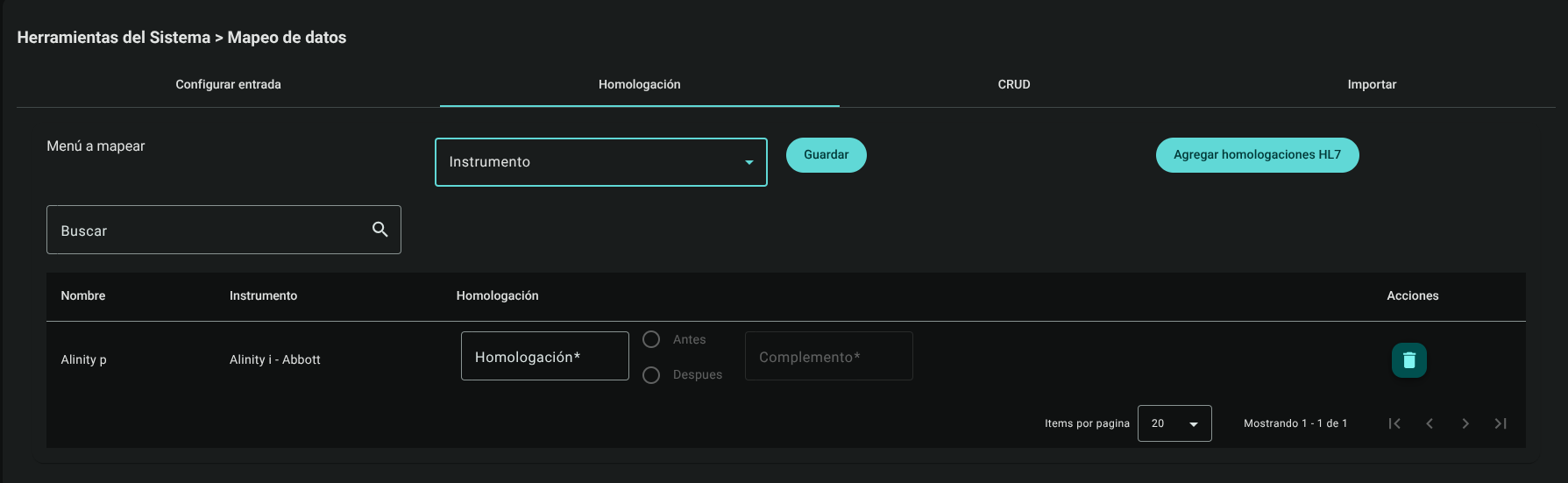
- Prefixes and Suffixes: Optionally, configure a "plugin" to automatically add words before or after a mapped value (e.g. prepend a venue code).
- Click "Save".

3. Configure Output (Tab)
Configure how the exported reports will be structured:
- Define the name of the configuration, the output delimiter, and whether to include a header row.
- Indicate whether you want to consolidate the date and time into a single column.
- Map the columns in the desired order for the resulting CSV file.

- Click "Save".
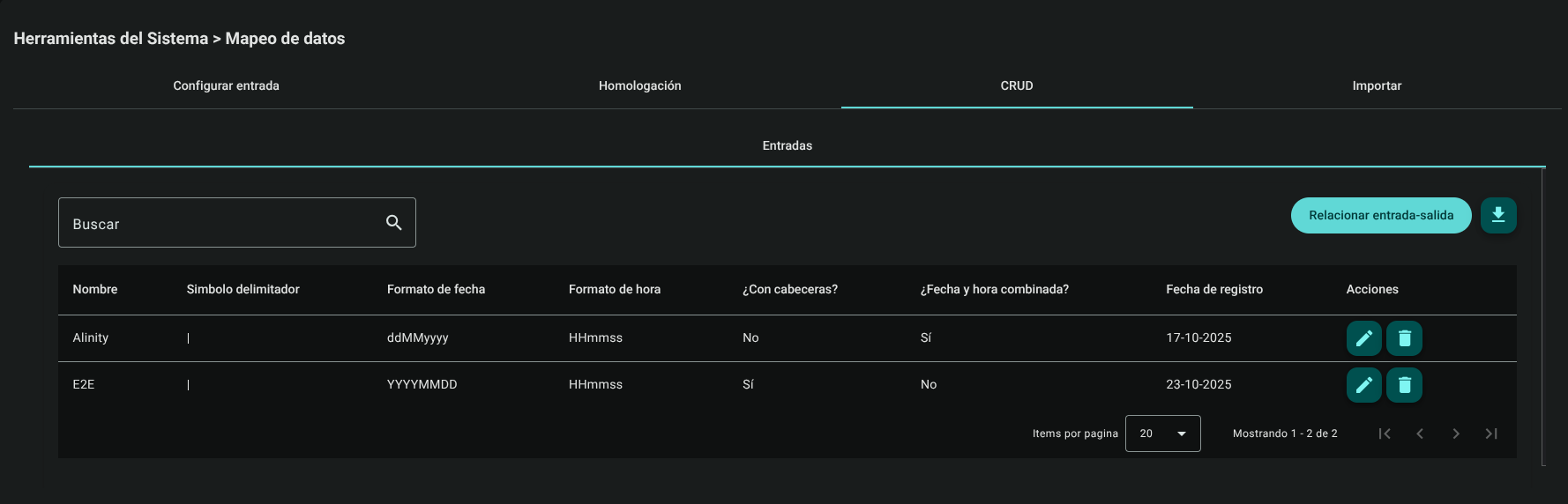
4. CRUD (Tab)
Allows you to manage the database of input and output mappings saved in the organization:
- Shows the list of configurations.
- Allows you to edit its properties or delete obsolete configurations directly.
5. Import (Tab)
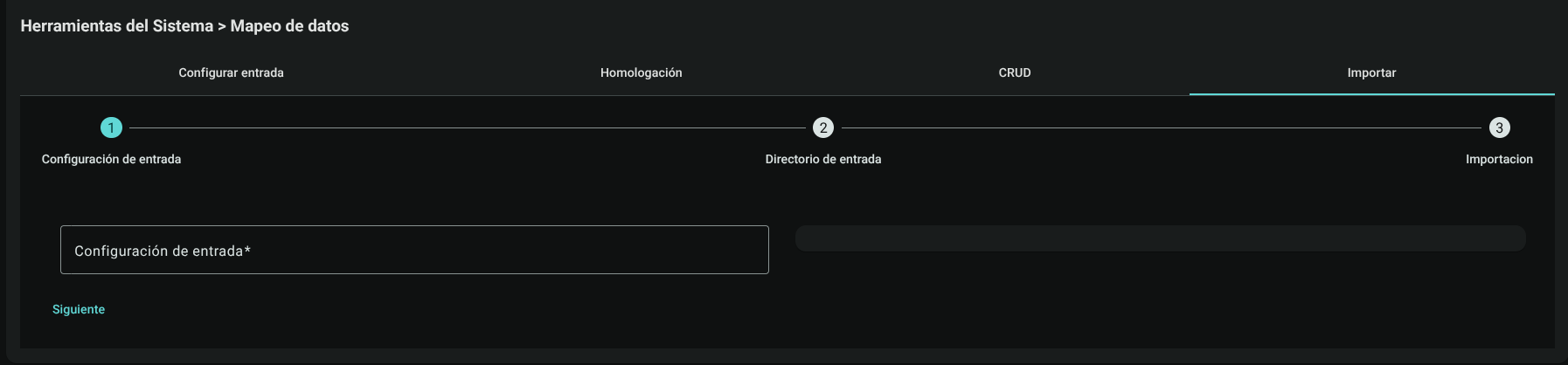
Once the mapping is configured and tested, this tab allows bulk input of the file results to the active database:
- Select the corresponding entry and approval configuration.
- Upload the team file.
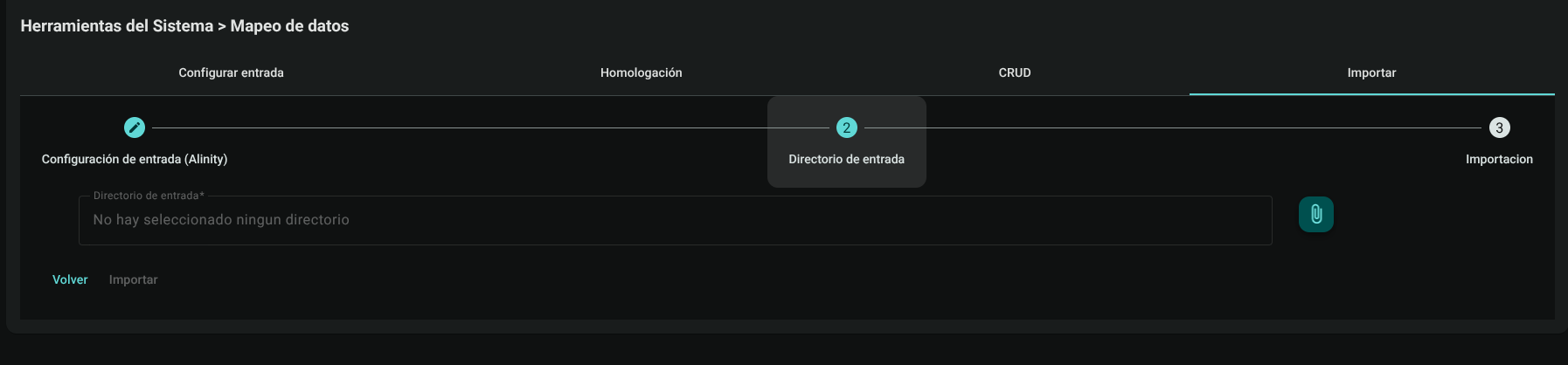
- Click "Import". The system will process the file, validate the Westgard rules and upload the results to the logs corresponding to each CC Test.

Technical Recommendations for Interoperability and Data Validation (LIS / Middleware)
TIP
Guidelines for Automation of Analytical Interfaces:
- Standardization of Units and Factors in Homologation: When connecting an automated analyzer via flat file (CSV/ASTM), verify that the internal coding of the instrument matches the unit of the master catalog in Quattrol. If the analyzer outputs measurements in alternative units or unconverted indices, apply appropriate approval to avoid artificial biases.
- Validation of Sample Identifiers and Control Level: Configure cleaning rules to discard control characters or alphanumeric rack prefixes that may prevent accurate assignment to Lot 1, Lot 2, or Lot 3 of the QC Test.
Required Technical Permits
Access to the integrator console requires:
data_mapping_setup_read/data_mapping_setup_create/data_mapping_setup_delete(Tab Entry and CRUD).data_mapping_homologation_read/data_mapping_homologation_create(Homologation Tab).data_mapping_output_read/data_mapping_output_create(Configure Output Tab).data_mapping_conversor_read: (Converter Tab).data_mapping_import_read/data_mapping_import_create: (Import Tab).