Expense Reimbursement Management
Description, Purpose and Objective
NOTE
The Refund Management view is the ERP module in charge of processing, auditing and legalizing requests for refunds for representation expenses, travel expenses or minor purchases made by collaborators on behalf of the organization.
A Reimbursement Request (or Expense Legalization) is an accounting record that associates a purchase or expense with a Client, a corporate Project, a Category of Expenses (e.g. Transportation, Food, Lodging, Materials), a gross Invoice Amount, a Net Reimbursement (the total to be returned to the employee in their corresponding currency) and a Support digital file (scanned invoice or payment receipt attached).
The objective of this view is to automate and control the expense legalization flow, guaranteeing that each expense is supported by its respective invoice and has the authorization of the project leader and the accounting team.
Context of Use
This module is used by:
- Collaborators: To report and upload support for expenses incurred during the execution of their work for projects.
- Project Managers (PMs): To validate and authorize refunds associated with their projects and charge them to the corresponding client cost budget.
- Accounting and Taxes: To audit the tax validity of invoices (support) and authorize the payment of the refund.
Possible Actions
1. Consult and Search Refund History
Displays a table with all the user's requests, indicating: Client, Project, Expense Category, Expense Date, Frequency, Currency, Invoice Amount, Net Refund, Approval Status (Pending, Approved, Rejected) and the option to consult the attached support.
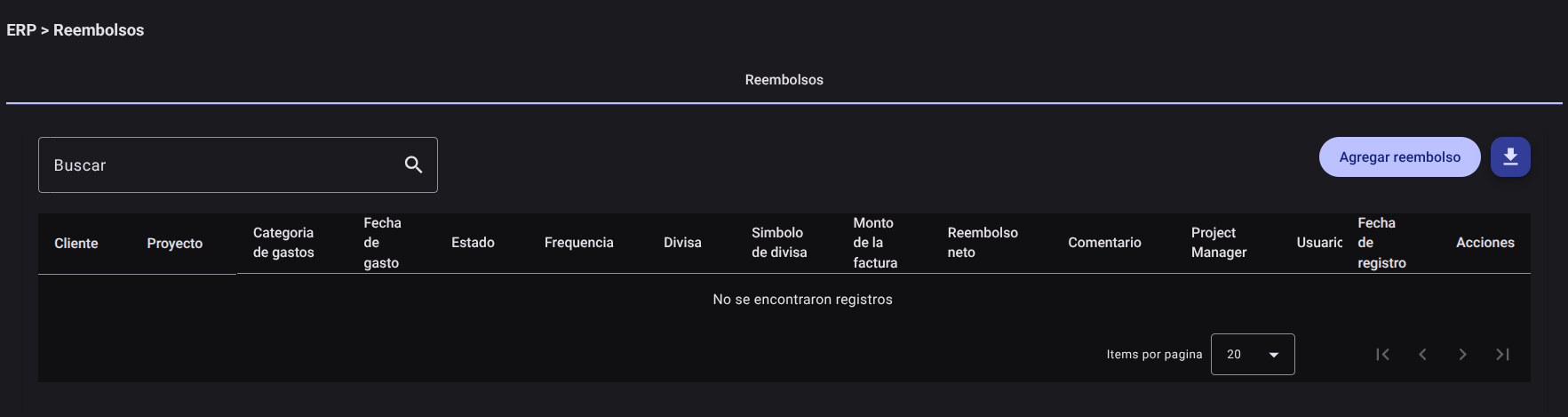
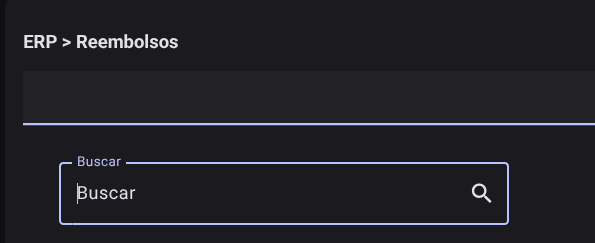
The search bar allows you to filter records by client, project, comments or statuses.
2. Add a Refund Request
To report an expense:
- Click the "Add Refund" button on the top right.

- Complete the side form with your purchase information:
- Customer: Select from the autocomplete list the customer for whom the expense was made.
- Project: Select the project associated with the expense from the autocomplete list.
- Expense category: Classify the nature of the purchase (e.g. Food, Travel).
- Expenditure date: Select the day the expense was incurred using the calendar.
- Frequency: Specify if the charge is One-time or monthly.
- Currency: Select the currency of the invoice.
- Invoice Amount: Enter the total value of the invoice.
- Net Reimbursement: Enter the actual value to be transferred to the collaborator.
- Comment: Justify the reason for the expense clearly.
- Upload support: Click on the attach file button (clip icon 📎) to upload the digital support of the invoice (allowed formats: PDF, JPG, PNG). The file name will be displayed on the screen.
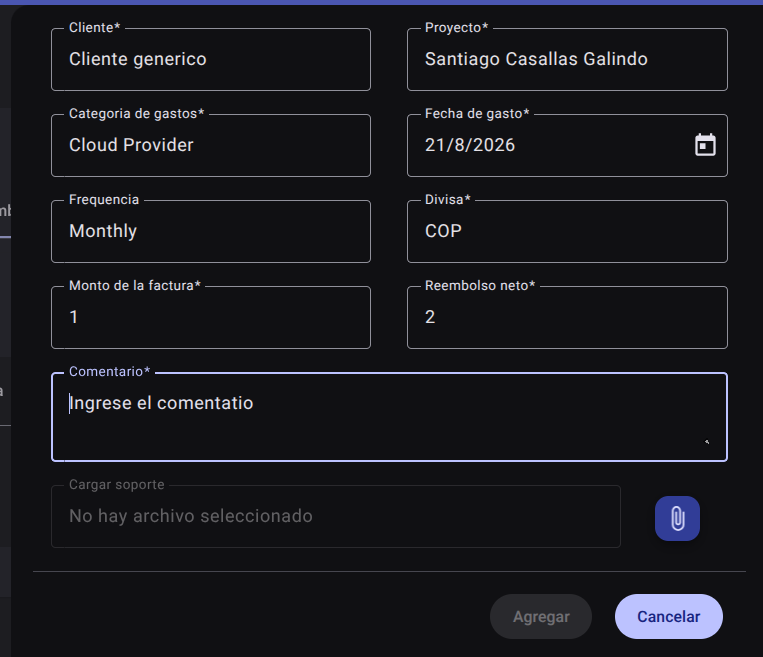
- Click "Add" to submit the request.

3. View Invoice Support
To audit or review a receipt:
- Click the "View attached" button in the refund actions column.

- The system will open a new browser tab with the original PDF or image file uploaded to the cloud.
4. Refund Approval Flow (PM and Accounting)
Reimbursement requests follow an identical control hierarchy to payroll:
- PM approval: The Project Manager reviews the relationship between spending and project progress. Approves the request to transfer it to the accounting area, or rejects it if the expense was not included in the project budget.
- Accounting Approval: The accounting team verifies the support of the invoice against local tax regulations. Approve the final refund for your bank transfer.
5. Export Consolidated Expenses
Click on the top right download button to download the consolidated history of reimbursements and legalization of expenses in a file in .CSV format.

Required Technical Permits
The management and audit of refunds is regulated by the following permissions:
reimbursements_read: Grants access to the panel and reading of personal reports.reimbursements_create: Enables the recording of expense legalization and the loading of billing supports.reimbursements_update: Allows the correction of rejected records.reimbursements_export: Allows you to download data in.CSVformat.reimbursements_approve_pm: Authorizes the PM to approve or reject requests uploaded to their project.reimbursements_approve_accounting: Authorizes the finance team to perform the final support audit and order payment.