Download Reports and Certificates
Description, Purpose and Objective
NOTE
The Download Reports and Certificates view is the final module of the proficiency testing and external quality control (PEEC) program, responsible for storing, managing and distributing analytical and interpretive reports to participating organizations after the close of each evaluation round.
This console is divided into two operational sections:
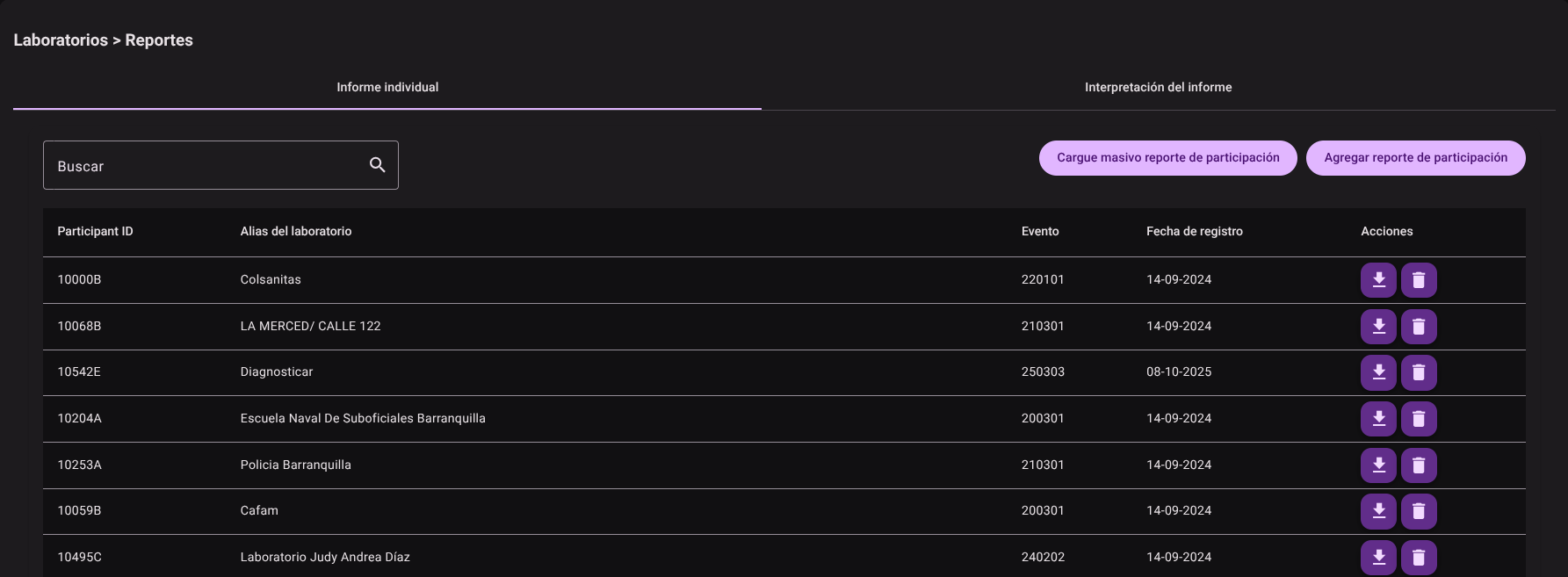
- Individual Report: Allows administrators to upload results files and participation certificates in PDF format for each organization and round. Participants access this tab to download their individual report.
- Report interpretation (Summary): Stores consolidated reports and general interpretive summaries that explain the global behavior of all participants and the consensus values calculated for the round.
The objective of this view is to centralize the official delivery of evaluated results and accreditation certificates, eliminating manual sending of emails and guaranteeing that each organization accesses only the information that corresponds to it according to its permissions.
Context of Use
This panel is operated by:
- Users of participating organizations: To log in at the end of the monthly/annual cycle and download their official participation certificates and analytical performance reports.
- Platform Administrators: To upload and publish report PDF files (individually or through the bulk processor per mapping file).
Possible Actions
1. Consult and Download Individual Reports
In the Individual report tab, the participant views the list of events in which they have been enrolled. You can search by event name or round code.
2. Upload an Individual Report (Administrator)
If you have editing privileges:
- Click "Add Participation Report".

- The registration side panel will be displayed:
- Event: Select the event and analytical round.
- Organization / Participant ID: Indicate which organization and participant number the report belongs to.
- Organization alias: Enter the representative name that will appear in the list.
- Upload file: Click the clip 📎 and select the PDF file of the report on your computer.
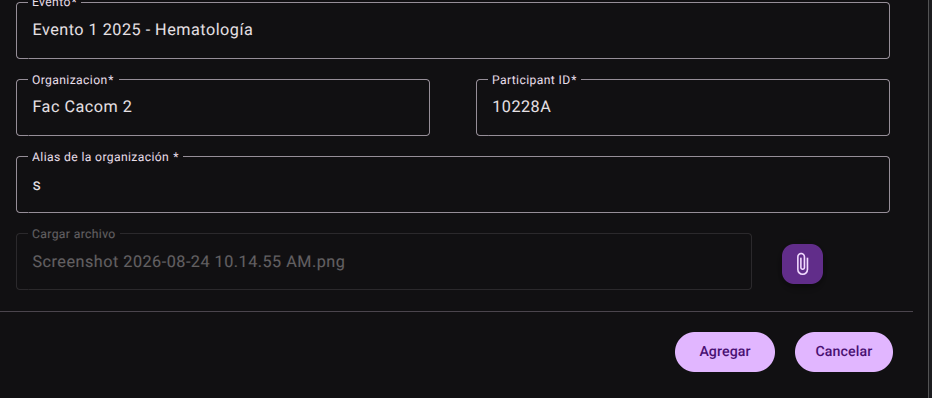
- Click "Add" to publish the report.

3. Bulk Upload of Reports (Administrator)
To avoid uploading dozens of PDFs one by one:
- Click "Bulk Upload" on the side panel.

- Upload configuration file: Upload a template file (CSV) that maps the PDF file name to the corresponding participant ID.
- Upload files: Select and bulk upload all PDF files corresponding to the round.
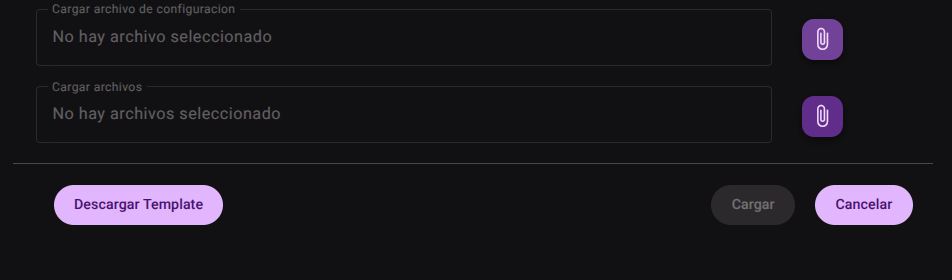
- Click "Upload". The system will automatically distribute the files to each participant according to the mapping matrix provided.

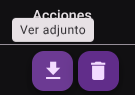
5. See current report attachment.
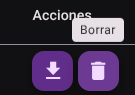
- To see the report attachment you can click on the Download icon in the actions column.
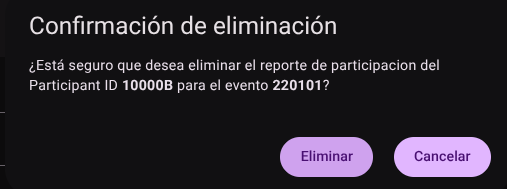
###6. Delete current report. 1.To delete a report you can click on the Trash icon in the action column.
- Confirm the action in the confirmation popup modal.
7. Download Interpretation and General Summary
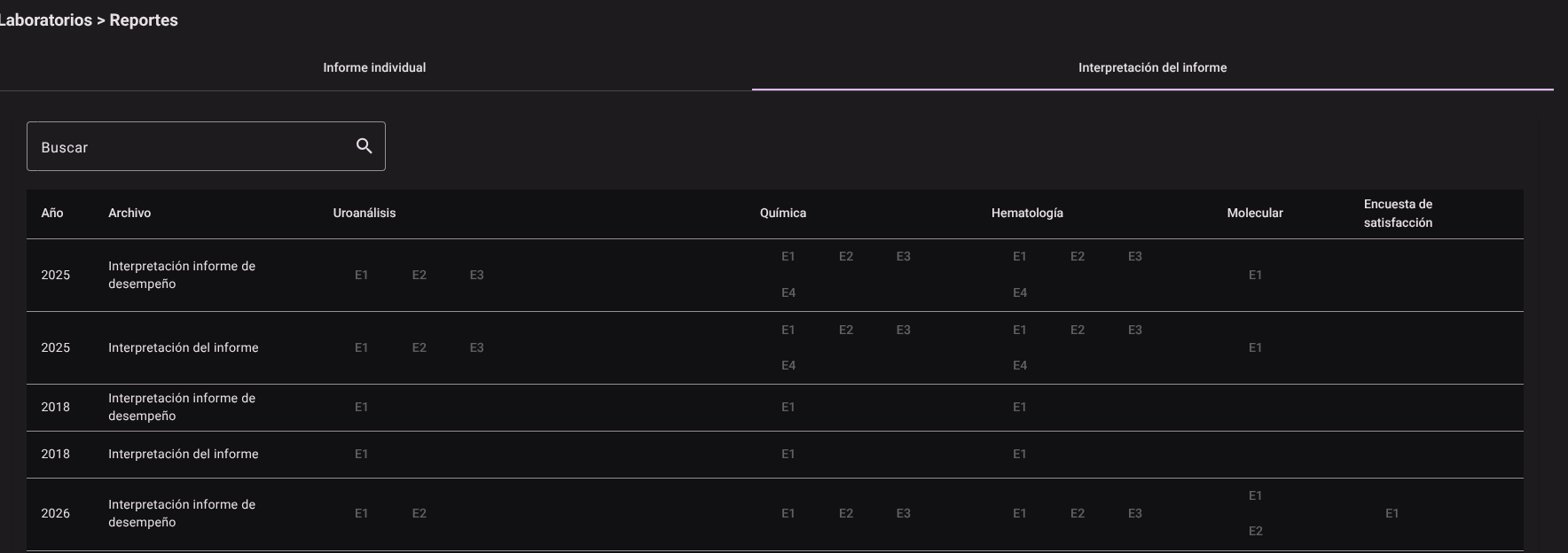
On the Report Interpretation tab:
- The system presents the list of events classified by areas (e.g. Uroanalysis, Hematology).
- Click on the desired event to display the global summary files and statistical interpretations available for download.
Roles and Permissions Required
This performance visualization and analysis panel can be consulted by Auditors, Quality Directors and Analysts. The required permissions are:
- Chart Display:
ict_graphics_read,lv_graphics_read,histogram_read,peer_group_graphic_read,sigma_graphic_readandboxplot_graphic_read. - Export and Reports:
performance_report_readandreport_statistical_readto download management summaries and sigma performance reports.