Country and State Settings (Geographic Location)
Description, Purpose and Objective
NOTE
The Country and State Configuration view is the module in charge of parameterizing the territorial division and geographic location of the headquarters, organizations, employees and clients within the platform.
The parameterization of Geographic Location manages two territorial levels:
- Countries: Name of the country and its ISO standard code (e.g. Colombia / COL, Mexico / MEX).
- States / Departments / Provinces: Territorial subdivision associated with a registered country.
The objective of this view is to standardize the geographical classification of entities in the database, guaranteeing the consistency of addresses in reporting and billing.
Context of Use
This module is used by system administrators to:
- Open new regions: Register countries or departments in which the organization begins operations.
- Standardize address forms: Ensure that location selectors in headquarters and customer records display an official geographic list.
Possible Actions
1. Register and Manage Countries
- Enter the Countries view (
/erp/countries).

- In the main table, consult the list of registered countries with their codes.
- To register a new country, click "Add Country" and enter the Official Name and Code.
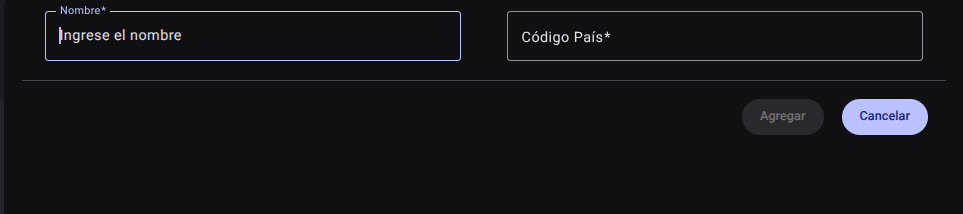 4. To add the country you must click the **Add** button
- To modify an existing record, use the edit button (pencil icon).
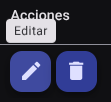
- To save, click on the Update button at the bottom.
- To Delete an existing record, use the delete button (trash icon).
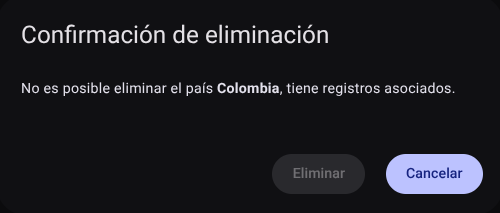
- The system will display a direct confirmation box.
CAUTION
The system blocks the deletion of any country that is being used or that has associated records.
2. Register and Manage States / Departments
- Enter the States view (
/erp/states). - In the main table, consult the list of states registered with their codes.

- To register a new state, click on "Add state" and enter the Name, Official Code, Country and cities (to do this, press the Enter or Comma (,) keys to add, they will be placed in a small box and if removal is required, click the (x) in the same box.
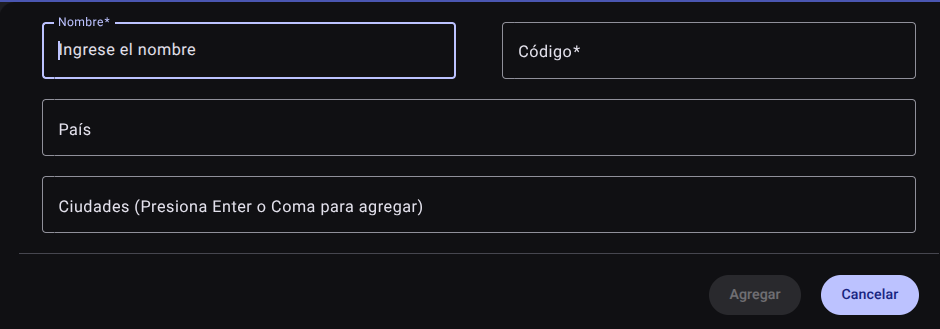

- To add the state you must click the "Add" button.

- To modify an existing record, use the edit button (pencil icon).
- To save your changes, click the "Refresh" button at the bottom.
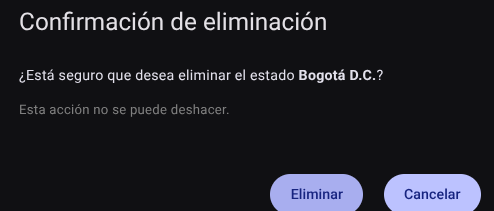
- To delete an existing record, use the delete button (trash icon).
- The system will display a direct confirmation box.
Roles and Permissions Required
Access to these global system parameters is restricted to the General Administrator or Platform Support role. Requires the following permissions:
- Geographic and UI parameters:
country_read,state_read,languages_readandmenus_read. - Entities and Licensing:
memberships_read,system_products_readandconfig_refs_read. - Traceability:
tags_readandincident_tracking_read(for incident tracking). - Write Actions: Permissions with corresponding
_createand_updatesuffixes to modify system tables.