Setting Custom System Attributes
Description, Purpose and Objective
NOTE
The Custom System Attributes view is the advanced management console designed to structure, customize and manage the general dynamic attributes and configuration parameters (config) assigned to each product in the system.
The purpose of this module is to allow administrators to make the platform forms more flexible, allowing metadata and global variables to be added without altering the source code of the application. Its objective is to enable each product (such as LABCARE_CLOUD, PEEC or QUATTROL) to inherit dynamic behaviors, custom validations and specific controls adapted to the operational needs of the organization.
Context of Use
This panel is operated in the system control routine by:
- Product and Platform Support Administrators: To add control fields to standard modules (e.g. add mandatory attributes in the registration of users or organizations) and define global variables for the behavior of the tools.
- System Coordinators: To audit the data types assigned to each menu, configure initial licensing defaults, and disable obsolete legacy structures.
Possible actions
Follow the operation procedures to manage the system parameter grid:
1. Query and Display of Attributes by Product
To examine custom properties for applications:
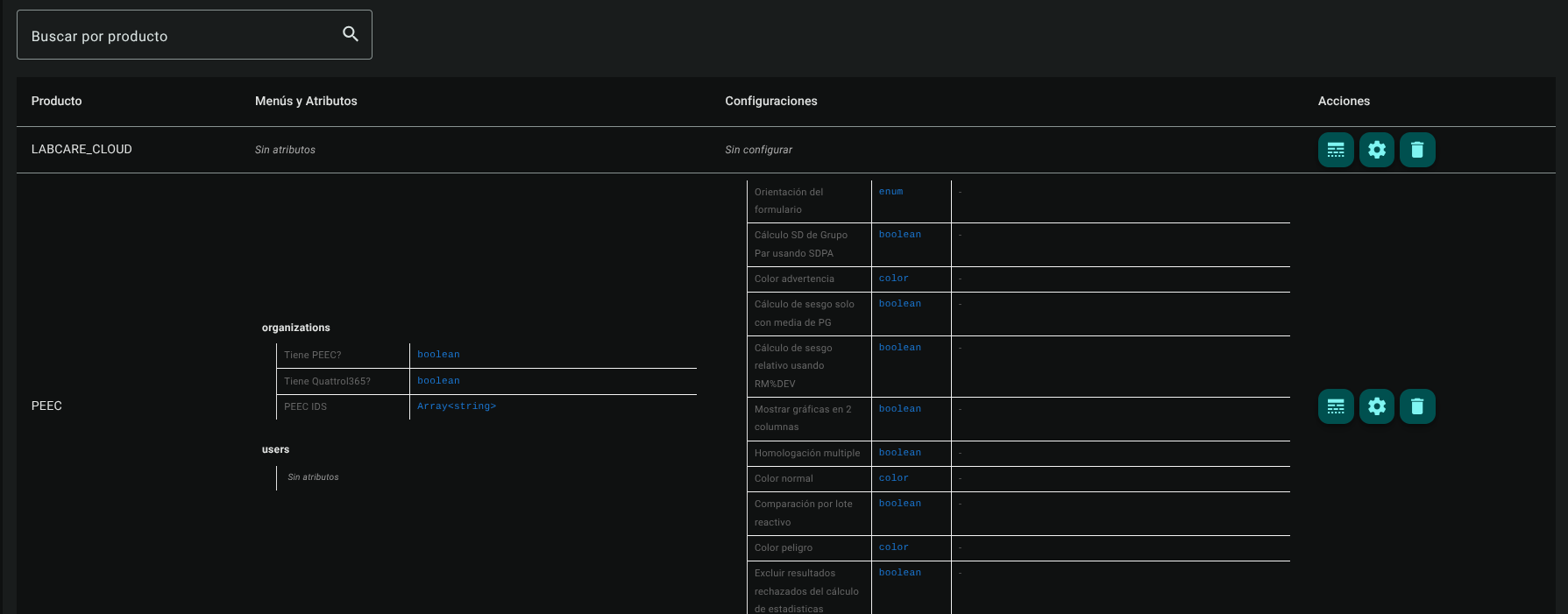
- Filter by Product: Locate the top search bar Search by product... and enter the name of the product of interest to isolate its records in the table.
- Table structure: The main grid organizes the information into three control columns:
- Product: Displays the technical identifier name of the application (e.g. LABCARE_CLOUD, PEEC, QUATTROL).
- Menus and Attributes: Displays the menu folders hierarchically (e.g. organizations, users) detailing the field identifier, visual label and the assigned data type (boolean, Array, etc.).
- Settings: Presents the global behavior parameters defined under the
2. Edit General Attributes (Table/Menu Icon)
Allows you to modify the structure of custom fields that are injected into the product forms:
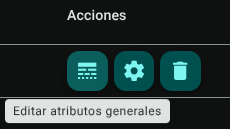
- In the row of the desired product, locate the Actions column and click on the Edit general attributes table/menu icon.
- The system will display the Edit general attributes — [Product Name] side panel. Configure the following sections:
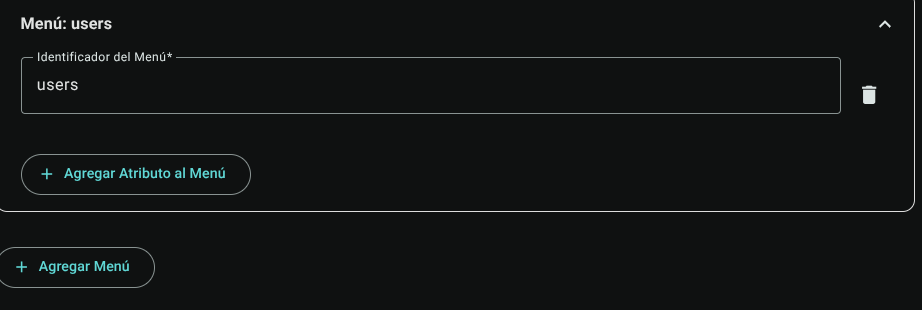
- Menu Identifier:* Define or modify the technical name of the application menu (e.g. organizations, users).
- Menu attributes: For each parameter in the list, set:
- Attribute ID: Unique technical identifier of the field.
- Name: Text label visible to the user.
- Type: Type of form input (e.g. boolean, text, number, select).
- Position: Numerical display order.
- Mandatory: Check box to mark the mandatory completion.
- Add Attribute to Menu: Click on this option to add a new attribute row within the selected menu block.
- Add Menu: Press the button at the bottom of the panel if you require to create an additional menu folder.
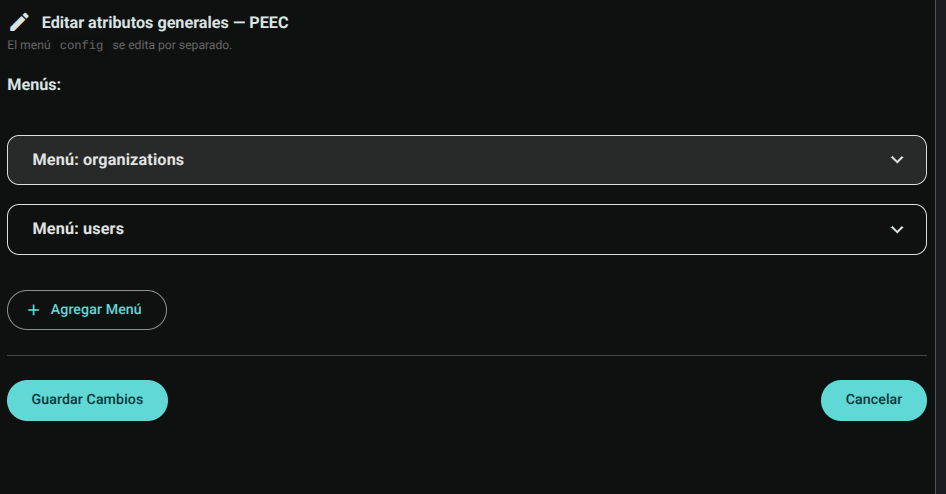
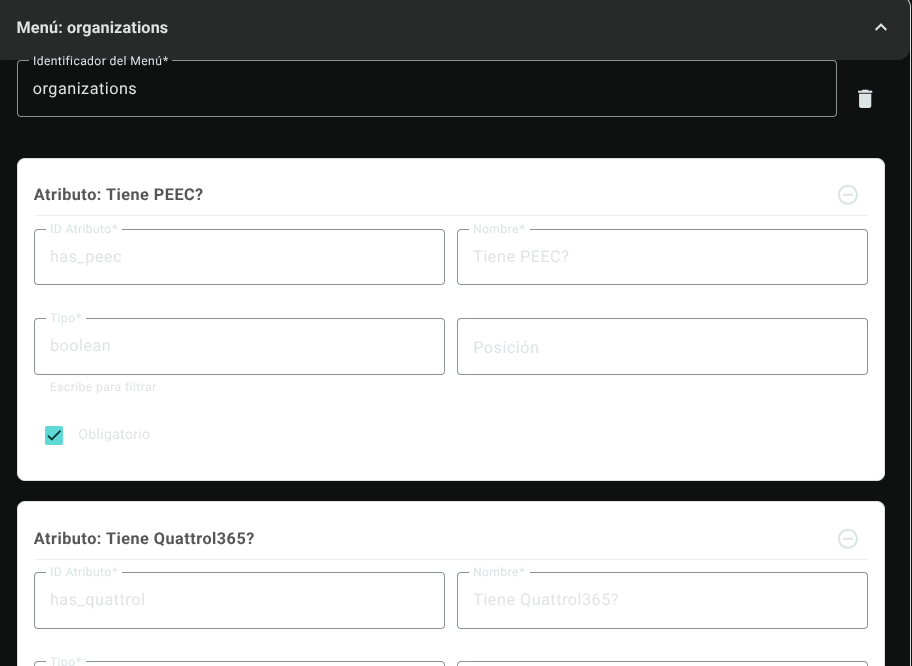
- Once the parameters are completed, click the Save Changes button to apply and consolidate the product forms.
3. Edit Config Settings (Gear Icon)
To parameterize system behavior variables and product default values:
- In the corresponding product row, go to the Actions column and click the Edit settings (config) gear icon.
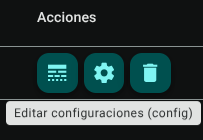
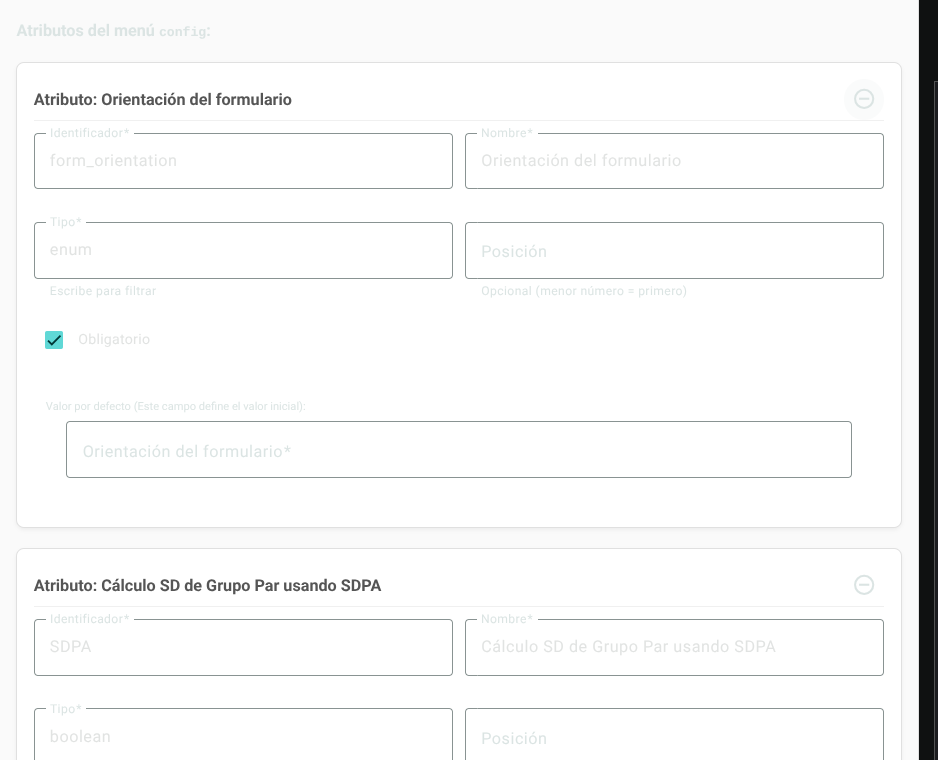
- The Edit configurations (config) — [Product Name] side panel will be displayed:
- Configure or edit the fields corresponding to each global variable (Identifier, Name, Type, Position, Required).
- Default Value: Assign in the interactive cell the data with which the parameter will be initialized for the new organizations created.
- + Add Attribute: Press this button if you require to register an additional global configuration variable for the product.
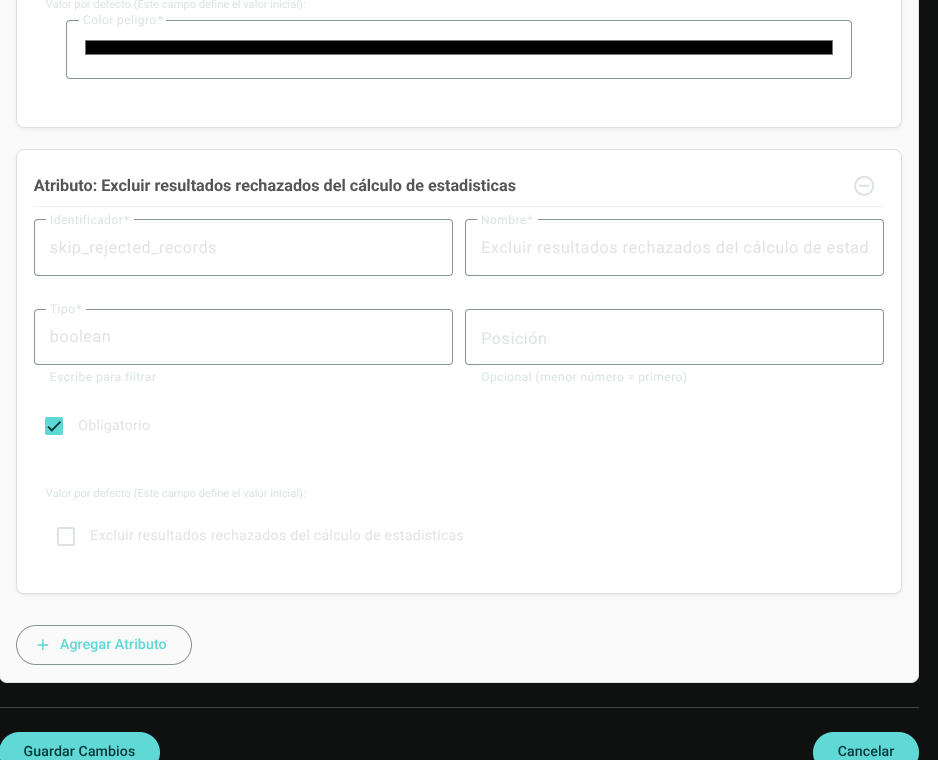
- Click the Save Changes button in the footer to confirm the restructuring.

4. Delete Product / Attributes (Caneca Icon)
If you need to completely remove the customization assigned to a product from the system:
- In the Actions column of the product row, click the Delete Product bin icon.
CAUTION
Removing attribute settings from a product is a destructive and irreversible action. It can cause display failures or loss of metadata on organizational forms already in production using these fields. 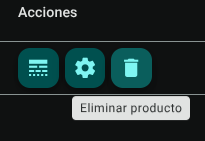
Roles and Permissions Required
Management of dynamic system attributes and global variables is restricted under the following security profiles:
The roles authorized to interact with this panel are General System Administrator and IT Support.
- Access and Viewing:
system_custom_attributes_read: Allows read access to the/general/system-custom-attributesconsole and display of the table.
- Management and Writing:
system_custom_attributes_create/
- Elimination:
system_custom_attributes_delete: Grants privileges to permanently delete a product's custom attributes template using the can icon.