Role and Permission Management
Description, Purpose and Objective
NOTE
The Roles and Permissions Management view is the security module that allows you to define the access levels and privileges of users within the platform.
A Role is a profile or set of authorizations assigned to a user that defines what views they can open and what operations they can perform. Privileges are controlled by Permissions, which are granular technical authorizations associated with specific actions (such as reading, creating, updating, deleting, or exporting information).
The objective of this view is to ensure data security and privacy, limiting user access exclusively to your organization's tools and data that are strictly necessary for its functions.
Context of Use
This module is used critically by Platform Administrators to:
- Configure user profiles according to the organizational structure of the company (for example: Administrator, Lawyer, Judicial Clerk, Technical Quality Manager, Auditor or Patient).
- Define the Initial Route (the default view to which the user is redirected immediately after successfully logging into the system).
- Configure access and editing permissions for each functional menu enabled in the organization.
- Retire or delete roles that are no longer valid or deprecated, as long as they are not assigned to active users.
Possible Actions
1. View and List Roles
Shows the list of roles configured in the system with their essential data: the name of the role, its initial assigned path, the level and the entry date.

2. Add a New Role
To create and configure a role in the system:
- Click the "Add Role" button in the upper right corner of the screen.
- Fill out the basic fields of the form:
- Name: Enter the friendly name of the role (e.g.
Auditor Interno). - Level: Enter the desired level of the role. (ex.
2. Administrador del produto) - Initial Path: Enter the system path that the user will access by default (e.g.
/general/roles).
- Name: Enter the friendly name of the role (e.g.

- Configure the Permissions per Menu matrix by clicking the Add Menu button (
+):- Select the functional Menu you want to grant access to.
- Check the boxes for the required granular permissions:
- Full Access: Grants all available permissions for the selected menu.
- Create: Authorizes the registration of new information.
- Read: Enables display of log details.
- Update: Allows you to modify or edit existing data.
- Delete: Allows permanent deletion of records.
- List: Enables the display of general data tables.
- Export: Enables the option to download reports and data to external files.
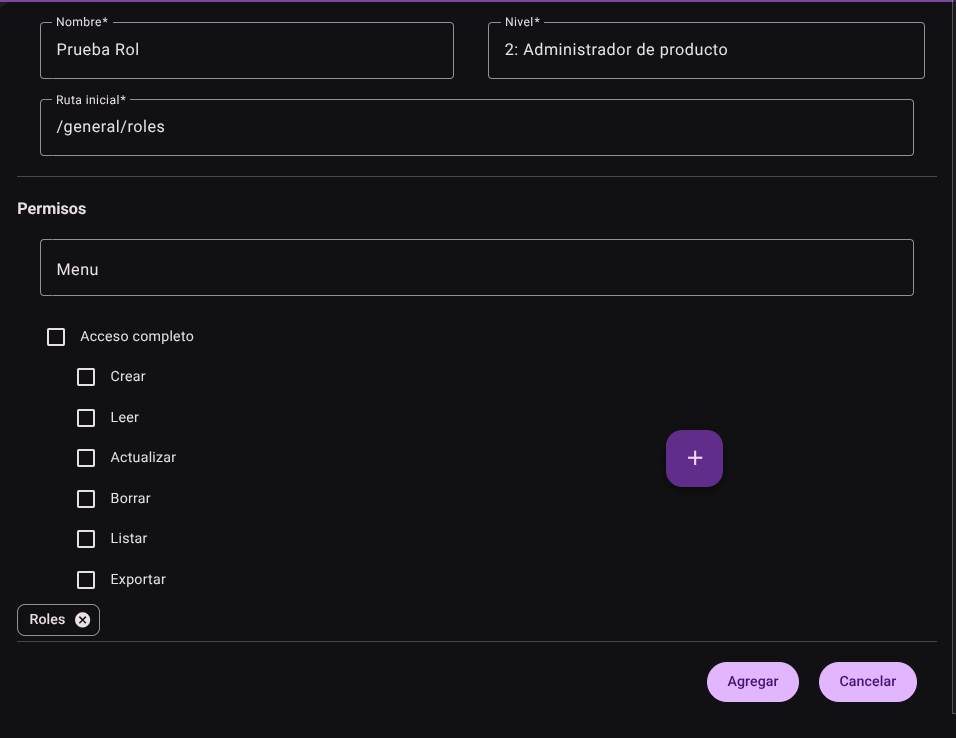
- Click "Add" to save the role.

3. Edit a Role
To modify the privileges or settings of a role:
- Locate the role in the list and click "Edit" (pencil icon ✏️).
- Modify the initial path or add/remove specific menus and permissions from the access array. There are no restrictions on changing the permissions assigned to a role.
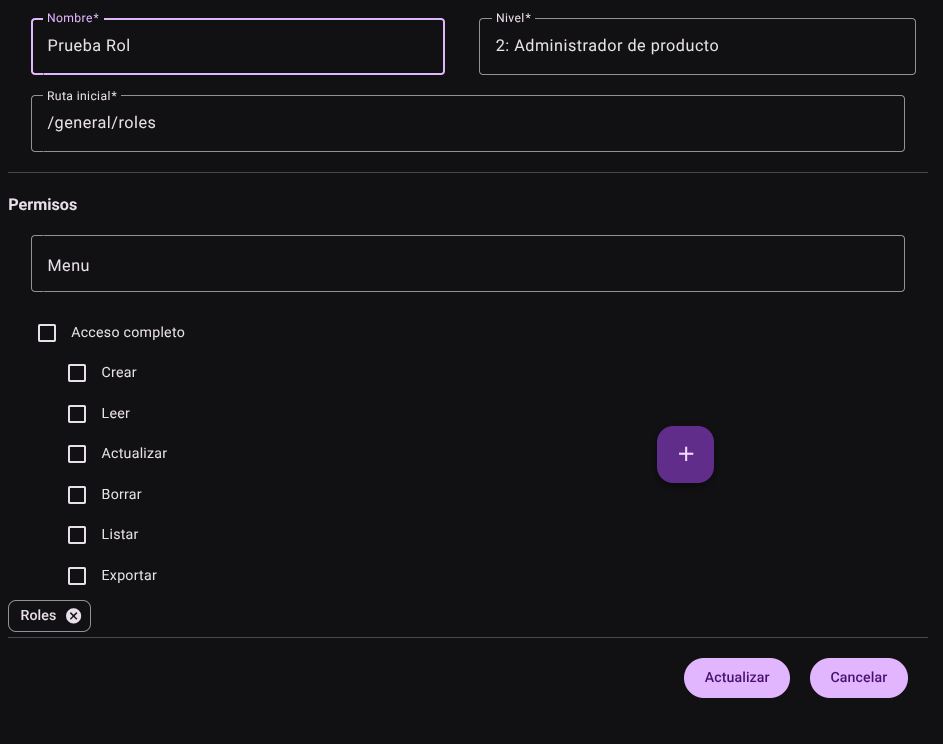
- Click "Update" to apply the changes immediately.
4. Delete a Role
To permanently delete a profile from the system:
- Find the role and click the "Delete" action (trash icon 🗑️).
- Confirm the action in the confirmation popup modal.

CAUTION
The system preventively blocks the deletion of any role that is being used by an active user in an organization.
Roles and Permissions Required
Access to these global system parameters is restricted to the General Administrator or Platform Support role. Requires the following permissions:
- Geographic and UI parameters:
country_read,state_read,languages_readandmenus_read. - Entities and Licensing:
memberships_read,system_products_readandconfig_refs_read. - Traceability:
tags_readandincident_tracking_read(for incident tracking). - Write Actions: Permissions with corresponding
_createand_updatesuffixes to modify system tables.