Instrument and Analyzer Configuration
Description, Purpose and Objective
NOTE
The Instrument Configuration (or Instruments) view is the module in charge of registering, cataloging and integrating the physical analyzer equipment and diagnostic readers that operate in the organization's processing centers.
An Instrument on the platform represents the digital record of a real medical-analytical device. It is characterized by a personalized Name (alias assigned by the organization to identify the equipment, e.g. Cobas 1 Chemistry Analyzer) and the base Instrument Model selected from the system's global catalogue, which includes brand, manufacturer and communication specifications.
The objective of this view is to create the laboratory's analytical hardware inventory, allowing the Quality Control Tests to be mapped with the corresponding physical analyzers and lay the foundations for the automatic communication of results via API or HL7 protocol.
Context of Use
This dashboard is configured by technical directors and systems support engineers to:
- Register new analyzers: Add the new machines installed in the laboratory to enable the reporting of results associated with them.
- Manage data integrations: Uniquely identify each analyzer to configure file transmission rules and automated mapping from local computer software.
- Analytical maintenance: Modify the alias of the equipment in the event of physical section transfers or capacity organization.
Possible Actions
1. Consult Analyzer Catalog
Shows the list of all analyzers registered in the organization, detailing: Custom name, Instrument (Model and Manufacturer) and Registration date.
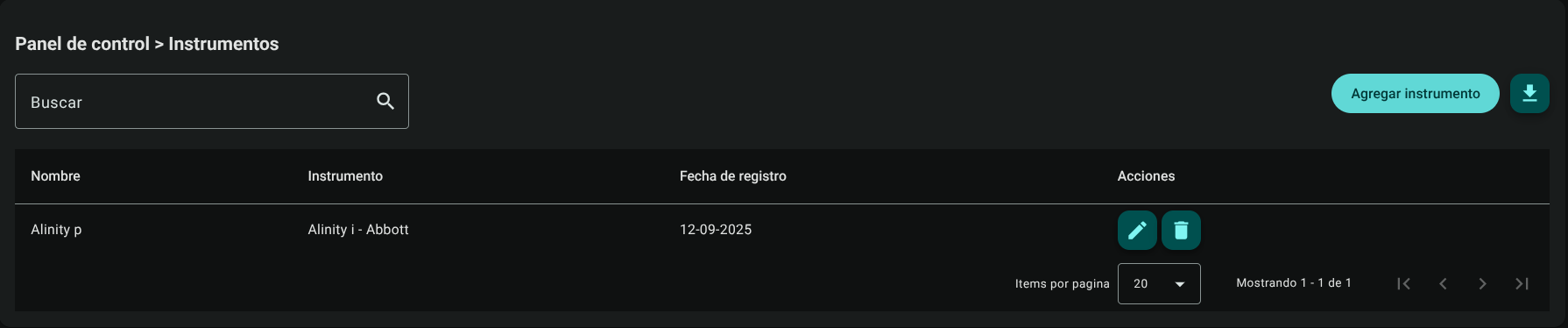
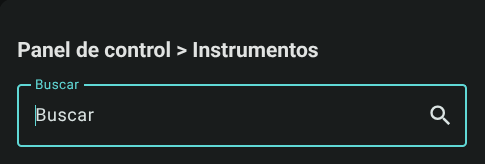
The header search engine quickly filters by equipment alias, model or machine manufacturer.
2. Add an Instrument
To register a physical analyzer:
- Click "Add Instrument" in the panel header.

- Complete the information requested in the side form:
- Name: Assign a unique and descriptive alias to physically identify the equipment in the processing room (e.g. Sysmex H1 Hematology).
- Instrument: Select the exact equipment model from the auto-complete drop-down list. The list shows the model and manufacturer (e.g. XN-1000 - Sysmex).
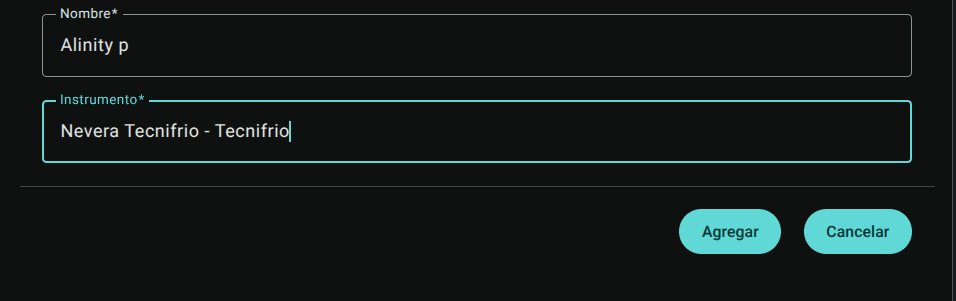
- Press "Add" to register the analyzer.

3. Edit an Instrument
If you need to update the device alias or re-link the base model due to a firmware version change:
- Click "Edit" (pencil icon ✏️) in the corresponding row.
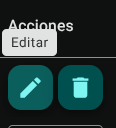
- Correct the information on the side form and click "Update" to apply the changes immediately.
4. Delete an Instrument
To remove a computer from the organization database:
- Click on the trash icon (🗑️) of the desired instrument.
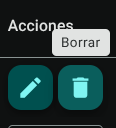
- Confirm the deletion in the popup modal.
WARNING
The system will automatically restrict and block the deletion of any analyzer that already has QC Tests (Quality Control Tests) created or history of QC results linked. This prevents the loss of traceability of the organization's analytical data. 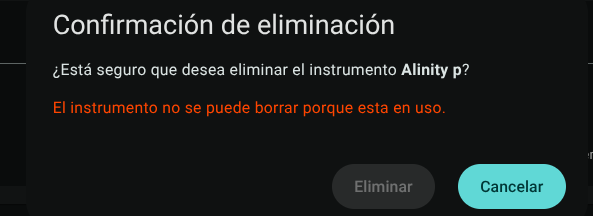
5. Export Instrument Catalog
Click the download button in the header to download the complete inventory of instruments and analyzers in a .CSV format file.
Required Technical Permits
The administration and parameterization of analyzer equipment is regulated by the following permissions:
instruments_read: Grants access to the overview and reading of the organization's instrument list.instruments_create: Authorizes the linking and registration of new physical equipment.instruments_update: Enables editing of the device's custom name and model.instruments_delete: Allows you to permanently unlink an instrument without associated quality reports.instruments_export: Allows you to export consolidated lists in.CSVformat.