Time Recording and Tracking
Description, Purpose and Objective
NOTE
The Time Tracking view (or Time Tracking) is the ERP module intended to record and control the work hours invested by collaborators in the different tasks and active projects of the organization.
A Time Tracker (or Time Log) is an entry that associates a user's work day with a Project, a Category of activity (e.g. Development, Support, QA), a Time Type (e.g. Ordinary, Extra, Holiday) and a specific Task (which can be synchronized from external repositories such as GitHub).
The objective of this view is to automate the organization's time control, serving as a direct input for the calculation of project costs, billing to the end client and the generation of news for payroll settlement.
Context of Use
This module is used daily by:
- Collaborators: To record their daily hours worked and the activities executed in each assigned project.
- Project Managers (PMs): To audit the hours reported by your team and validate real progress against the hours budget assigned to the project.
- Administration and Accounting: To export monthly consolidated reports that feed payroll and billing.
Possible Actions
1. Consult and Search Reported Hours
Displays a table with the user's time record (or the entire team if they have a supervisor/PM role). Details: Project, Work Category, Type of time, Name of the task (and Issue number if applicable), Date, Hours worked and Explanatory comments.
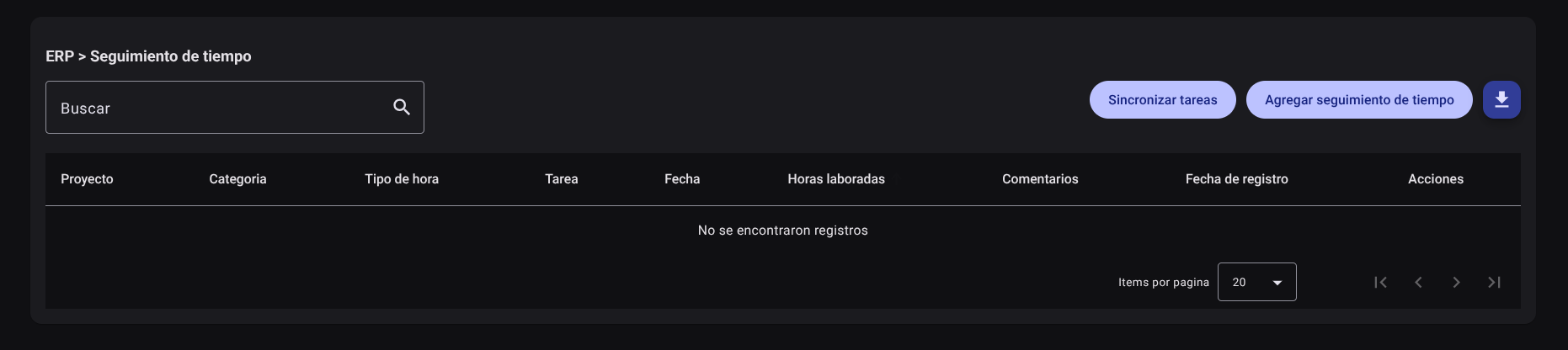
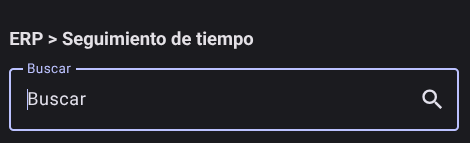
The top search bar allows you to filter the table by specific project, task, date, or comments.
2. Register a New Time Report
To enter the hours worked in a day:
- Click "Add Time Tracking" in the header.
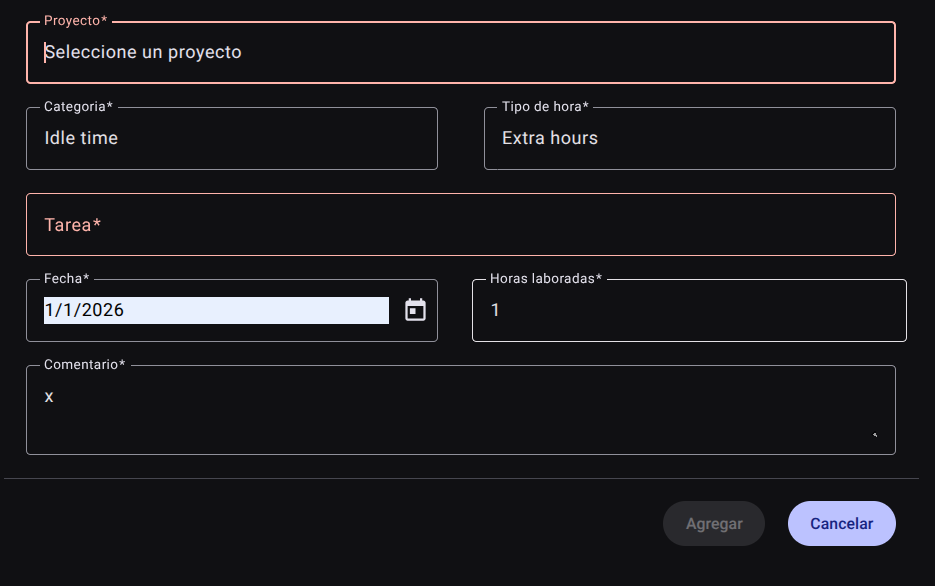
- Complete the information requested in the side form:
- Project: Select the assigned project you worked on from the drop-down list.
- Category: Classify the type of activity (e.g. Development, Meeting, Design).
- Time type: Select the corresponding time type (e.g. Ordinary, Extra Night, Holiday).
- Task: Select the specific task from the autocomplete list. If the project is synchronized with development repositories, the tasks will show the corresponding issue number (e.g.
#123). - Date: Indicate the day of the report using the calendar.
- Hours worked: Enter the number of hours spent on the task (e.g.
4or8). - Comment: Briefly describe the activities carried out to justify the report.
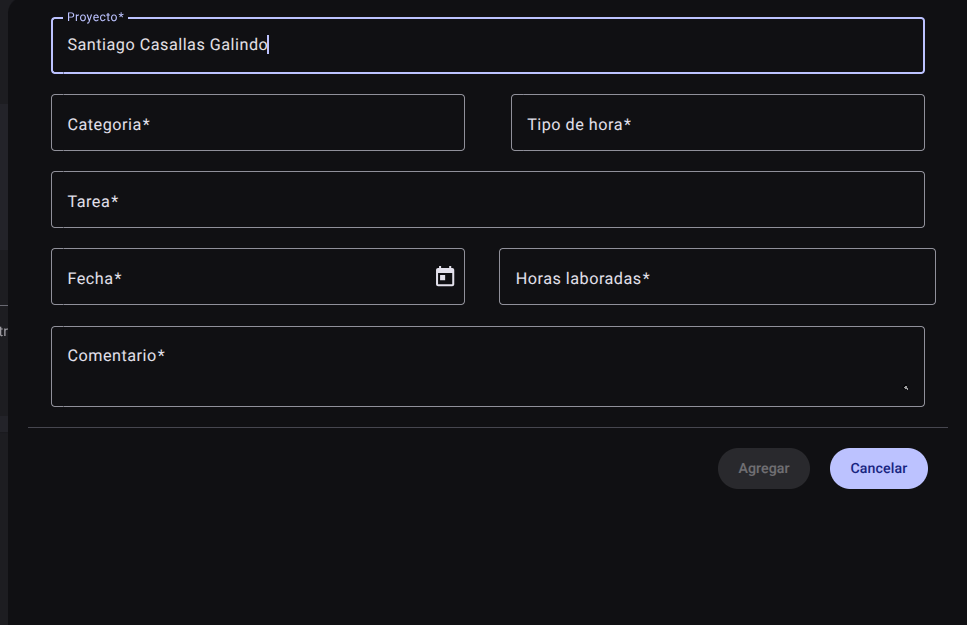
- Press "Add" to save the report.
3. Synchronize Repository Tasks (GitHub)
If the collaborator requires reporting hours on technical development issues newly created in the repository:
- Click the "Sync Tasks" button at the top right of the table.
- The system will load updated issues and tasks from the repositories linked to the project in the background (via GitHub/DevOps integration).
- Once the synchronization is complete, the Task field drop-down menu will show the new tickets available to report hours.
4. Edit a Time Report
If you made a mistake in the time count, date or comments:
- Click "Edit" (pencil icon ✏️) in the record row.
- Adjust the values in the side panel and click "Refresh" to save.
IMPORTANT
Editing of reported hours may be blocked for old time periods that have already been processed and closed in the monthly payroll.
5. Delete a Time Report
Click the trash icon (🗑️) on the record and confirm the action in the pop-up box to override an incorrect time report before it is administratively closed.
6. Export Hour Reports
To generate billing sheets or project management reports, click the download button at the top right of the table. A file in .CSV format will be downloaded with the breakdown of reported hours.
Required Technical Permits
Access to this module is controlled by the following permissions in the role profile:
time_tracking_read: Allows you to enter the view, view the time table and perform searches.time_tracking_create: Enables the action of reporting new work hours and synchronizing external tasks.time_tracking_update: Allows you to correct time reports that are not administratively closed.time_tracking_delete: Allows you to cancel or delete hour reports.time_tracking_export: Authorizes the download of the hour breakdown in.CSVformat.