Digital Product Catalog (CMS)
Description, Purpose and Objective
NOTE
The Digital Products view in the CMS is the module that manages the catalog of software, applications, licenses or digital solutions displayed on the organization's public website.
A Digital Product includes the name of the system or application, commercial title, distinctive icon (Material Icons), detailed description of features, access link or landing of the product, demonstration video URL and ordering priority.
The objective of this module is to position the company's suite of technological products, making it easier for visitors to explore its functionalities and access demos or official sites.
Context of Use
This module is used by:
- Product and Marketing Managers: To add new digital products to the web catalog, update features from recent versions or embed demo videos.
- System Administrators: To define the visual priority and availability of products on the cover.
Possible Actions
1. Consult the Product Catalog
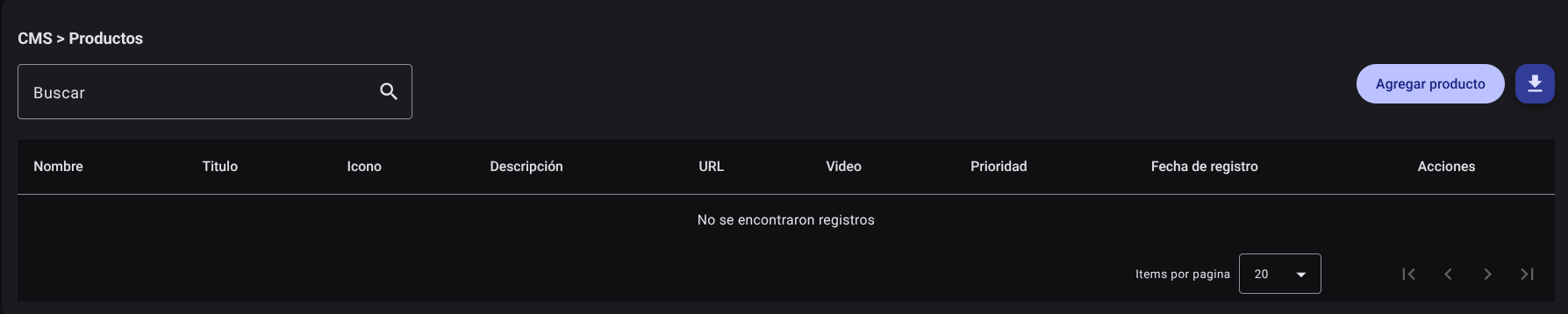
- In the product management table, review the columns: Name, Title, Icon, Description, URL, Video, Priority, Registration Date, and Actions.
- Filter using the "Search" text box for any product term.
- Sort the rows by display priority or by creation date.
2. Register a New Digital Product
- Click the "Add Product" button.

- Fill in the required information on the side panel:
- Name: Commercial name of the digital product (e.g. Labcare Cloud, My Process, PEEC).
- Title: Slogan or main value proposition of the product.
- Icon: Icon identifier for the Material Icons library.
- Description: Detailed descriptive text with the modules and scope of the product.
- URL: Link to the specific page or product login (optional).
- Video: Promotional or tutorial video URL (optional).
- Priority: Integer number that defines the positioning order in the public portal.
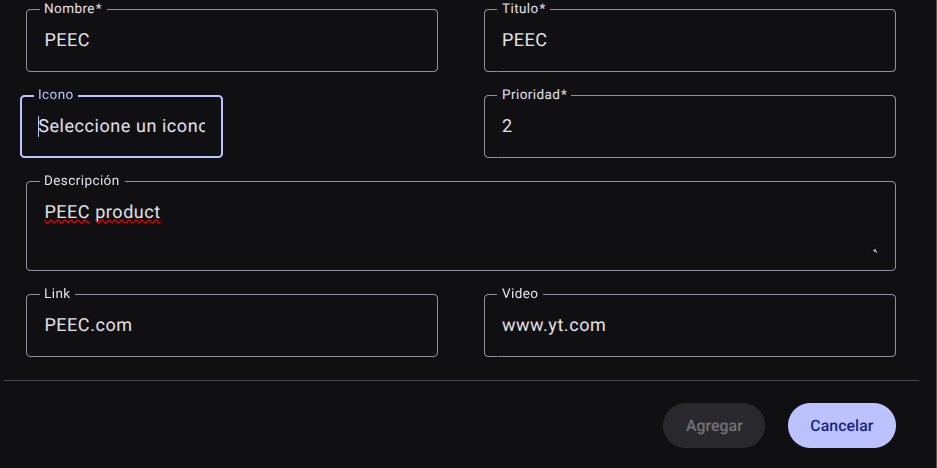
- Click "Add".
3. Edit a Product
- Locate the product in the table and click the edit button (pencil icon✏️) in the actions column.
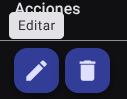
- Modify the desired fields and save the changes to the Save button.

4. Delete a Product
- To delete a product, use the delete button (trash can icon🗑️) in the actions column.
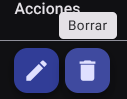
- Confirm the action.
5. Export the Product Catalog
- Click on the button with the download icon (Export products), a file in CSV format will be generated and downloaded with the complete list of registered digital products.

Required Technical Permits
product_read: Allows you to consult the digital product catalog.product_create: Authorizes the registration of new products on the platform.product_update: Enables updating product data, links, videos and icons.product_delete: Allows you to remove products from the public catalog.product_export: Allows downloading of the massive product report.