Department Structure
Description, Purpose and Objective
NOTE
The Department Structure view is the administrative module in charge of prioritizing the work areas of the organization and managing the logical and digital infrastructure assigned to each of them.
A Department is an operational subdivision within the organization. The system allows defining hierarchical subordination relationships by assigning a Main Department (or Mother Area, allowing subdepartments or dependent sections). Each department is coded with a unique Suffix and has inherited or automatically assigned email channels and storage infrastructure (Google Drive).
The objective of this view is to model the company's operational organization chart, facilitating the assignment of personnel to their areas of belonging, decentralized document management and access control.
Context of Use
This module is used by the Human Resources and Infrastructure area to:
- Design the organization chart: Record the hierarchical structure of the organization (e.g. create the Software Engineering department dependent on Technology).
- Assign communication and storage channels: Consult and structure Drive folders created for the exclusive use of staff in each area.
- Classify personnel: Serve as a basis for assigning departments to users during their registration or editing on the platform.
Possible Actions
1. Consult and Search Departments
Displays the complete list of departments in a table structured with the following data:
- Name: Descriptive name of the area.
- Main department: Hierarchical relationship or department on which the area depends.
- Suffix: Identification acronym of the department.
- Group name: Technical identifier of the associated group.
- Email and Email of the administrator: Contact addresses assigned to the area.
- Drive Folders: Direct links to department directories in Google Drive (Main Drive, Department Drive, Administrator Drive, Public Drive, and Area Drive).
- Registration Date: Creation date in the system.
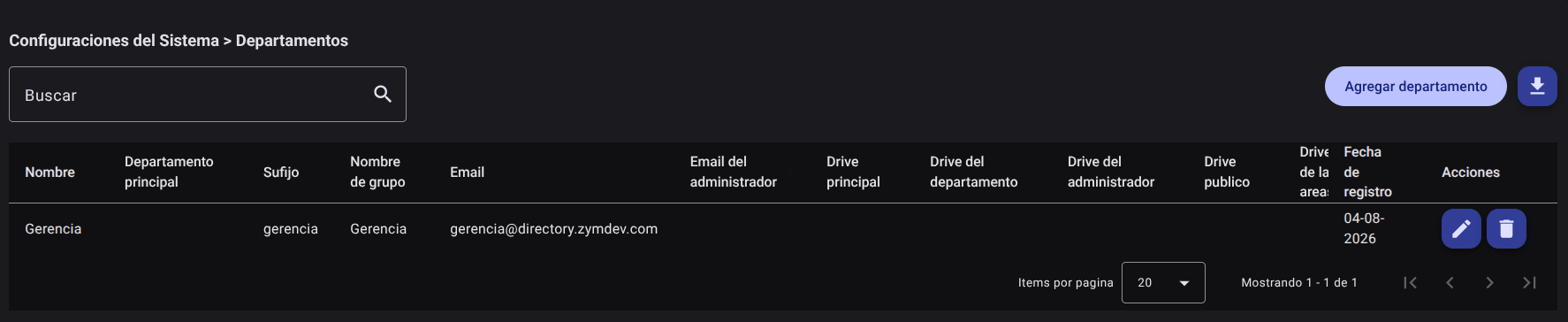
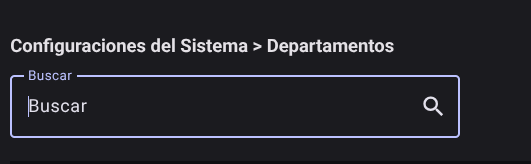
The search bar allows you to quickly locate departments by name or suffix.
2. Add a Department
To incorporate an area or division into the organization:
- Click "Add Department" at the top right.

- Fill out the lateral form with the required fields:
- Name: Enter the descriptive name of the new department (e.g. Technical Support).
- Suffix: Enter the abbreviated area identifier code (e.g.
SOP). - Main department: If the new area is part of a larger division, start typing the name of the top department and select it from the auto-complete list. If it is a root area, leave this field empty.
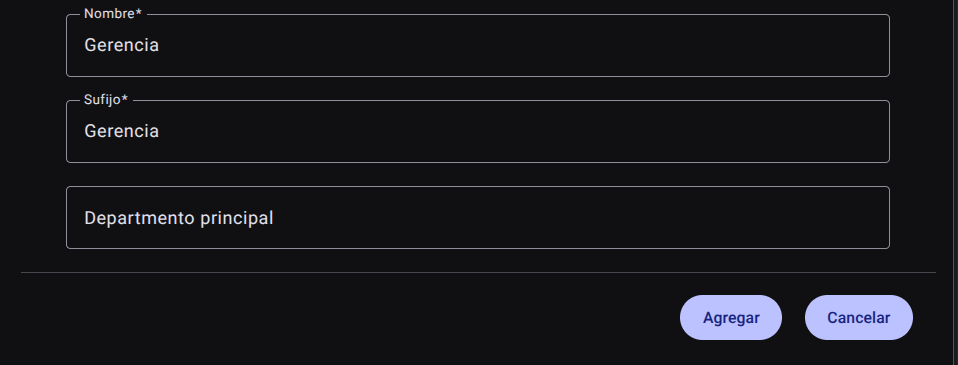
- Click "Add" to confirm registration.

NOTE
When you add a department, the system automatically generates its Google Drive folders and mailing lists based on the name and suffix structure. These fields will be displayed in the table after background processing is completed.
3. Edit a Department
To modify the basic parameters of an area:
- Click the "Edit" button (pencil icon ✏️) in the department row.
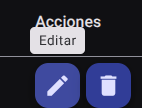
- In the side form, modify the name, suffix or change its hierarchical dependency by reassigning the parent department.
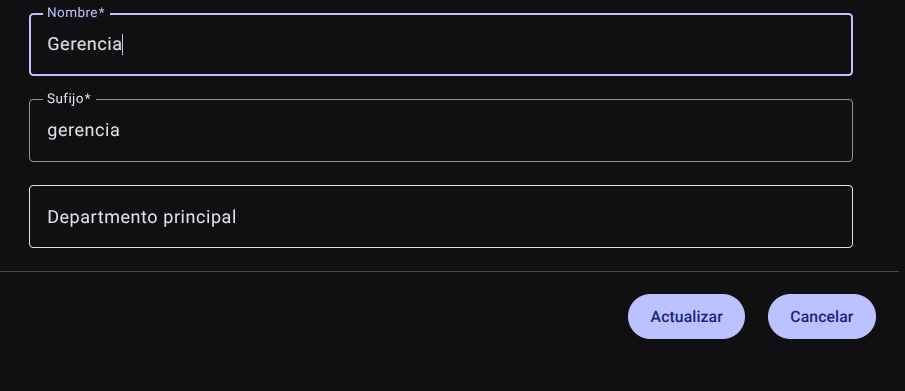
- Click "Update" to apply the changes.

4. Delete a Department
To permanently delete a division from the chart:
- Click the trash icon (🗑️) of the department you want to check out.
- Confirm the action in the dialog box.

CAUTION
The system will block the deletion of the department if it contains associated internal users, active dependent subdepartments, or if it is referenced in current personnel contracts. You must reassign these personnel and subareas to other departments before proceeding with the deletion.
5. Export Department Catalog
Click the top right download button to export the department database, including its Drive storage links and associated emails, in .CSV file format.
Required Technical Permits
Access to the hierarchical structure is restricted by the following role permissions:
departments_read: Allows you to enter the view, list and search for departments.departments_create: Enables the action of adding new departments.departments_update: Grants access to field editing of names, suffixes, and hierarchical remapping.departments_delete: Allows you to delete departments from the general organization chart.departments_export: Authorizes the download of the list in.CSVformat.