Membership Administration
Description, Purpose and Objective
NOTE
The Membership Management view is the module in charge of managing the licensing and payment plans applied to the different organizations registered on the platform.
A Membership is a commercial subscription agreement that defines the duration of the service, trial days, cost, currency, billing period in days and the limits or products that the customer can use.
The objective of this module is to centralize the management of plans and collections, allowing administrators to create, modify, apply or remove memberships, in addition to exporting organizational billing history.
Context of Use
This module is used exclusively by global licensing administrators to:
- Create new subscription plans: Define standard rates (for example: Basic Plan, Pro Plan, Annual Plan) with parameterized costs and payment periods.
- Assign licenses to clients: Link a membership to one or more organizations to enable them access to the platform.
- Control collections and billing: Consult the amounts to be billed per month and export detailed reports for reconciliation with the accounting area.
- Manage membership statuses: Activate, deactivate or temporarily suspend organizations' access to services.
Possible Actions
1. View and List Memberships
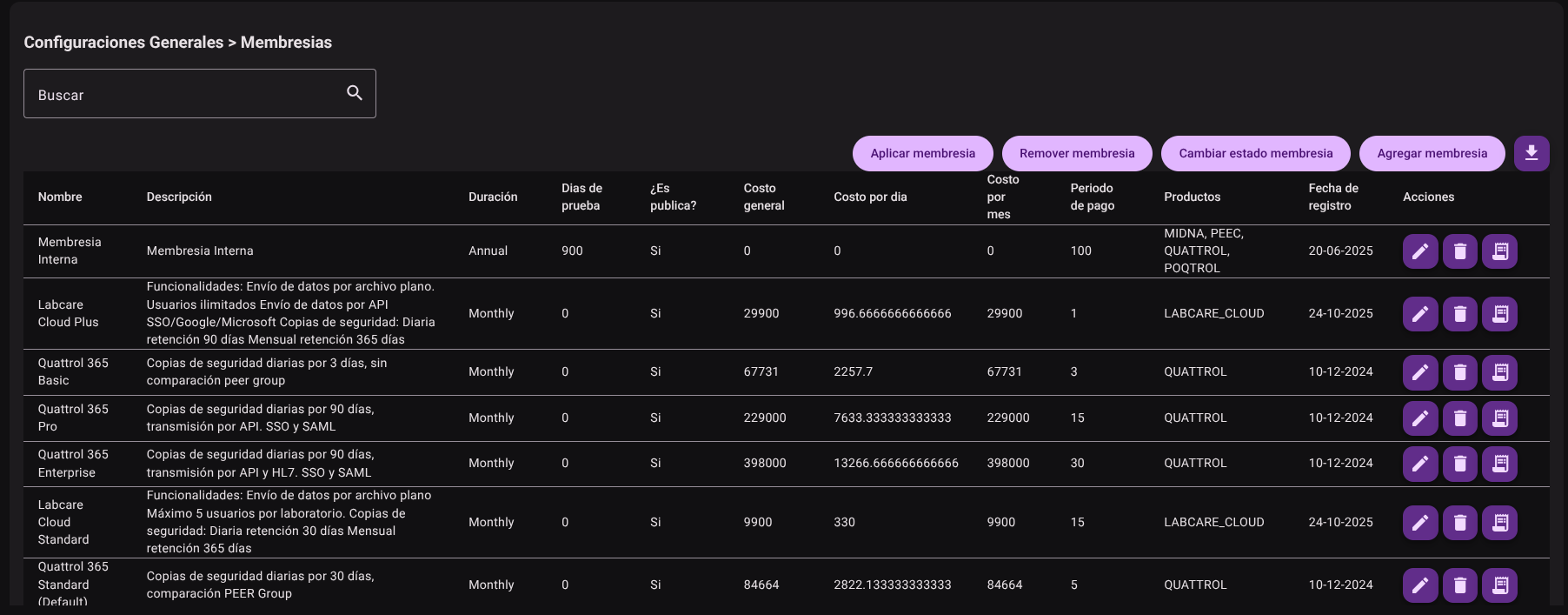
Allows administrators to consult the catalog of memberships configured in the system, showing commercial details such as name, description, duration, trial days, whether it is public, cost per day and month, assigned products and registration date.
2. Add a New Membership
To create a new plan or subscription type:
- Click the "Add Membership" button at the top right of the table.

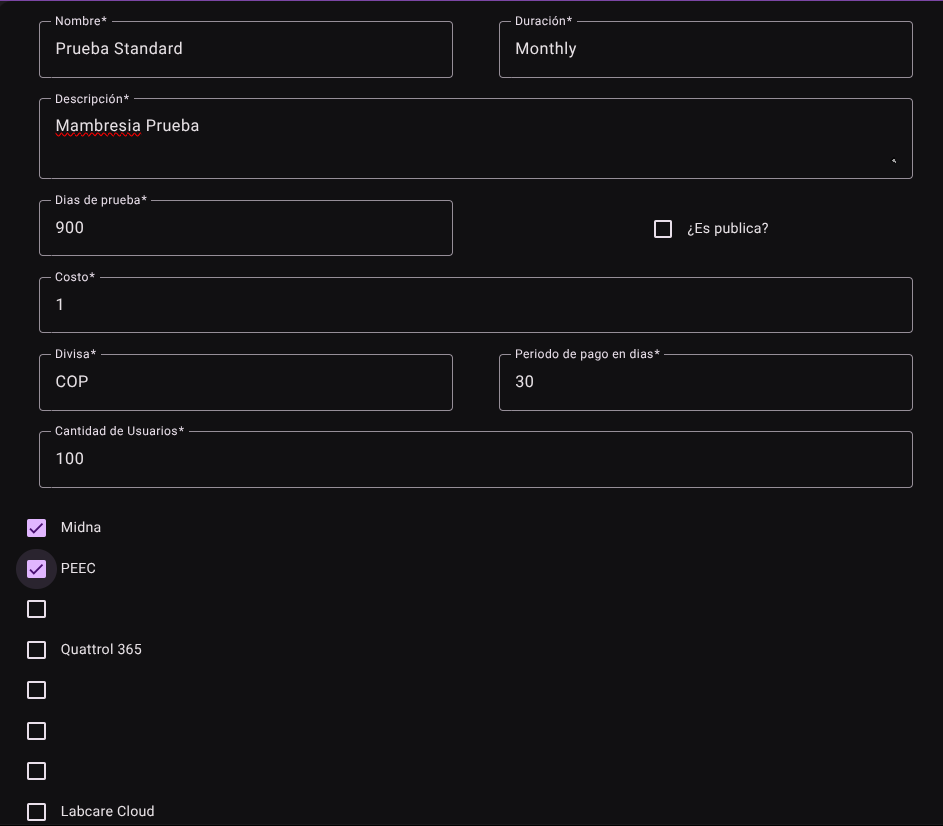
- Fill out the required fields in the creation form:
- Name: Identification name of the membership (e.g.
Plan Premium Mensual). - Duration: Name of the plan period (e.g.
Mensual,Anual). - Description: Detail of what the subscription includes.
- Trial days: Number of days of free access granted before the first charge.
- Is it public?: Box that defines whether clients can view and select it autonomously from their panels.
- Cost: Monetary value of the plan.
- Currency: Type of currency in which the payment is made (e.g.
USD,COP). - Payment period in days: Exact frequency with which the payment is calculated (e.g.
30for monthly,365for annual). - Number of users: Maximum number of users allowed on the plan.
- Product management: You can select the products associated with the subscription and add them to the + button.
- Name: Identification name of the membership (e.g.
- Click "Add" to register membership on the platform.

3. Edit a Membership
To update the trading terms of an existing membership:
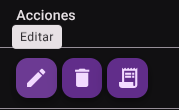
- Find the plan in the table and click "Edit" (pencil icon ✏️).
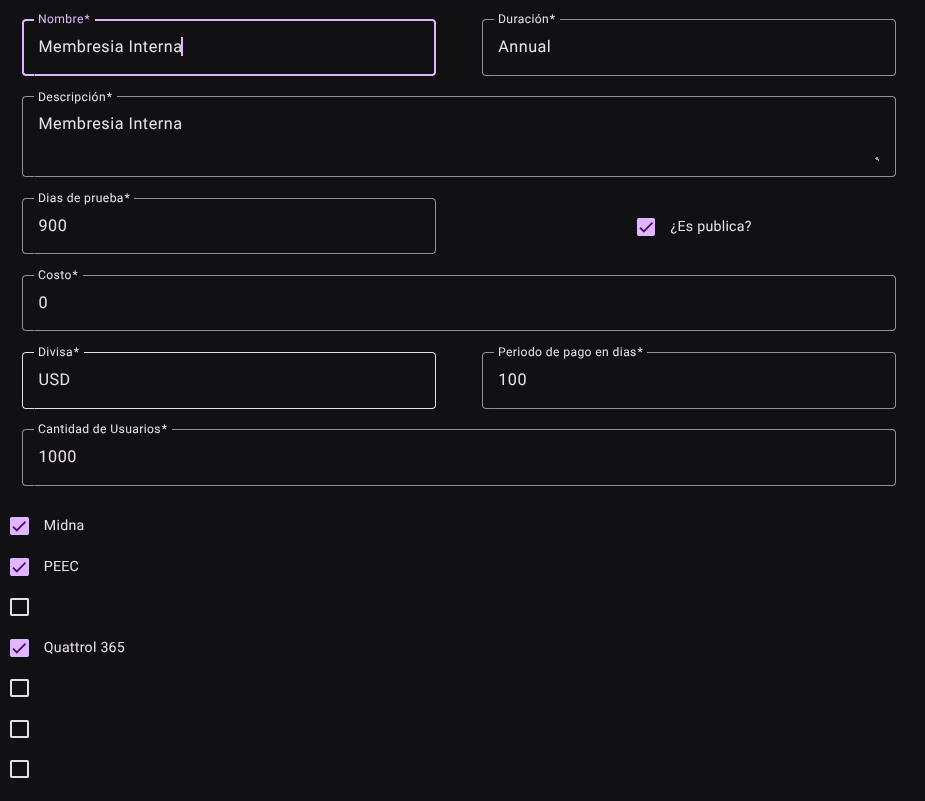
- Modify the corresponding fields. There are no restrictions on changing the cost, description or duration.
- Click "Update" to apply the changes immediately.

4. Delete a Membership
To definitively remove a subscription plan from the system catalog:
- Click the trash icon (🗑️) for the corresponding plan.
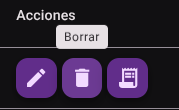
- Confirm the deletion in the pop-up warning modal.

WARNING
The deletion action is irreversible and will be rejected by the system if the membership is currently assigned to any active organization on the platform.
5. Apply Membership to Organizations
To associate a subscription with one or more client organizations:
- Click the "Apply Membership" button at the top of the panel.

- Select the desired membership from the drop-down list.
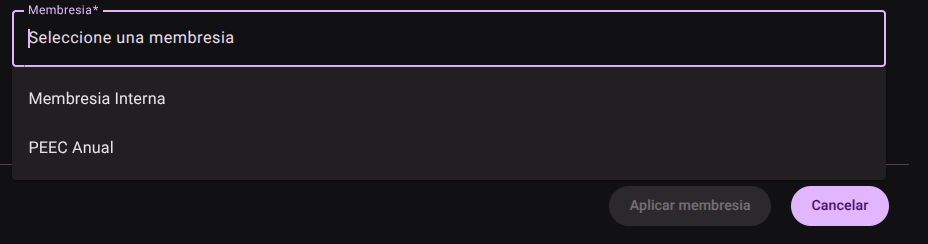
- Search and select one or more recipient organizations from the list.
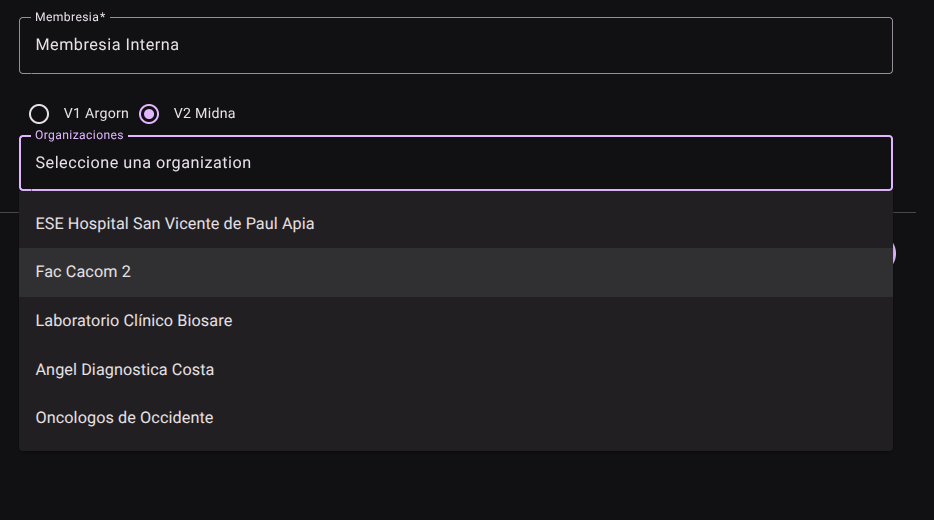
- Click "Apply Membership" to grant access to the platform.

6. Remove Membership
If you want to remove access or unsubscribe from a specific organization:
- Click the "Remove Membership" button.

- Select the organization and membership plan you want to withdraw.
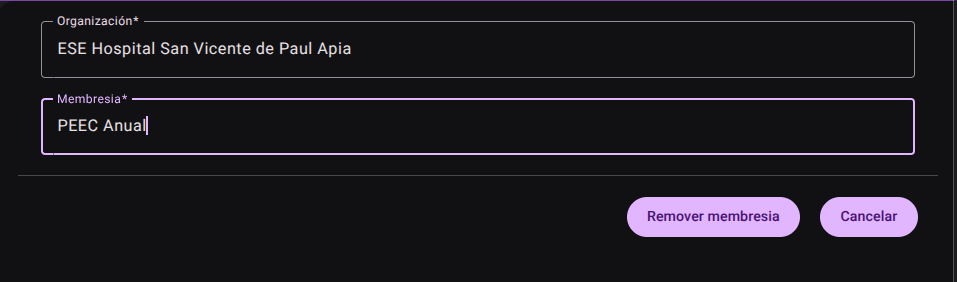
- Press the "Remove Membership" button to unlink it.

7. Change Membership Status
Enables manual subscription administrative status change for linked organizations:
- Click "Change membership status".

- Select the new business status:
- Active: Service fully enabled and functional.
- Inactive: Access temporarily denied.
- Suspended: Access paused due to non-payment or other administrative causes.
- Trial period (Free Trial): Access enabled for a limited duration at no associated cost.
- Select the organizations to which you want to apply this status change.
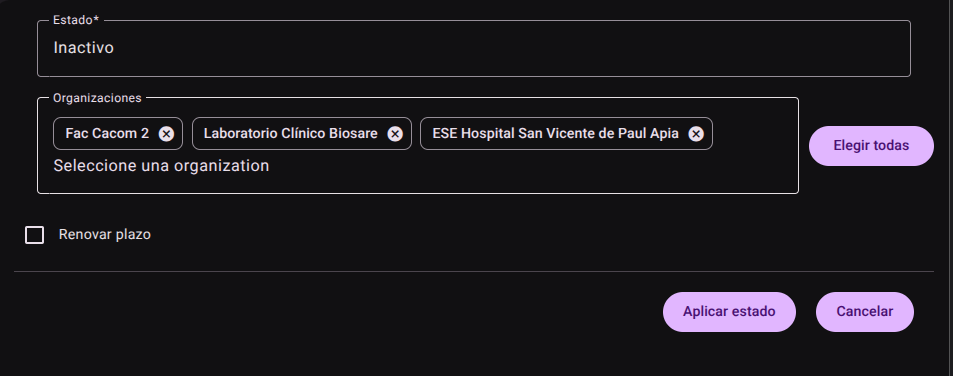
- Press "Apply Status" button to apply.

8. Export Membership Billing
This function allows you to generate detailed collection reports for the accounting department:
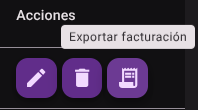
- Locate the plan in the table and click the "Export Billing" action (report/invoice icon).
- In the pop-up window, select the specific Month and Year of the billing you want to view.
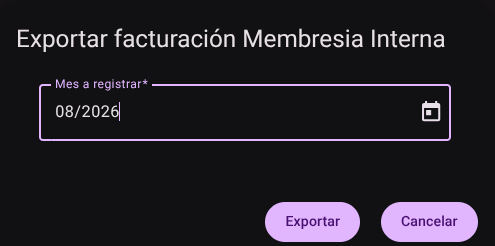
- Click "Export" to download a file in .CSV format with the information on amounts and collections from the organizations in that time range.

9. Export Membership List
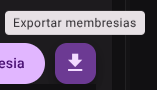
Allows you to download the complete database of memberships configured in the system by clicking on the general download icon in the table. The system will export a .CSV file structured with all the information.
Roles and Permissions Required
Access to these global system parameters is restricted to the General Administrator or Platform Support role. Requires the following permissions:
- Geographic and UI parameters:
country_read,state_read,languages_readandmenus_read. - Entities and Licensing:
memberships_read,system_products_readandconfig_refs_read. - Traceability:
tags_readandincident_tracking_read(for incident tracking). - Write Actions: Permissions with corresponding
_createand_updatesuffixes to modify system tables.