Control Lots and Reagent Lots
Description, Purpose and Objective
NOTE
The Control Lots and Reagents view is the quality control module responsible for recording, classifying and monitoring the life cycle of the control materials and reagents used in the organization's analytical processes.
The system organizes these materials into two very different types:
- Control Lot: Control material or serum of known concentration used to verify that the analyzer measures correctly. It is characterized by a Lot Number, a Description, an Expiration Date (or expiration), the Manufacturer of the control and the assigned Clinical Area.
- Reagent Lot: The chemical compound or biological reagent used to react with the sample and quantify an analyte. It is defined solely by its Lot Number and the Measurand (analyte) to which it is associated.
The objective of this view is to guarantee the traceability of critical laboratory supplies, allowing patient results to be correlated with the exact batch of reagent and control with which they were processed, detecting drifts due to material degradation.
Context of Use
This panel is operated by clinical laboratory staff and quality coordinators to:
- Register new batches acquired: Enter the control and reagent batches of the new shipments before starting to use them in daily processing.
- Monitor expiration dates: Avoid processing samples using expired controls that invalidate quality control.
- Switch lot (Lot Switch): Archive out-of-stock or expired lots to remove them from active listings and make way for new lots.
Possible Actions
1. Consult and Search Lots
The interface organizes the batches into two interactive tabs: Control Batch and Reactive Batch. Upon entering each tab, the corresponding table is presented detailing its characteristics and status. The top search engine filters batches by number, manufacturer or clinical area instantly.
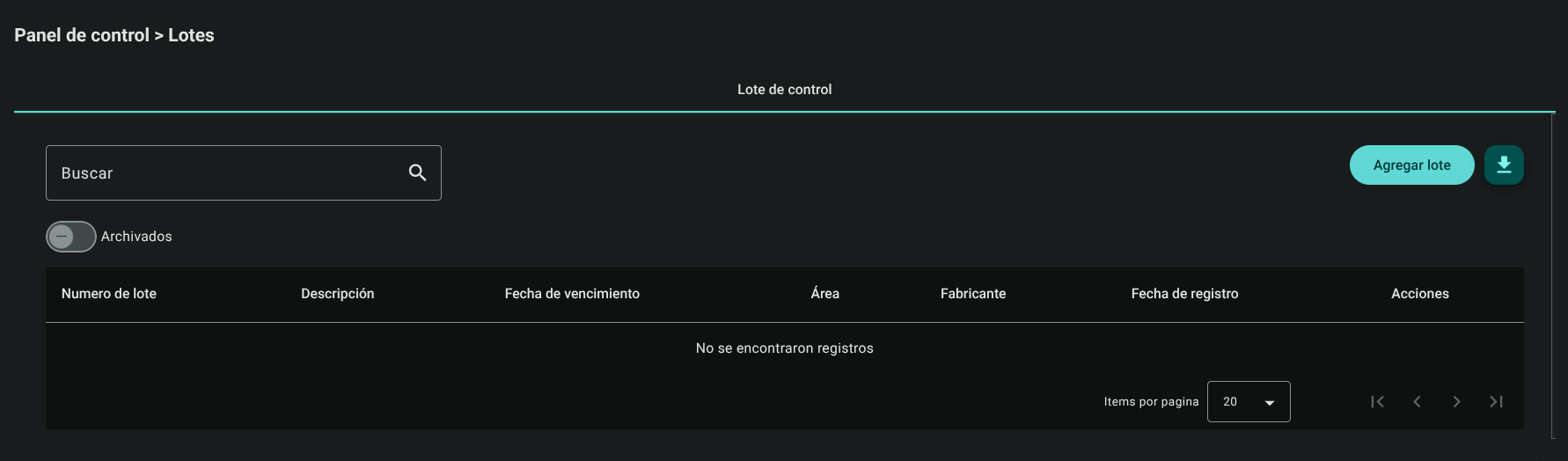
2. Add a New Batch
To register a lot on the platform, go to the corresponding tab and click on "Add lot":

Add Control Lot
- Click the Control Batch tab and press "Add Batch".

- Fill out the side form information:
- Lot number: Alphanumeric code printed by the manufacturer.
- Description: Detail or commercial name of the control (e.g. Multichem Level 1 Control).
- Expiration Date: Select the expiration date of the material using the calendar.
- Area: Processing area (autocomplete selection, e.g. Clinical Chemistry).
- Manufacturer: Manufacturer of the control material (self-completing selection, e.g. Bio-Rad).
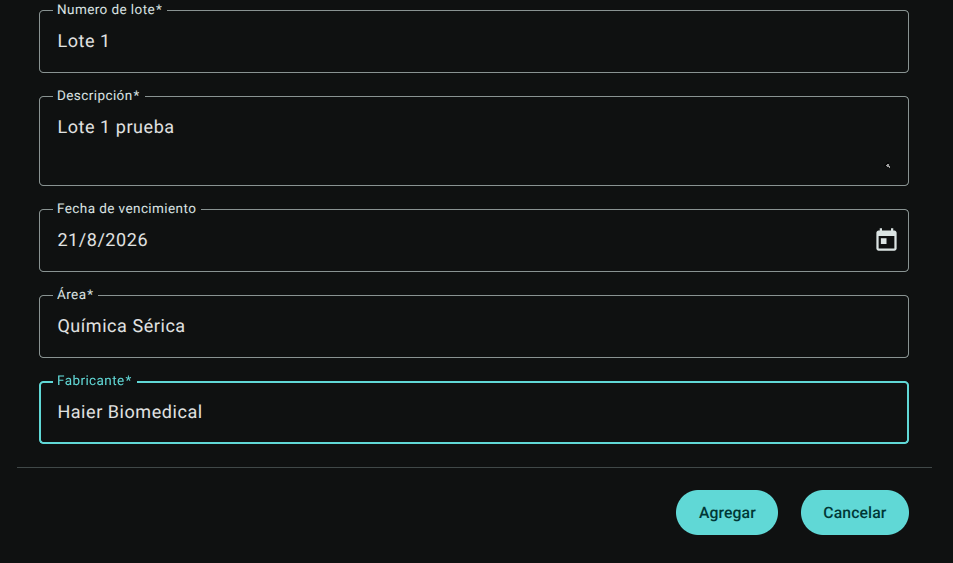
- Press "Add" to save.
Add Reagent Lot
- Click the Reagent Lot tab and press "Add Lot".
- Fill out the side form:
- Lot number: Code printed on the reagent cartridge.
- Measuring: Select from the autocomplete list the analyte to which the reagent corresponds (e.g. Glucose).
- Click "Add" to save.
3. Edit a Batch
To modify the description, expiration date or manufacturers of a lot:
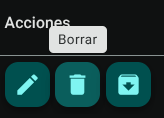
- Click "Edit" (pencil icon ✏️) in the appropriate batch row.
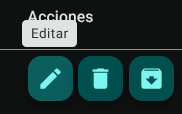
- Modify the information in the side panel and press "Refresh" to apply the changes immediately.
4. Archive and Unarchive Batches
When a reagent or control lot is physically depleted or expires:
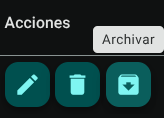
- Archive: Click the "Archive" button (drawer icon 📥) in the batch row. It will be hidden from the main list and will no longer be displayed in data entry menus.
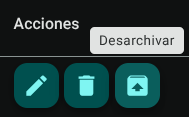
- Restore: Turn on the "Archived" switch at the top left of the table to view historical batches. Click "Unarchive" in the required batch row to reactivate it in the regular catalog.

5. Delete a Batch
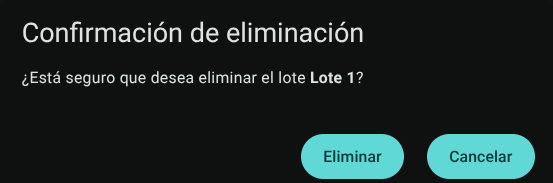
Click on the trash icon (🗑️) of the batch and confirm the action in the modal.
WARNING
The system will block the deletion of any lot (control or reagent) that is already being referenced in an active or historical QC Test. In such a scenario, the batch must be purged using the Archive option.
6. Export Batch Catalog
Click the download button in the header of the active tab to export the control lot or reagent inventory in .CSV format.
Roles and Permissions Required
Access to this parameterization module is reserved for the roles of Quality Director, Laboratory Coordinator and System Administrator. Requires the following technical permissions:
- Display and Audit:
control_lots_read(allows you to consult the list, filter parameters and audit the current configurations). - Management and Writing:
control_lots_create,control_lots_updateand