Frequently Asked Questions and Help Center (CMS)
Description, Purpose and Objective
NOTE
The Frequently Asked Questions (FAQs) view in the CMS is the manageable module designed to parameterize the common questions, quick guides and official answers presented in the support section of the public portal.
A Frequently Asked Questions (FAQ) consists of a category or topic name, an identifying icon (Material Icons), the question asked by the user, the official response written by the organization and the priority level for its ordering on the screen.
The objective of this module is to provide self-service information to end users, reducing the volume of repetitive requests to the help desk.
Context of Use
This module is used by:
- Technical Support and Customer Service Agents: To document responses to recurring questions raised by users.
- Content and Communication Managers: To structure and prioritize the most relevant help topics according to the season or product update.
Possible Actions
1. Consult the List of Frequently Asked Questions
- In the main FAQs table, view the records stored with the columns: Name (Category), Icon, Question, Answer, Priority, Record Date and Actions.
- Use the "Search" field to filter questions or answers by keywords.
- Sort columns by topic or display priority.
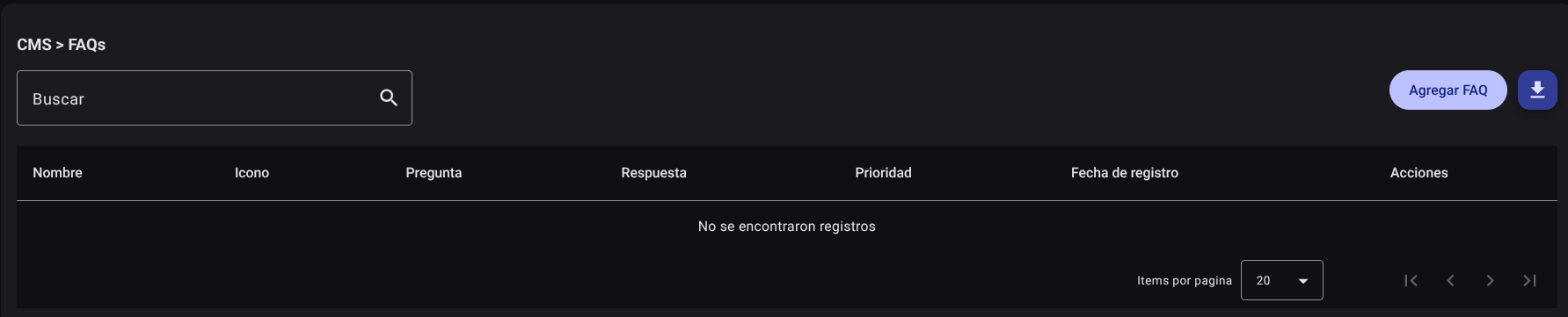
2. Register a New FAQ
- Click the "Add FAQ" button.

- Complete the information requested in the form on the side panel:
- Name: Topic or category to which the question belongs (e.g. Account, Payments, Technical Support).
- Icon: Name of the Material Icons icon to visually accompany the category.
- Question: Clear and concise formulation of the user's concern.
- Answer: Detailed explanation and step by step solution.
- Priority: Numeric value to define the order in the portal drop-down list.
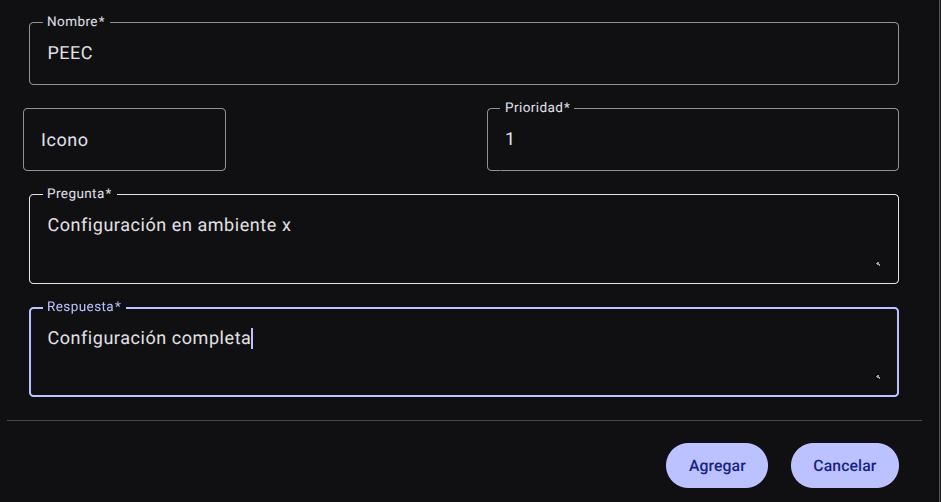
- Click "Add".

3. Edit an FAQ
1.Locate the FAQ in the table and click the edit button (pencil icon✏️) in the actions column.
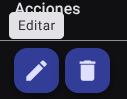
- Modify the desired fields and save the changes to the Save button.

4. Delete an FAQ
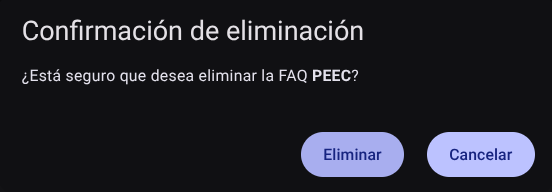
- To unsubscribe from an FAQ, use the delete button (trash can icon🗑️) in the actions column.
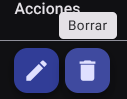
- confirm the action.
5. Export the FAQ Registry
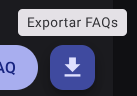
- Click the Export FAQs button (download icon). A CSV/Excel file will be generated and downloaded with all the questions and answers configured.
Required Technical Permits
faq_read: Allows you to consult the frequently asked questions catalog.faq_create: Authorizes the registration of new FAQs.faq_update: Enables editing of questions, answers, icons and priorities.faq_delete: Allows the removal of FAQs from the portal.faq_export: Allows downloading of the complete FAQ report.