Tag Management (Tagging)
Description, Purpose and Objective
NOTE
The Tag Management view is the module in charge of creating, consulting, editing, deleting and exporting visual tags for general system configuration.
A Tag consists of the following key attributes:
- Name*: Label identification text.
- Description*: Detail of the purpose or rule for assigning the label.
- Color*: Sample or chromatic tone selected using a color palette to visually highlight the badge.
The purpose of this view is to categorize and classify system logs using color visual badges.
Context of Use
This module is used by system administrators to:
- Create visual categories: Define color badges to label records or entities.
- Standardize visual identifiers: Maintain an institutional color code for quick filtering and recognition.
Possible Actions
1. View and Filter Tags
- Use the search bar (Search) to locate specific tags by name or description.
- Click on the column headers (Name, Description, Record Date) to sort the table in ascending or descending order.

2. Create a New Tag
- Click the Add Tag button in the upper right corner.

- In the drop-down side panel, fill out the required fields:
- Name*
- Description*
- Color* (Click on the bar to open the color selector/palette and define the tone).
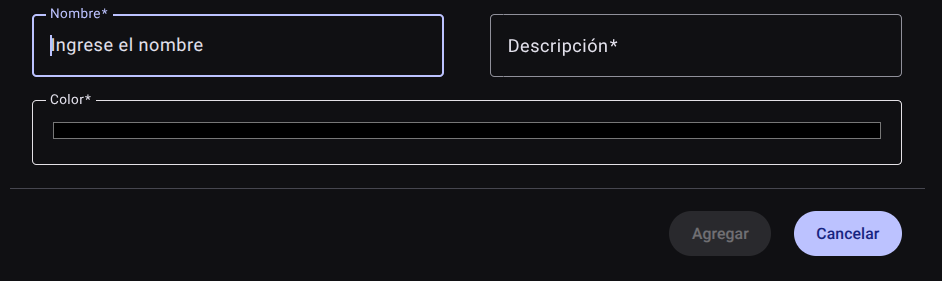
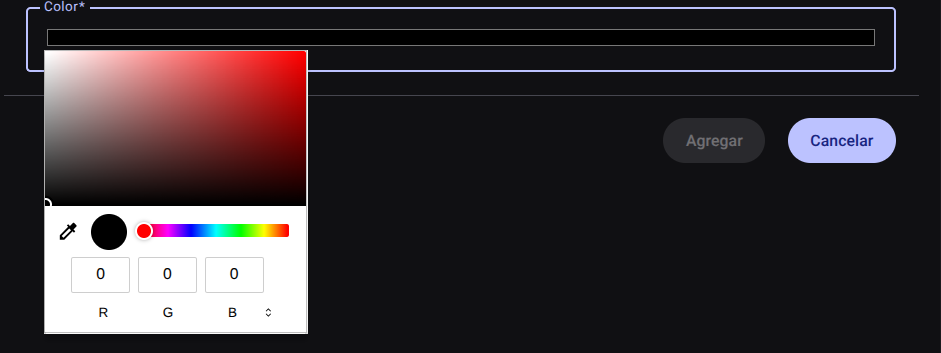
- Press "Add" to save the record (or "Cancel" to close the panel without keeping the changes). The new label will be incorporated into the table showing a circular indicator with the chosen color.

3. Edit an Existing Tag
- In the row of the desired label within the main table, locate the Actions column. click **pencil (Edit).
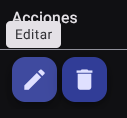
- Open the side panel with the loaded information to modify the data or the assigned color.
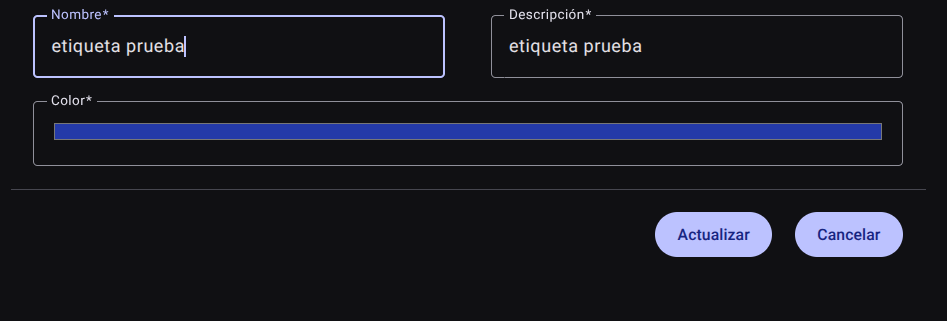
- Press the Update button to save the changes to the system.
4. Delete a Tag
- In the Actions column of the corresponding row, click **Trash Bin (Delete).
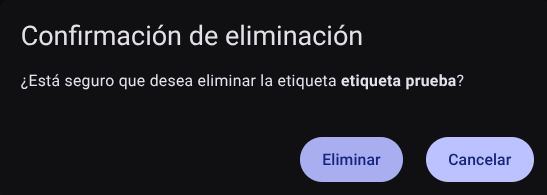
- The system will display a direct confirmation box.
5. Export Tags
- Click the blue button with download icon (Export Tags) located at the top right of the view.
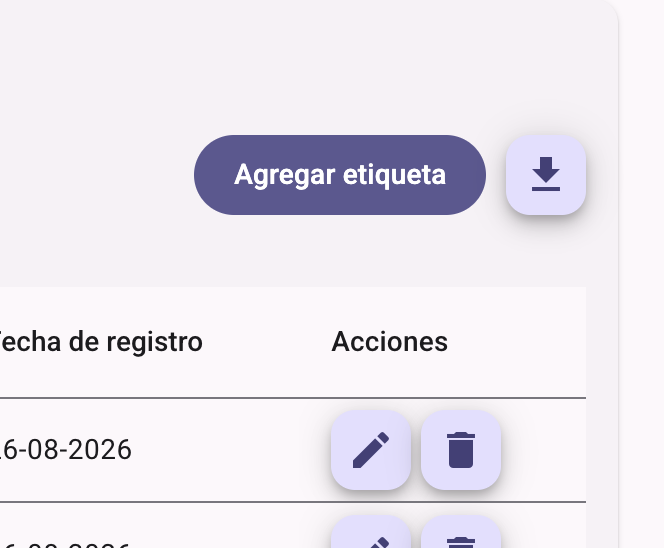
- The system will download the .csv file with the complete list of tags and chromatic settings.
Roles and Permissions Required
Access to these global system parameters is restricted to the General Administrator or Platform Support role. Requires the following permissions:
- Geographic and UI parameters:
country_read,state_read,languages_readandmenus_read. - Entities and Licensing:
memberships_read,system_products_readandconfig_refs_read. - Traceability:
tags_readandincident_tracking_read(for incident tracking). - Write Actions: Permissions with corresponding
_createand_updatesuffixes to modify system tables.