Template Management
Description, Purpose and Objective
NOTE
The Template Management view is the system tool designed to centralize, design and manage the communication formats and documents automatically sent to users (such as welcome emails, news notifications and system alerts).
A Template is a predefined design that structures the content of a communication. It supports HTML (innerHtml) formatting to structure and style the design, and can include dynamic variables or parameters that the platform auto-populates with organization or user data upon submission.
The goal of this view is to allow administrators to maintain consistency in the design and content of all automated communications on the platform.
Context of Use
This module is used by Product Managers to:
- Configure automatic notifications: Design the system's official emails (for example, the confirmation email for entering quality control results or the notification email for a new judicial action).
- Parameterize dynamic content: Define fixed texts combined with variables that adapt in real time to each organization or user.
- Validate visual rendering: Use the real-time viewer to verify that the HTML code is displayed correctly before publishing or activating the template in production.
Possible Actions
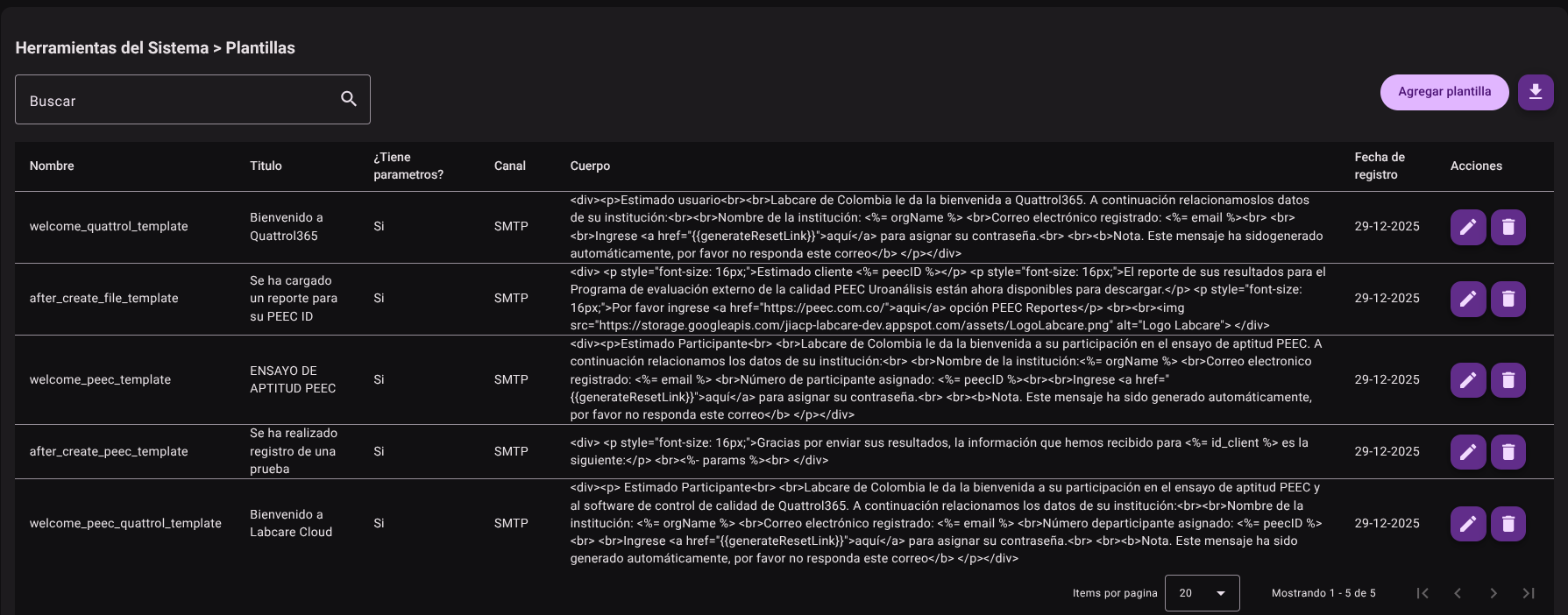
1. View and List Templates
It allows administrators to consult the complete list of formats saved in the database through a table that details the name of the template, the title that users will see, the associated communication channel, the body of the template and the entry date.
2. Add a New Template
To design and incorporate a new template into the system:
- Click the "Add Template" button at the top right of the table.

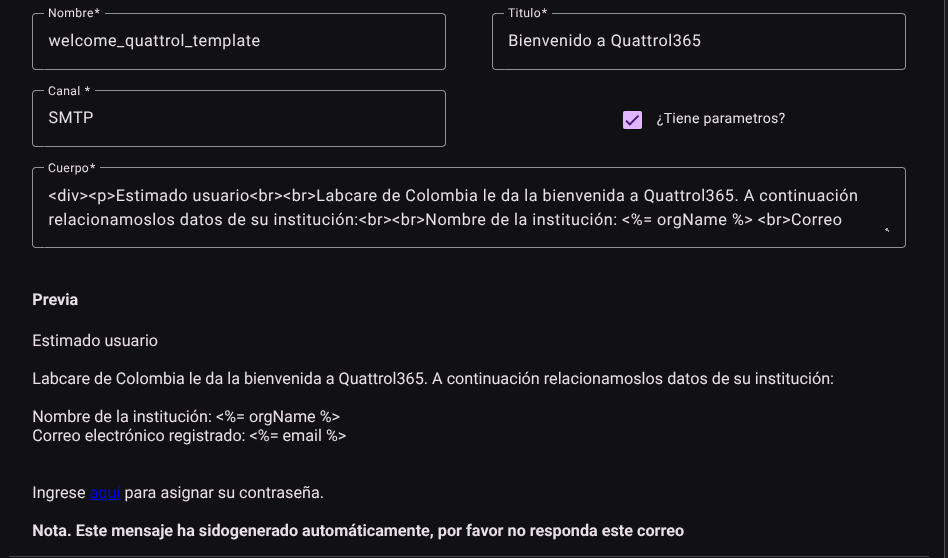
- Fill out the form with the required fields:
- Name: Internal administrative name to identify the file (e.g.
email_bienvenida_usuario). - Title: Subject of the email or header of the message that the end user will receive (e.g.
Bienvenido a la Plataforma). - Channel: Communication medium through which the message will be sent (e.g.
Email,SMS,Notificación Interna). - Does it have parameters?: Check this box if the template will use structured dynamic variables.
- Body (innerHtml): Enter the template content written in HTML code to configure the styles, tables and images.
- Display Preview: At the bottom of the HTML editor, check the real-time preview section to check the layout of the elements.
- Name: Internal administrative name to identify the file (e.g.
- Click "Add" to register the template.

3. Edit a Template
To modify the layout or subject of a saved template:
- Find the corresponding record and click "Edit" (pencil icon ✏️).
- The code and fields editor will load with the existing information. Make any desired modifications to the HTML code, parameters, or title.
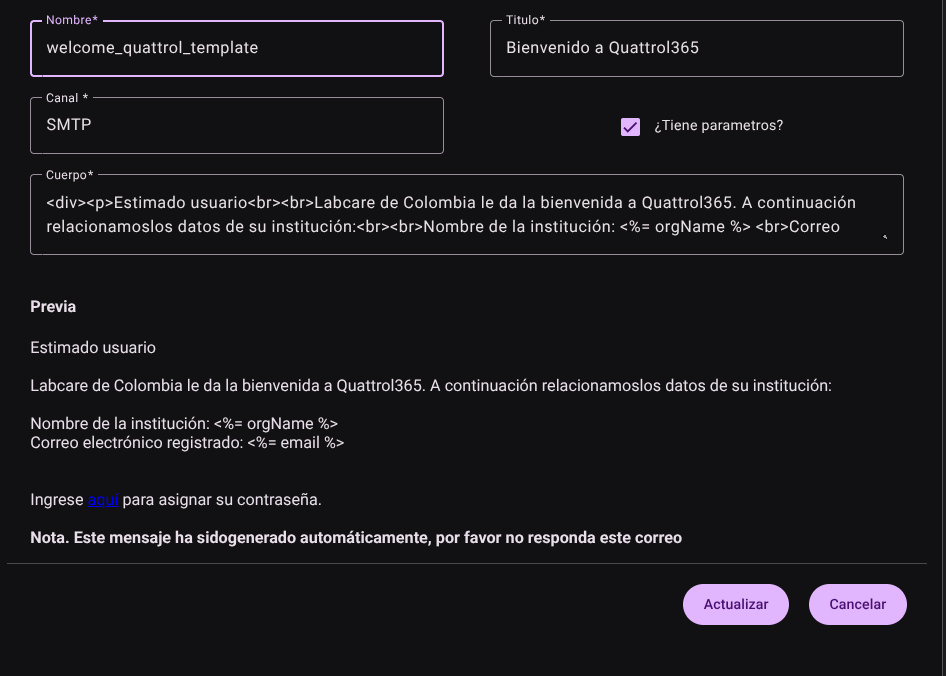
- Use the interactive preview to validate your changes.
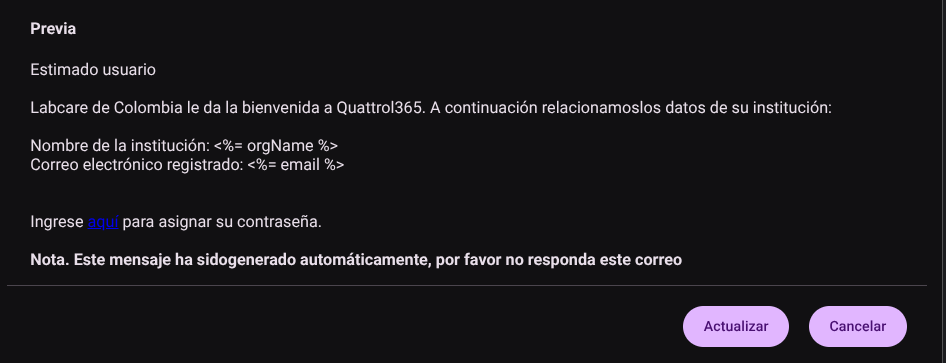
- Click "Update" to apply the changes immediately to system notifications.

4. Delete a Template
To permanently delete a template:
- Click the trash icon (🗑️) of the record in the table.
- confirm the action in the popup modal.
CAUTION
Deleting a template is irreversible. The system will restrict deletion if the template is actively assigned to automated shipping flows configured in other menus.
5. Export Templates
Allows administrators to download the list of templates in .CSV format to perform external audits of channels and formats enabled on the platform.
Required Technical Permits
Access to this module requires that the administrator role has the following authorizations:
templates_readortemplates_list: Allows you to list and consult the template catalog in the table.templates_create: Enable the editor and the button to register new formats.templates_update: Grants access to modify the HTML code and fields of existing templates.templates_delete: Authorizes the definitive deletion of templates from the system.templates_export: Enables export of templates in data format.