System Menus and Navigation
Description, Purpose and Objective
NOTE
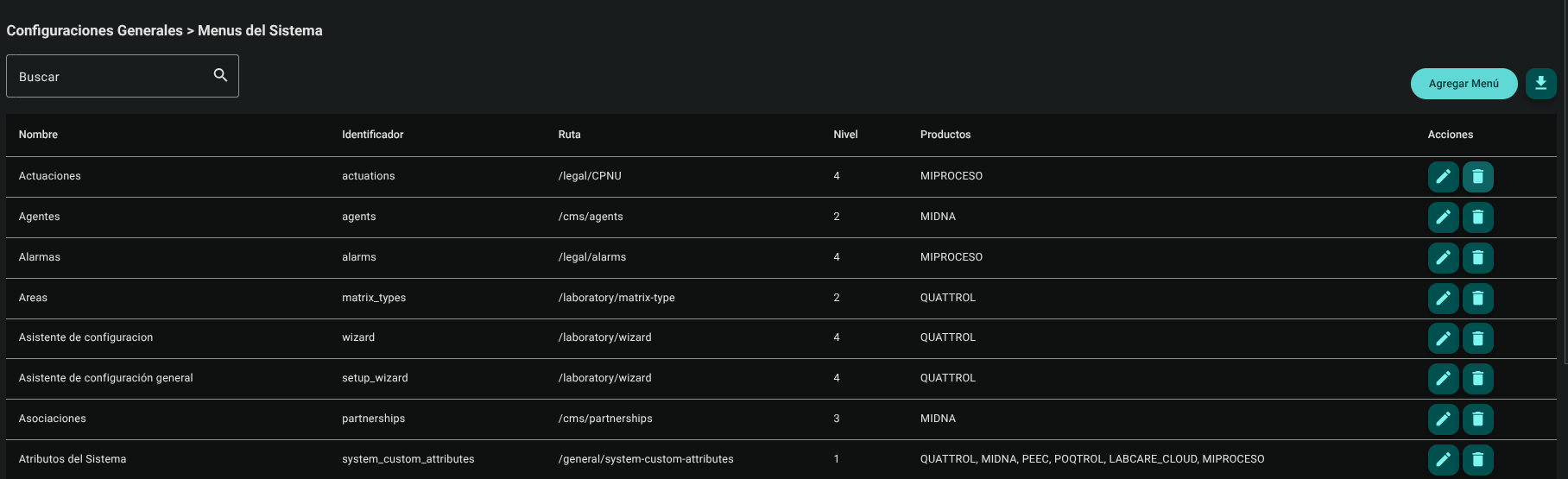
The System Menus view is the navigation architecture console in charge of configuring, creating, editing, deleting and exporting the system menu options and navigation paths associated with each product.
A System Menu is made up of the following key parameters:
- Name*: Visible name of the option in the side menu.
- Identifier*: Unique identification technical key or code.
- Path*: URL address or internal navigation path.
- Level*: Hierarchical level of the menu (Level 1 for main menu, Level 2 or 3 for submenus).
- Additional Fields: Extra configuration parameters if applicable.
- Products*: Mandatory selection of at least one product to which this menu will be associated.
The objective of this view is to allow the dynamic structuring of the navigation tree and to associate the access paths to the licensed products.
Context of Use
This module is used by system infrastructure administrators to:
- Create and link navigation routes: Create menus and associate them with authorized products.
- Edit and structure the visual hierarchy: Modify levels, identifiers and names of the side menu.
- Export navigation structures: Obtain the script file with the complete menu definition.
Possible Actions
1. Consult and Filter Menus
- Enter text in the search bar (Search) to filter the menu list in real time.
- Click on the column headers (Name, Identifier, Path, Level, Products) to change the table sorting.
2. Create a New Menu
- Click the ****Add Menu" button in the upper right corner.

- In the drop-down side panel, complete the required fields:
- Name* (Visible name of the option in the
Ej: Usuariosmenu). - Identifier* (Key or technical identification code
Ej: users). - Path* (URL address or internal navigation path
Ej:/general/users). - Level* (Hierarchical level of the menu).
- Additional Fields (Extra configuration parameters, if applicable).
- Products* (select the box for at least one product to which this menu will be associated). The form requires mandatory selection of at least one product before allowing registration.
- Name* (Visible name of the option in the
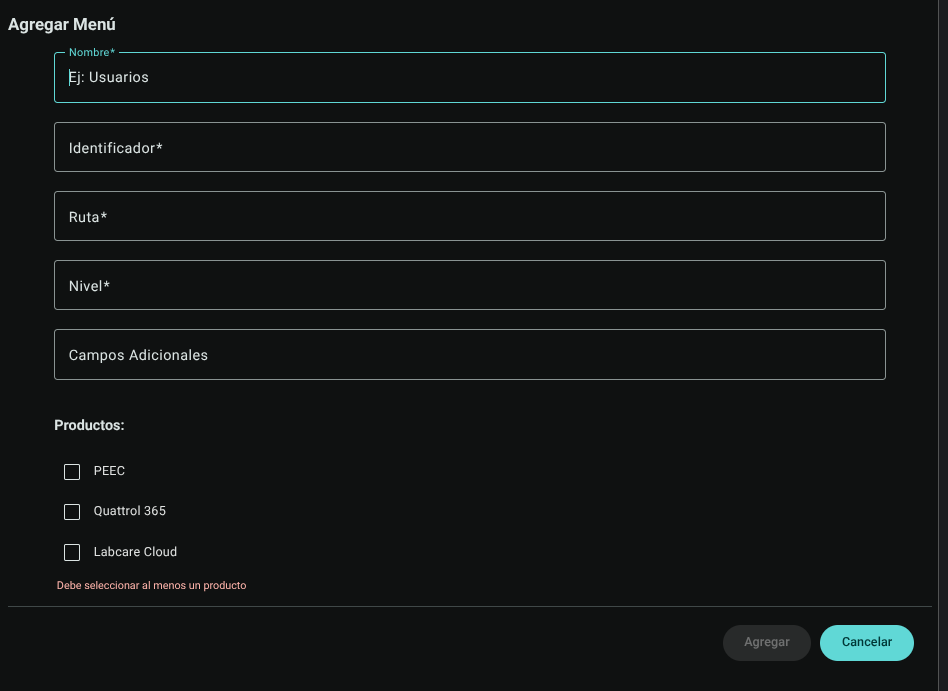
- Press the ****Add" button to register the menu (or "Cancel" to close the panel without keeping changes).

3. Edit an Existing Menu
- In the desired menu row within the main table, locate the Actions column and click on **pencil (Edit).
<img width=**100" height="95" alt="image" src="/assets/menus_del_sistema_imagen5.png" />
- The Edit Menu side panel will be displayed; modify the linked information or products and save using the "Update" button.

4. Delete a Menu
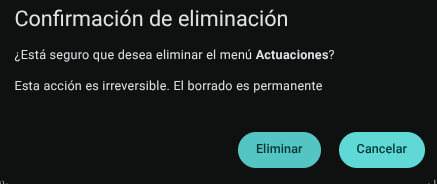
- In the Actions column of the corresponding row, click **Trash Bin (Delete).
<img width=**108" height="87" alt="image" src="/assets/menus_del_sistema_imagen7.png" />
- The system will display a direct confirmation.
5. Export Menu for Script
- Click the button **with download icon located next to **Add Menu" in the upper right corner.
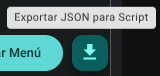
- The system will generate and download an
.jsonfile with the navigation structure to integrate or execute in deployment scripts.
Roles and Permissions Required
Access to these global system parameters is restricted to the General Administrator or Platform Support role. Requires the following permissions:
- Geographic and UI parameters:
country_read,state_read,languages_readandmenus_read. - Entities and Licensing:
memberships_read,system_products_readandconfig_refs_read. - Traceability:
tags_readandincident_tracking_read(for incident tracking). - Write Actions: Permissions with corresponding
_createand_updatesuffixes to modify system tables.