Events and Evaluation Rounds
Description, Purpose and Objective
NOTE
The Events and Evaluation Rounds view is the administrative console in charge of the comprehensive administration of events (creation, editing, duplication, export, generation of statistics, auditing and report management).
An Event constitutes the operational unit of analytical evaluation and is defined by the following components:
- General Parameters: Name, version, type of measurement and cut-off date (deadline).
- Reports and Documents: Technical guides, instructions and consolidated report files.
- Statistical Processing: Calculation of metrics, averages and analytical deviations.
- Participation Control: Enabling participating users and organizations.
The objective of this view is to orchestrate the entire life cycle of evaluation events, from their initial configuration to the issuance of statistical reports and audit of results.
Context of Use
This module is used by administrators and technical directors to:
- Manage the entire event cycle: Create, clone or modify round rules and deadlines.
- Process data and generate statistics: Run the calculation engines to consolidate comparative metrics.
- Manage reports and documents: Attach technical guides, issue consolidated reports and audit participations.
Possible Actions
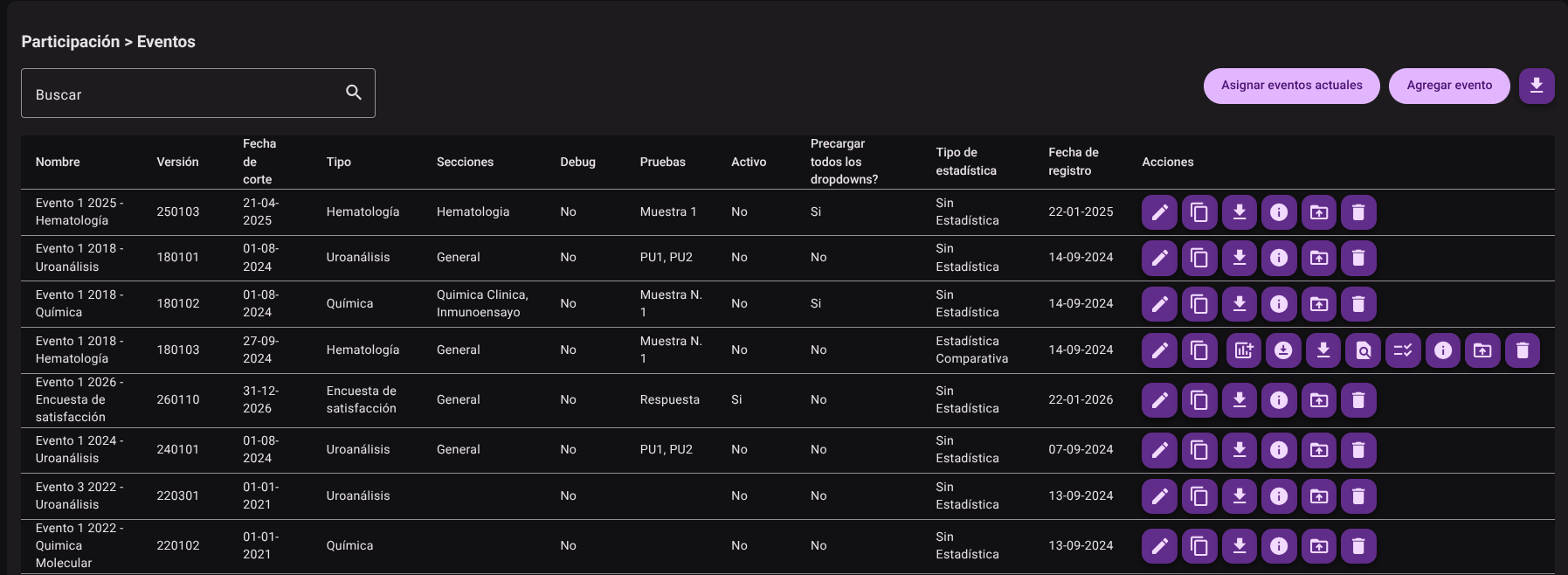
1. Filter and Sort the Table
- Enter text in the search bar (Search) to filter the table records in real time.
- Click any column header (Name, Version, Type, Date) to toggle ascending or descending sorting.
- The table responds immediately to the text entered and the interaction with the headers.
2. Create a New Event
- Click the Add Event button located in the upper right corner of the view.
- In the side panel, fill out the general parameters, deadlines and instructions for the event. Event Name and Version: Defines the identifier and version code of the event.
- Cut-off date: Establishes the deadline for receiving or recording data.
- Type of event: select the corresponding technical area from the drop-down menu (Uroanalysis, Chemistry, Hematology, Glucometers, etc.).
- Preload all dropdowns: Activate this checkbox if you require the system to automatically load all associated dropdown lists by default.
- Type of statistics: Choose the data processing model from the options: No statistics, Comparative Statistics or Individual Statistics.
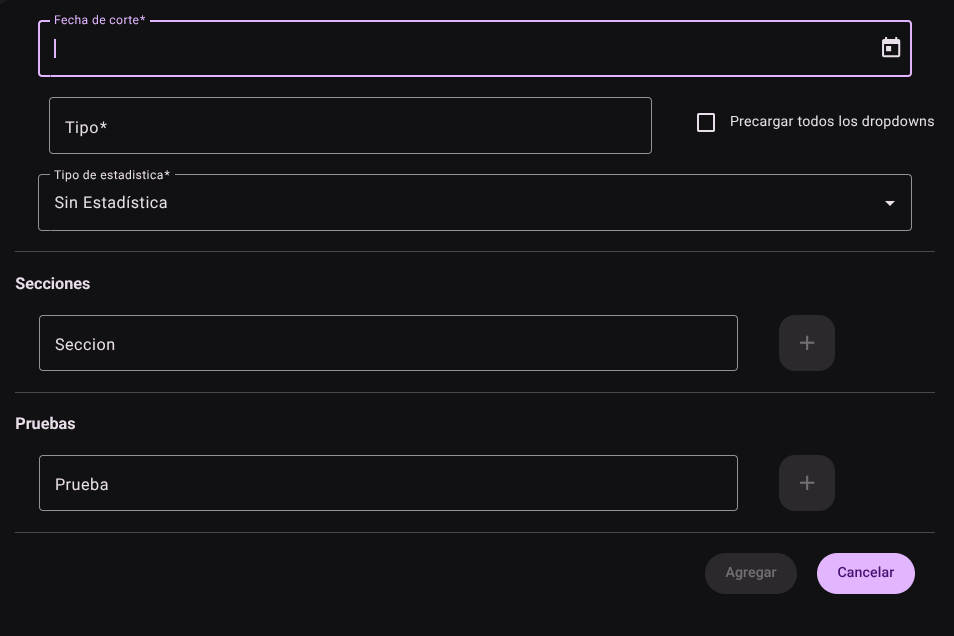
- Click Add to log the event to the system.
3. Assign Current Events
- Click the Assign Current Events button on the top bar.
- The system will display a list with the records available to the active period or work group.
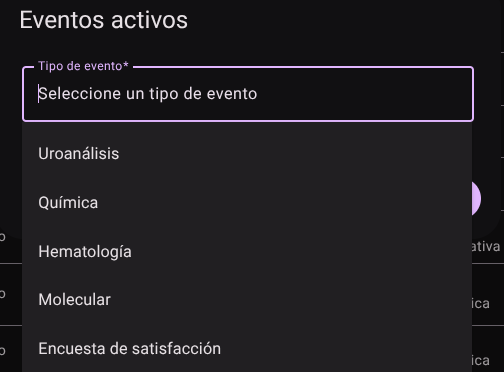
- Click Save to add the event.

4. Edit an Event
- In the corresponding event row, locate the actions context bar and click on the Edit option (pencil icon).
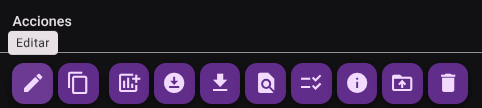
- Modify the general parameters, sections or rules of the event.
- Press "Save" to update the changes.
5. Copy an Event (Duplicate)
- In the row of the event to duplicate, click on the "Copy Event" icon.
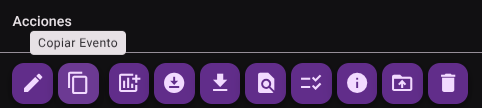
- The system will clone the entire event configuration to generate a new editable record.
6. Generate Event Statistics
- In the event row, click the "Generate event statistics" action.
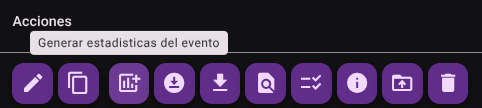
- The system will process the collected data to calculate comparative statistics and metrics, updating the operational status of the event.
7. Download Event or Consolidated Report
- In the event row, click the "Download Event Report / Consolidated" icon.
- The download of the individual report of the event or consolidated data will begin immediately.
8. Audit Event Reports
- In the event row, select the "Audit reports" option.
- Review and validate the consistency of the reports generated before final publication.
9.Upload Instructions or Upload Reports
- In the event row, select the "Upload Instructions" or "Upload Reports" action.
- Attach the technical guide files or finalized reports to the system.
10. Generate Event Entries
- In the event row, click the "Generate Entries" action.
- The system will automatically assign and enable the corresponding participations to the users and entities of the event.
11. Upload event instructions
- In the event row, click the "Load Event Instructions" action.
- The system will load the instructions for the corresponding event.
12. Upload Event Reports
- In the event row, click the "Upload Event Reports" action.
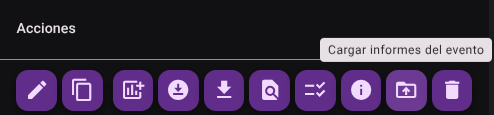
- The system will load the corresponding event reports.
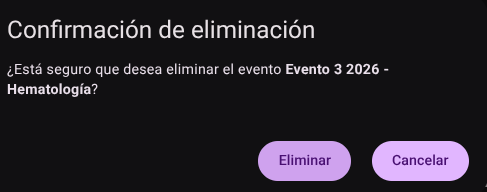
13. Delete an Event
- In the row of the event to be removed, click the Delete icon (red trash icon).
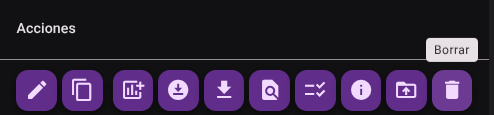
- Confirm the action in the pop-up window to delete the event permanently.
14. Export the General List of Events
- Click the download icon button (Export) next to the top actions.
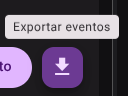
- The system will generate and immediately download a report file
.CSVwith the general list of events.
Statistical Models in Proficiency Testing (PEEC / POQTROL)
NOTE
- No Statistics: Modality used for qualitative collection or descriptive surveys without parametric contrast between participants.
- Individual Statistics: Used when the participant's performance is directly contrasted against a pre-established reference value (e.g. manufacturer's target value or primary reference calibrator).
- Comparative Statistics (Algorithm A of ISO 13528): Robust interlaboratory consensus model. Calculates the robust mean ($x^$) and the robust standard deviation ($s^$) minimizing the influence of extreme or atypical data (outliers) without the need to arbitrarily discard participants.
Required Technical Permits
event_read: Allows you to consult the catalog and search for events.event_create: Authorizes the creation of new events and the duplication of configurations.event_update: Enables parameter editing, instruction loading and reporting.event_delete: Allows permanent deletion of events.event_export: Authorizes the massive export of data and download of consolidated data.