Devices and Hardware
Description, Purpose and Objective
NOTE
The Device Inventory view (or Hardware Management) is the ERP module responsible for the control, appraisal and assignment of technological assets (computers, peripherals, servers and licenses) owned by the organization.
A Device is any physical hardware asset or technological resource recorded in inventory. Each device has a technical sheet that includes the legal Owner of the asset, its Cost Center (6-digit accounting code), financial values (purchase value, commercial value and current net value with its respective currency), and the current Responsible (collaborator or department that is assigned the custody and use of the equipment).
The objective of this view is to ensure control of the life cycle of hardware assets, from their accounting acquisition and assignment of responsibility for use, to their depreciation and definitive removal from inventory.
Context of Use
This module is operated mainly by the Technology (IT) and accounting area to:
- Record new purchases: Enter computers or peripherals purchased, detailing their purchase cost and cost center.
- Assign work tools: Formally link a computer or device to a collaborator when he or she joins the company or changes position.
- Control depreciation: Consult the commercial value and current net value (depreciated) of the equipment.
- Audit and traceability: Consult the assignment history of a piece of equipment to identify who has had it in their custody over time.
Possible Actions
1. Consult and Search Devices
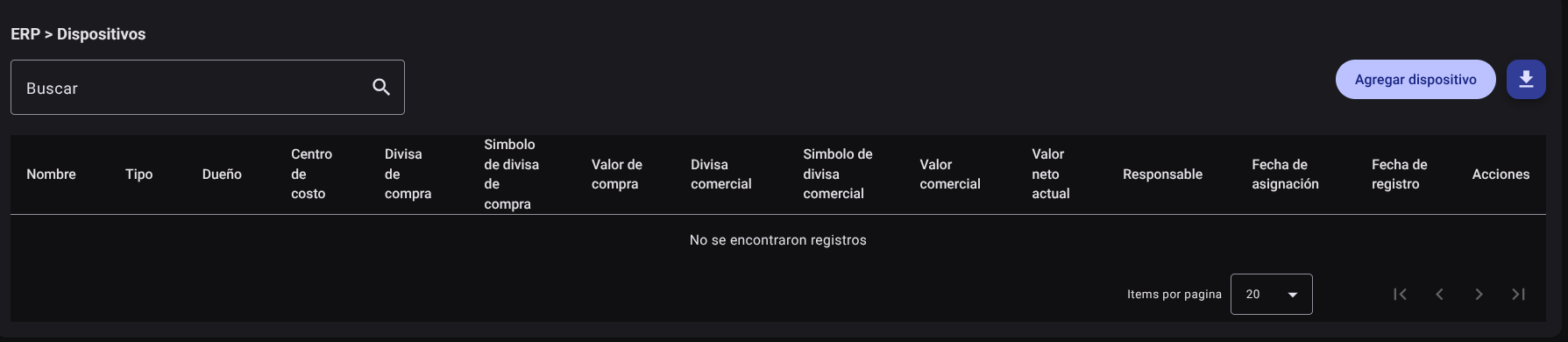
Displays the total inventory in an interactive table with details of name, type, owner, cost center, purchase/trade values, assigned manager and assignment date. The upper search engine allows you to filter devices by name, brand, person responsible or code.
2. Add a Device
To register technological equipment:
- Click the "Add Device" button in the panel header.

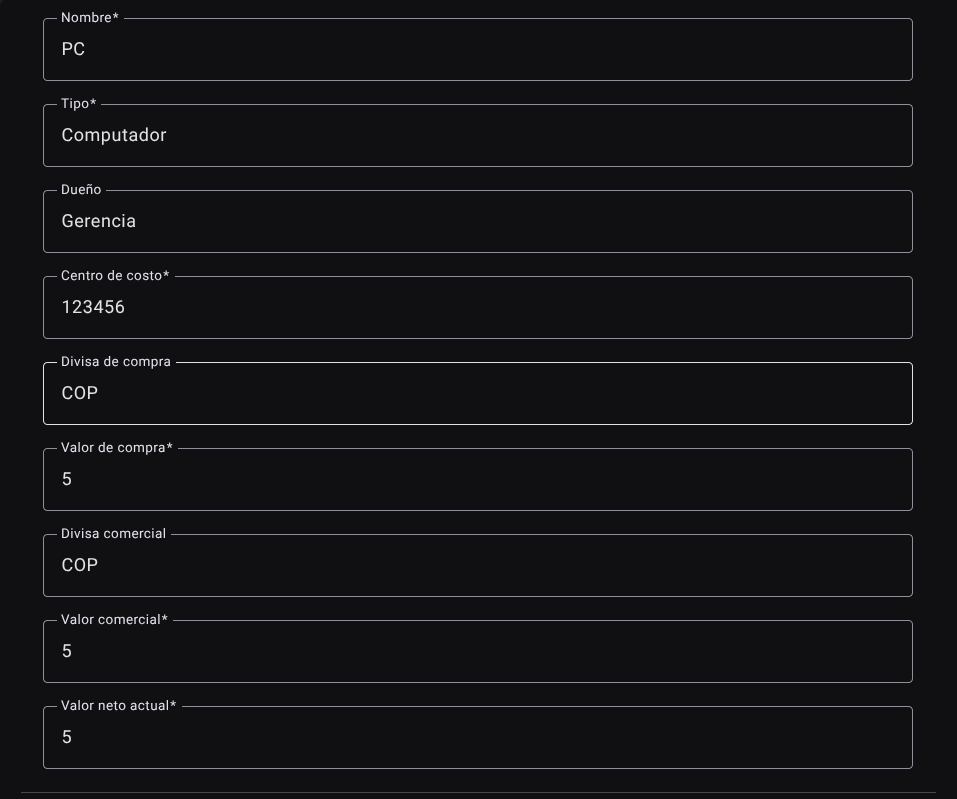
- Complete the lateral form with the following technical and inventory data:
- Name: Brand, model or unique identifier of the device (e.g. ThinkPad L14 Gen 3).
- Type: Device category (e.g. Laptop, Monitor, Server).
- Owner: Legal entity that owns the equipment (select from autocomplete list).
- Cost center: 6-digit accounting code that assumes the depreciation of the asset.
- Purchase currency: Currency in which the purchase invoice was made.
- Purchase value: Invoiced purchase amount.
- Commercial Currency and Commercial Value: Currency and current estimated resale value in the market.
- Current net value: Book value of the device discounting accumulated depreciation.
- Press "Add" to save the asset to inventory as Available (no assignee assigned).

3. Edit a Device
To correct financial values, change the cost center, or update the equipment name:
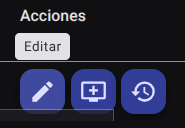
- Click "Edit" (pencil icon ✏️) in the device row.
- Adjust the data in the side panel and click "Refresh" to apply the changes immediately.

4. Assign Custody Responsible
To deliver a device to a collaborator or department:
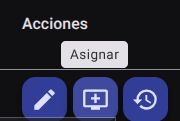
- Locate the available device in the list (identifiable because it has no name in the Responsible column and displays the "Assign" icon 📥).
- Click the Assign button.
- In the pop-up form, find and select the responsible collaborator from the auto-complete list.
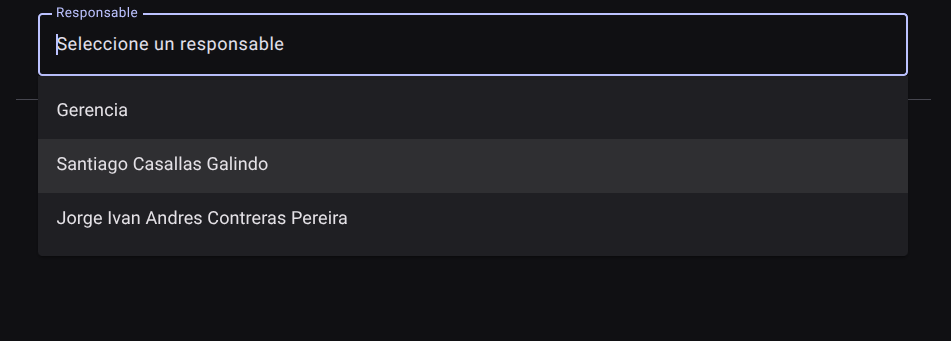
- Click "Assign". The system will update the equipment status, record the assignment date, and change the action icon.

5. Unassign or Unlock a Device
When a collaborator returns a piece of equipment (due to company retirement or technology renewal):
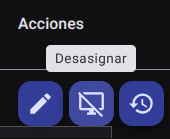
- Locate the assigned device in the table and click "Unassign" (screen disabled icon 🖥️🚫).
- Confirm the release in the security modal window. The responsible field will be empty and the team will once again be Available to be reassigned.
6. Consult Assignment History
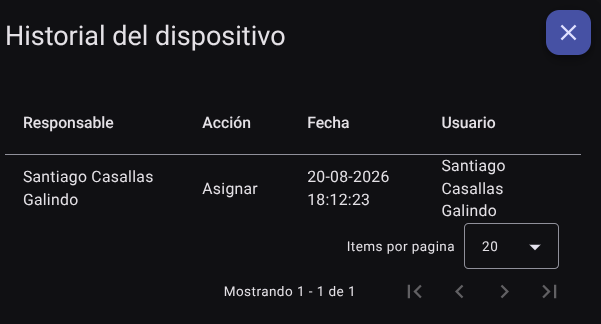
To audit the usage history of a hardware asset:
- Click the "View History" icon (clock icon with arrow 🕒) in the device row.
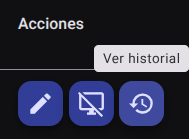
- A temporary log will be displayed that shows the delivery and return dates, detailing each of the collaborators or departments that have had the device under their responsibility.
7. Export Device Inventory
Click the download button at the top right to export the complete inventory, with its purchase values, depreciation and history of active responsible parties, in .CSV format.

Required Technical Permits
Access to the management of technological assets is regulated by the following keys:
devices_read: Allows you to enter the view, consult the inventory table and perform hardware searches.devices_create: Enables the action of adding new devices to the general inventory.devices_update: Grants access to the device's technical data editing forms.devices_delete: Enables the deletion of decommissioned assets.devices_export: Enables the export of the general list in.CSVfile format.devices_assign: Allows you to perform the actions of assignment, unassignment and consultation of the history of those responsible for the devices.