Collaborator Contract Management
Description, Purpose and Objective
NOTE
The Management of Collaborator Contracts (or User Contracts) view is the ERP module intended for the registration, salary control and hourly pricing of personnel linked commercially or professionally with the organization.
A Collaborator Contract is the digital record that defines the contractual and remuneration conditions of an internal or external user. Each record details the Type of Contract (e.g. Indefinite Term, Provision of Services), the base Salary, the Currency, the Cost per Hour (rate used to value the time recorded in the projects), the Cost per Overtime Hour, the temporary validity (Start Date and End Date) and the reservation of Vacation Days per Year.
The objective of this view is to centralize the cost information of the company's human talent, serving as a direct basis for the automatic calculation of project costs, billing for hours worked and periodic payroll settlement.
Context of Use
This module is used by the Human Resources, accounting and financial management team to:
- Register new relationships: Formalize the salary and cost conditions of a new employee or contractor.
- Assign operational costs per hour: Define the standard hourly rate of each collaborator to calculate the real profitability of the projects in which they report hours.
- Manage renewals and extensions: Mark contracts as Extension and define new end dates and salary adjustments.
- Monitor the validity of personnel: Consult in a unified way which contracts are active or about to expire.
Possible Actions
1. Consult and Search Personnel Contracts
It presents a general table with the list of contracts of the organization, showing:
- User: Full name of the collaborator.
- Type of contract: Type of legal binding.
- Salary and Monetary Information: Amount, payment currency and decimal precision of prices.
- Operating Costs: Cost per standard hour and cost per overtime hour.
- Validity: Start date, end date and activity status (Active?).
- Vacation: Cumulative annual rest days.
- Extension: If it is a contractual renewal.
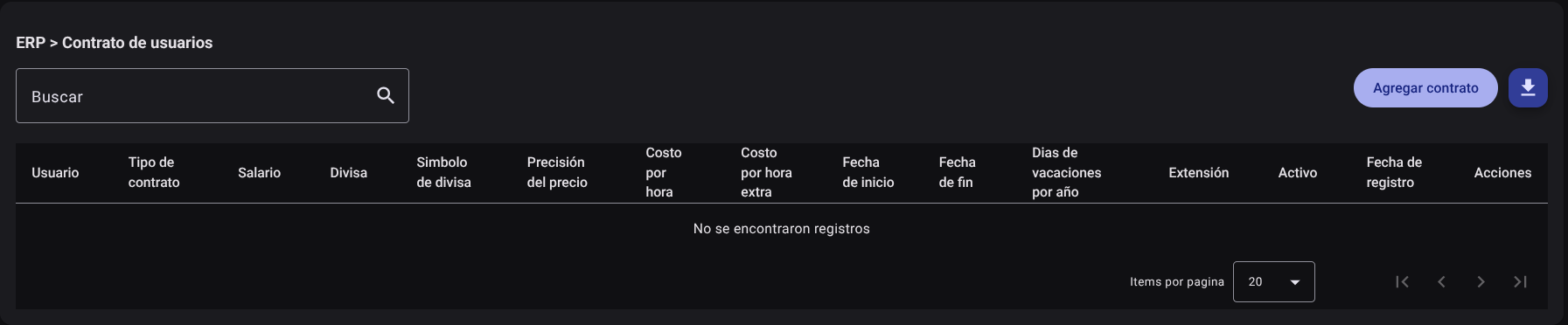
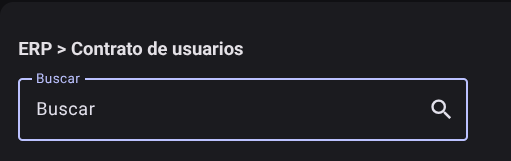
Use the search engine above to filter by the name of the collaborator or type of contract.
2. Add a New Contract
To register a contractual agreement:
- Click the "Add Contract" button in the upper right corner.

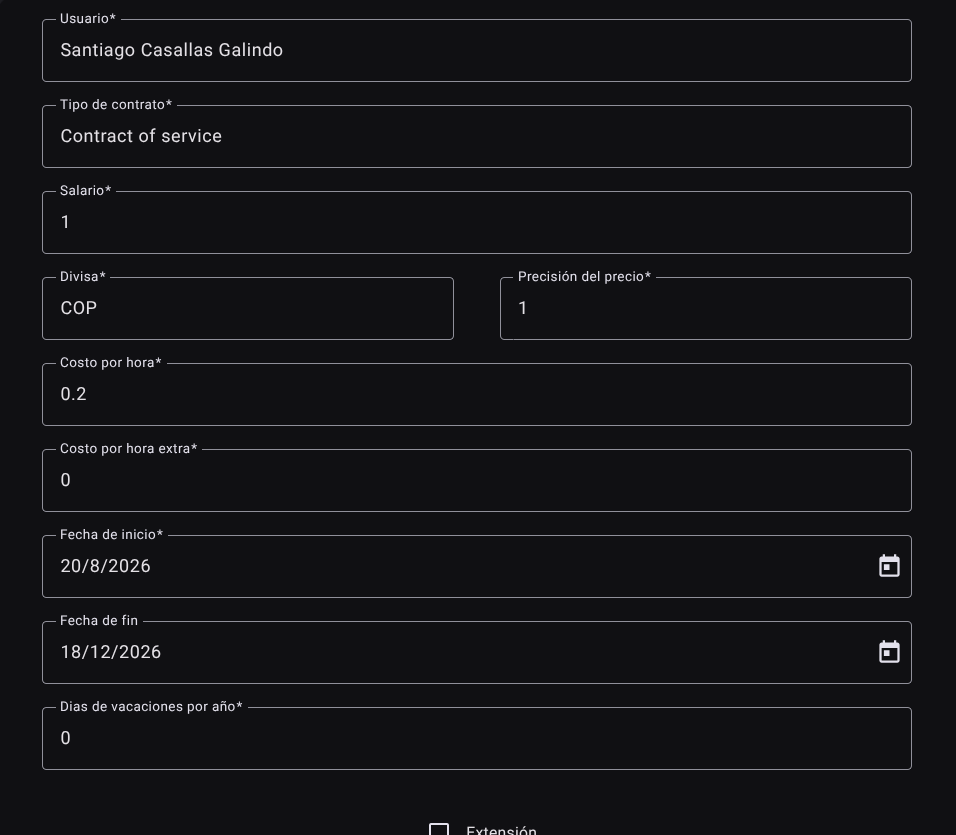
- Fill out the lateral form with the contract parameters:
- User: Search and select the collaborator from the autocomplete list of users in the organization.
- Contract Type: Select the agreement type from the auto-complete list.
- Salary: Enter the monthly base compensation amount.
- Currency: Select the payment currency from the list of enabled currencies.
- Price Precision: Specify the number of decimal places for payroll calculations.
- Cost per hour: Enter the standard hourly rate for project costing.
- Cost per overtime hour: Enter the value of the overtime rate.
- Start Date: Select the contract start date using the interactive calendar.
- End Date: Enter the end date of the agreement (mandatory for fixed-term contracts, optional for open-ended).
- Vacation days per year: Enter the number of paid days off to which you are entitled annually.
- Extension: Check this checkbox if the contract corresponds to an annex or extension of a previous contract.
- Click "Add" to save.

3. Edit a Contract
To record a salary increase, change hourly rates, or extend the end date:
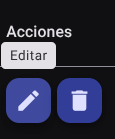
- Locate the collaborator contract and click "Edit" (pencil icon ✏️).
- Make the appropriate changes to the side form and press "Update" to apply the accounting changes immediately.

4. Delete a Contract
To permanently delete a contract token:
- Click the trash icon (🗑️) for the corresponding contract.
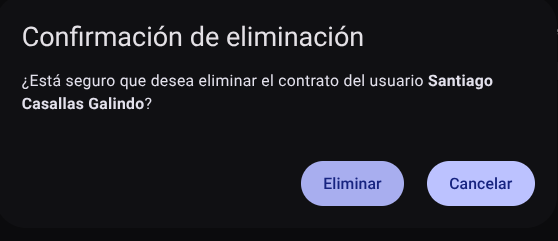
- Confirm the action in the pop-up box.
CAUTION
The deletion of a contract is irreversible. The system will prevent the deletion if there are approved hour records or paid payrolls associated with the validity of the contract, to avoid inconsistencies in the accounting and historical billing reports.
5. Export Contract Report
Click the download button at the top right of the table to export the current and historical contracts database to a spreadsheet file in .CSV format.
Required Technical Permits
The control of contractual and salary information is regulated by the following privileges:
user_contracts_read: Allows access to the view, visualization of the general table and consultation of basic salaries.user_contracts_create: Enables the action of adding new contracts and setting hourly rates.user_contracts_update: Authorizes the modification of salaries, extensions of dates and redefinition of costs per hour.user_contracts_delete: Allows you to delete contractual records from the database (restricted by financial integrity).user_contracts_export: Enables downloading the list in.CSVformat.