Consumer Management (CMS)
Description, Purpose and Objective
NOTE
The Consumers view in the CMS is the module in charge of managing the list of notable clients, success stories and institutional testimonials that are displayed on the public portal (landing page) of the platform.
A Consumer is a record that represents an entity or corporate user that is a client of the platform, and includes its name, official logo, representative title, description of the impact or testimonial, web link and order of display priority.
The objective of this module is to manage the elements of social proof and institutional credibility shown to visitors to the web portal.
Context of Use
This module is used by:
- Content and Marketing Administrators: To publish new logos of corporate clients, update usage testimonials and define the order of visual relevance of success stories.
- System Administrators: To keep the list of platform clients updated.
Possible Actions
1. Consult the List of Consumers and Clients
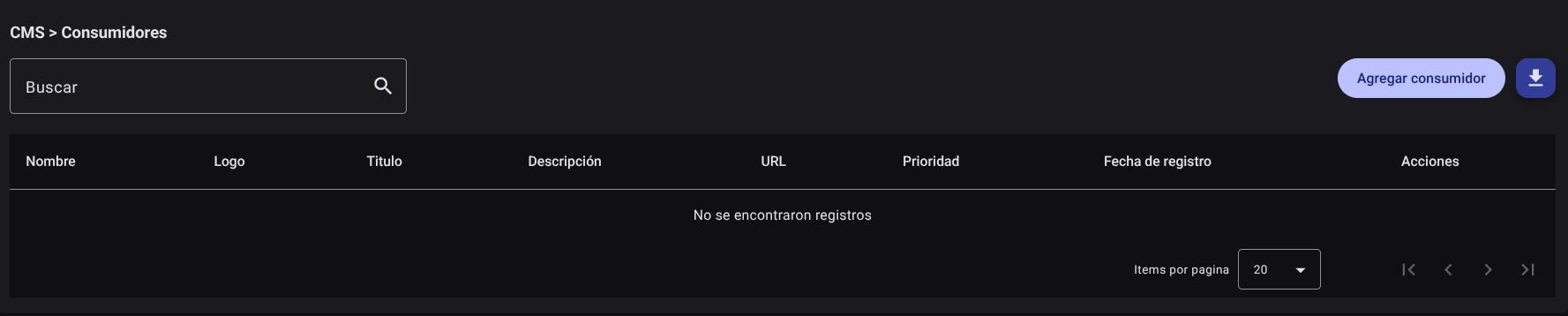
- In the main table, see the registered customers with the columns: Name, Logo, Title, Description, URL, Priority, Registration Date and Actions.
- Use the "Search" field to filter the listing by customer name, title, or description.
- Click the column headings to sort alphabetically or by priority.
2. Register a New Consumer or Client
- Click the "Add Consumer" button.
- Fill in the requested information on the side panel:
- Name: Company name or commercial name of the client.
- Title: Descriptive heading or title of the reference.
- Logo (URL / File): Official logo link or upload.
- Description: Customer testimonial or success story.
- Link: Official client web link (optional).
- Priority: Integer number that defines the order of appearance on the public front page.
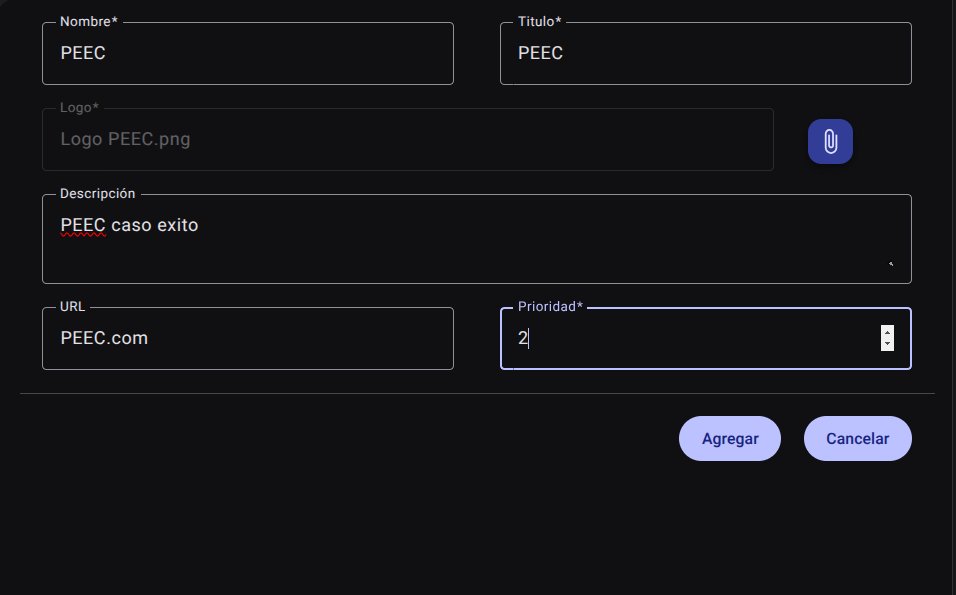
- Click "Add".

3. Edit or Delete a customer
- Locate the consumer in the table and click the edit button (pencil icon✏️) in the actions column.
- Modify the desired fields and save the changes to the Save button.

4. Delete a consumer
- To unsubscribe a consumer, use the delete button (trash can icon🗑️) in the actions column.
- confirm the action.
5. Export the Consumer Catalog
- Click the download button (Export Consumers). A CSV/Excel file will be generated and downloaded with the complete list of clients and parameterized testimonials.
Required Technical Permits
consumer_read: Allows you to view the catalog of registered consumers and clients.consumer_create: Authorizes the registration of new customer testimonials and logos.consumer_update: Enables editing of data, logos and appearance priorities.consumer_delete: Allows the removal of clients from the catalog.consumer_export: Allows the download of the consumer report.