Partnership and Alliance Management (CMS)
Description, Purpose and Objective
NOTE
The Associations and Alliances view in the CMS is the module in charge of managing the catalog of agreements, strategic allies and linked brands that are displayed on the platform's public portal.
An Association is an institutional record composed of the name of the ally, descriptive title, official logo, summary of the alliance and link to its website or information page.
The objective of this module is to provide visibility to the organization's institutional and commercial alliances in a dynamic and centralized way.
Context of Use
This module is used by:
- Content and Marketing Administrators: To publish new agreements, update institutional logos or adjust the official links of allies.
- System Administrators: To enable or disable associations in the institutional portal.
Possible Actions
1. Consult the Catalog of Associations
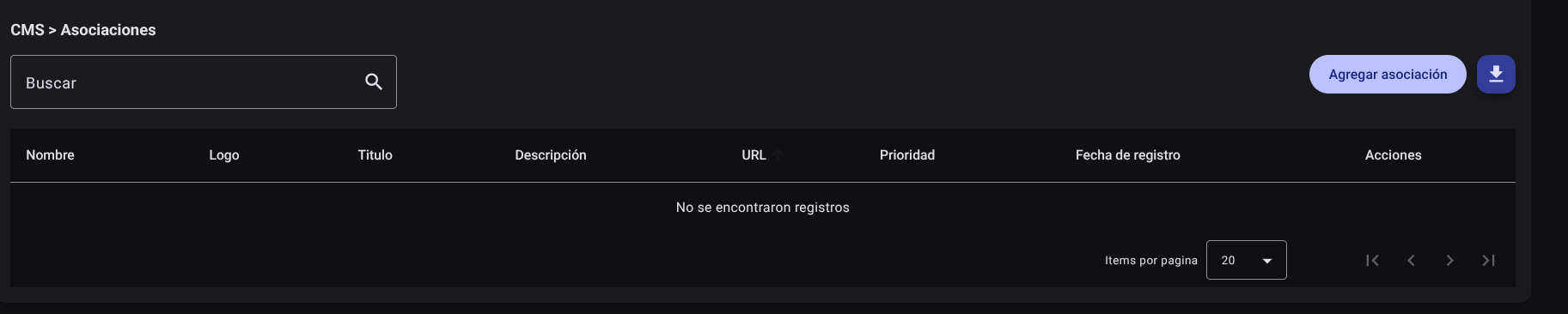
- In the main table, display the list of registered associations.
- Use the "Search" search field to filter by ally name, title, or description.
- Sort the table columns (Name, Title, State) as necessary.
2. Register a New Association
Click the "Add Association" button.
Complete the data in the drop-down side form:
- Name of Ally: Commercial or institutional identifier of the entity.
- Title: Slogan or short title of the alliance.
- Logo (URL / File): Direct link or upload of the official logo.
- Description: Brief summary of the benefits or scope of the agreement.
- Destination URL: Official website link of the ally.
- Status: Active/Inactive.
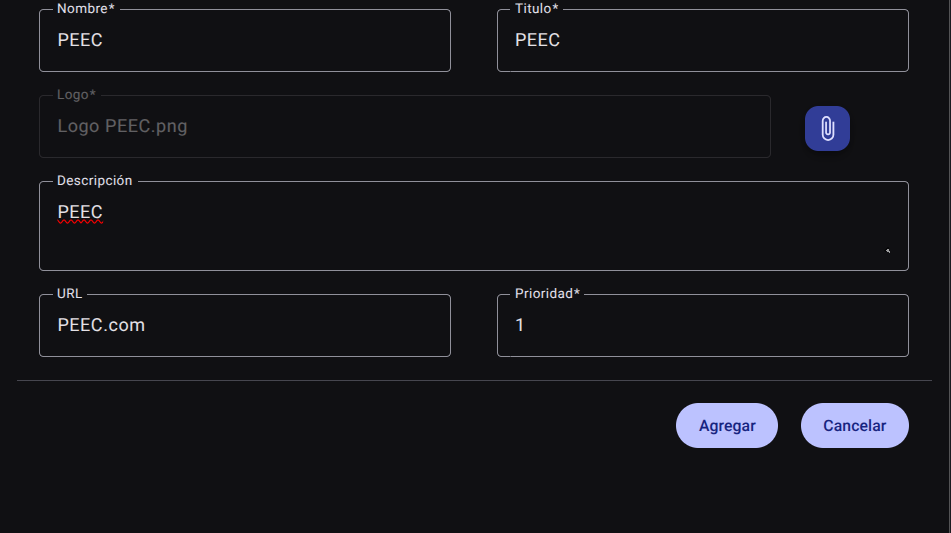
- Click "Add".

3. Edit or Delete an Association
- Locate the association in the table and click the edit button (pencil icon✏️) in the actions column.
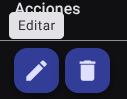
- Modify the desired fields and save the changes to the Save button.

4. Delete an Association
- To unsubscribe from an alliance, use the delete button (trash can icon🗑️) in the actions column.
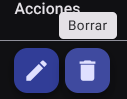
- confirm the action.

5. Export the Association Catalog
- Click on the button with the download icon (Export associations), a file in Excel/CSV format will be generated and downloaded with the complete list of registered agreements.

Required Technical Permits
partnership_read: Allows you to view the list of associations and alliances.partnership_create: Authorizes the registration of new alliances in the CMS.partnership_update: Enables updating logos, links and descriptions.partnership_delete: Allows you to remove or inactivate agreements from the catalog.partnership_export: Allows you to download the massive association report.